
Collection software for firearms, coins, stamps, knives, Japanese swords, geological specimens & more - offline - no cloud risks - Windows, Mac, Linux, iOS, and Android.
Try full features Free for 30 Days - No Credit Card. After 30 days you can upgrade or continue to use free version.
Reports
Canned Reports
Note: These are not available in mobile apps.
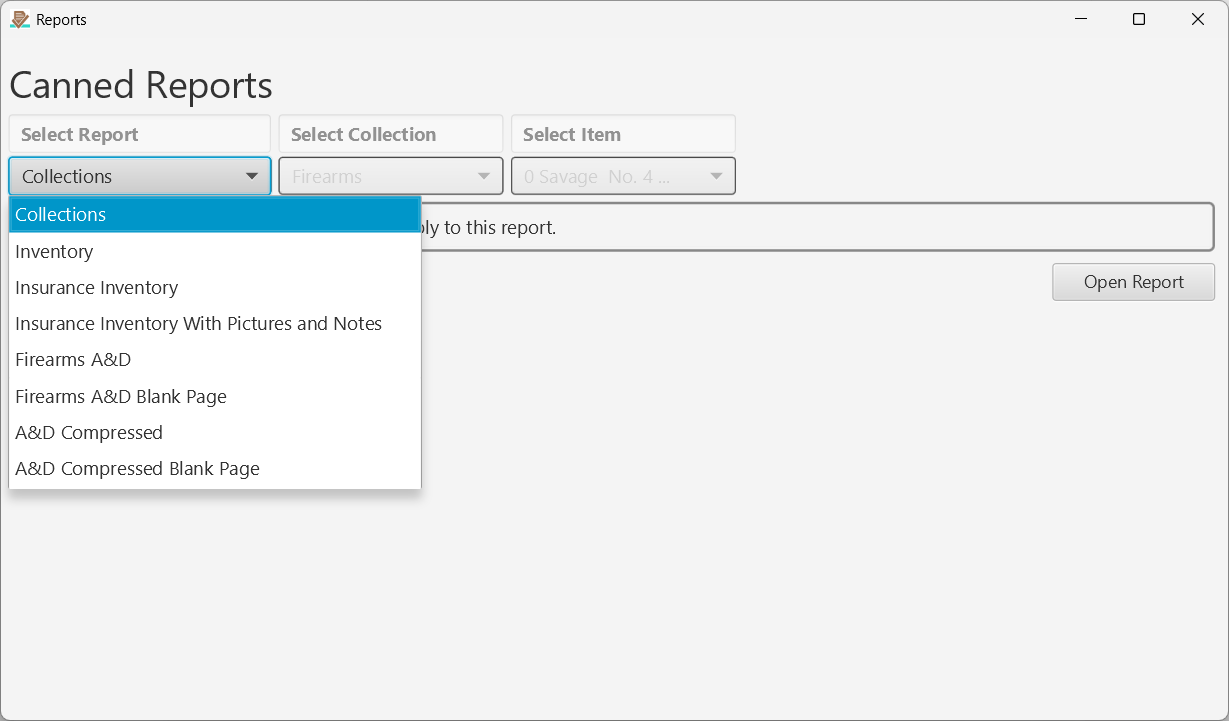
Figure 3.A The Canned Reports page.
Clicking [Reports > Canned] from the Main page menu opens this page which provides an interface for selecting from available predefined reports. The Select Collection and Select Item drop downs are enabled and disabled depending on what report you select.
If you are handy with Jasper Reports you can develop your own predefined canned reports as well.
Custom Reports Feature
Note: These are not available in mobile apps.
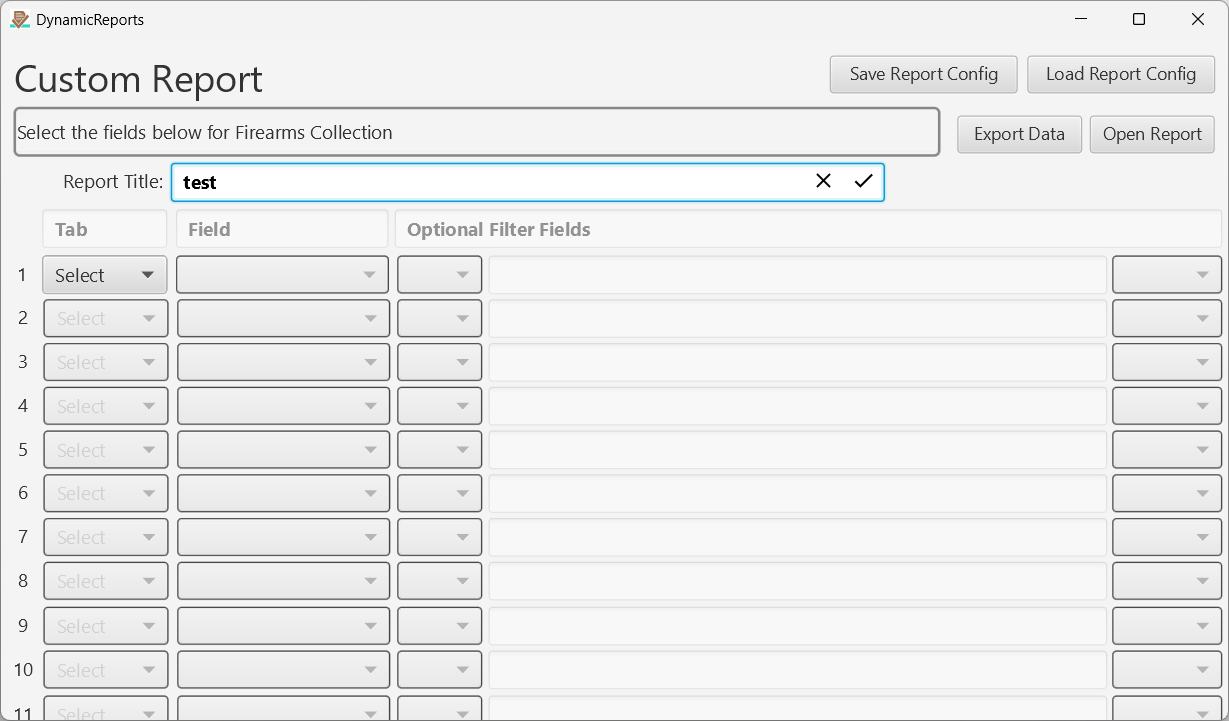
Figure 3.B The Custom Reports page.
Clicking [Reports > Custom] from the Main page menu opens this feature which allows you to select fields that you want to display in a report. Once you have defined a report configuration you click the [Open Report] button to display it.
Unlike the canned reports, these are dynamically generated so they cannot be predefined in Jasper Reports. Instead, an HTML file of the report named dynamicReport.html is generated and stored on your local file system in your NM Collector CP data reports directory (see [Help > About] for that directory location on your system). It is then opened for display and print by your default web browser.
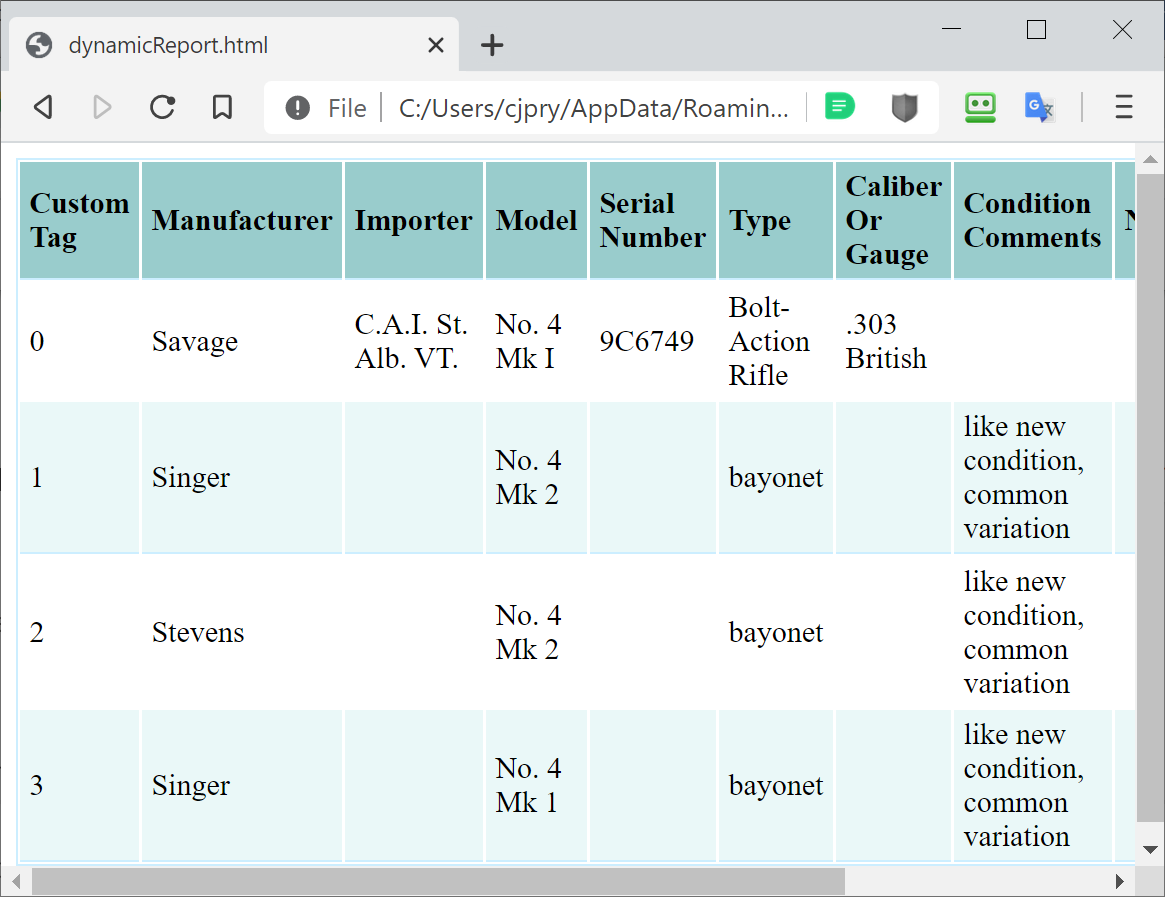
Figure 3.C Sample Custom Report
You can also save your report configuration with the [Save Report Config] button. It will be saved in a file named with the report title you entered and extension of .rept in the location (directory) you choose. You can load it using the [Load Report Config] button. This saves you from having to re-enter the criteria every time you want to load the same report.
You can optionally filter those fields to limit results that appear in the report. This can get a little complicated and produce unexpected results if you add too many options. Here are some suggestions:
- It is best to add filters to the end if you will have multiple filters.
- If an item is missing from a report, it could be that you added a field for a record that does not yet exist. For example, if you want to see the receipt date but no receipt has been entered you will not see the item that has no receipt date.
- When there is more than one filter the default is to use AND conjunctions.
- OR conjunctions can produce unexpected results.
- You cannot use comparison operators (=, !=, >, <) on dates.
- != means “Not Equal”
Print Page Report Buttons
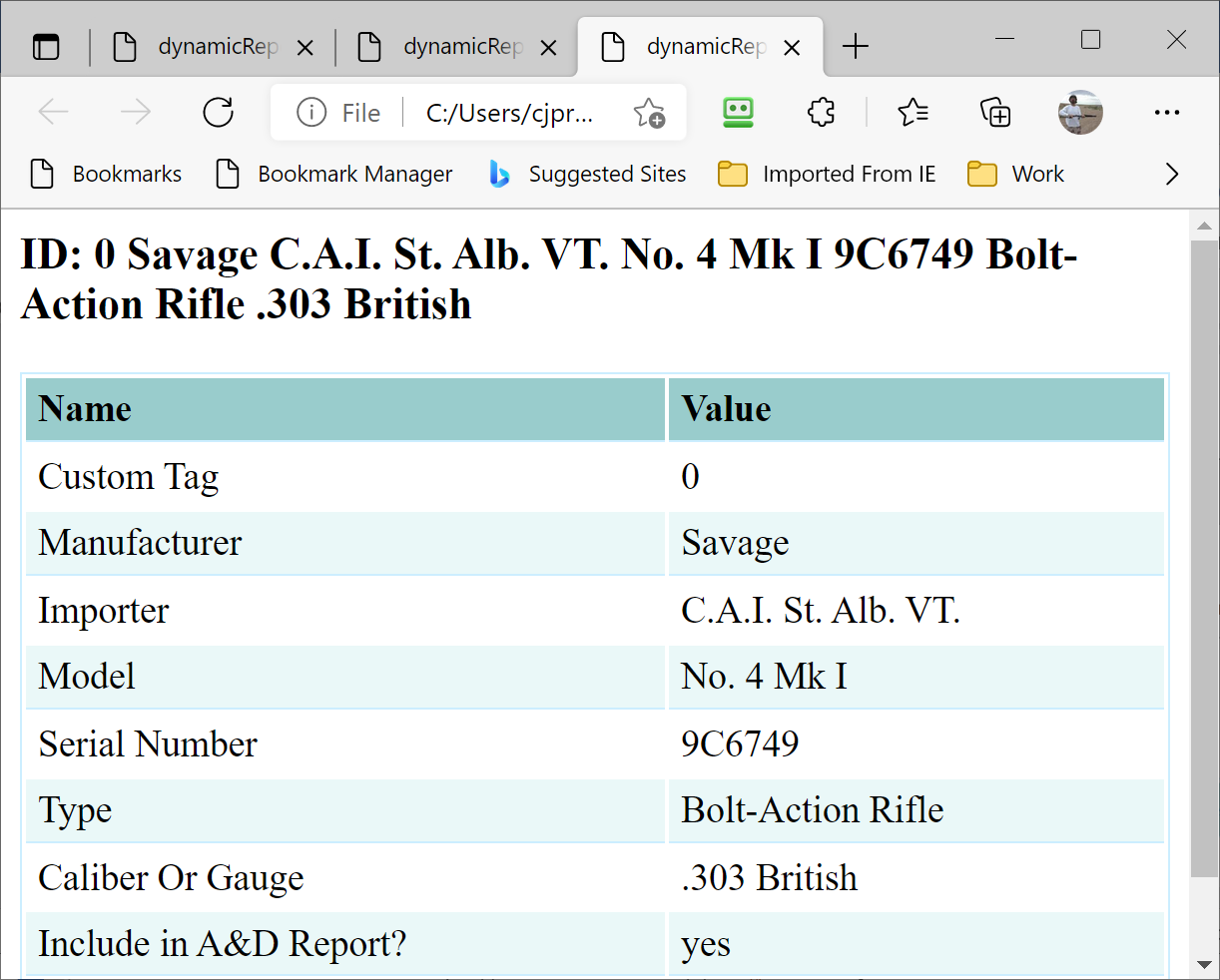
Figure 3.D Print Button for Identification Tab
A Print button can be found on many tabs. When clicked it will open a printable report for that tab. The Print Page Report is generated dynamically, like the Custom Reports feature, and displayed in your web browser.
Note: On Android, the Print button opens a chooser so you can send the report to Gmail, Google Drive or any other app. On iOS, save the report to your file system and then open it from there.
← Statistics Page | Contents | ID Page →
Part of the NM Collector CP 2.3 user manual. Download the full manual (PDF).