
Collection software for firearms, coins, stamps, knives, Japanese swords, geological specimens & more - offline - no cloud risks - Windows, Mac, Linux, iOS, and Android.
Try full features Free for 30 Days - No Credit Card. After 30 days you can upgrade or continue to use free version.
ID Page
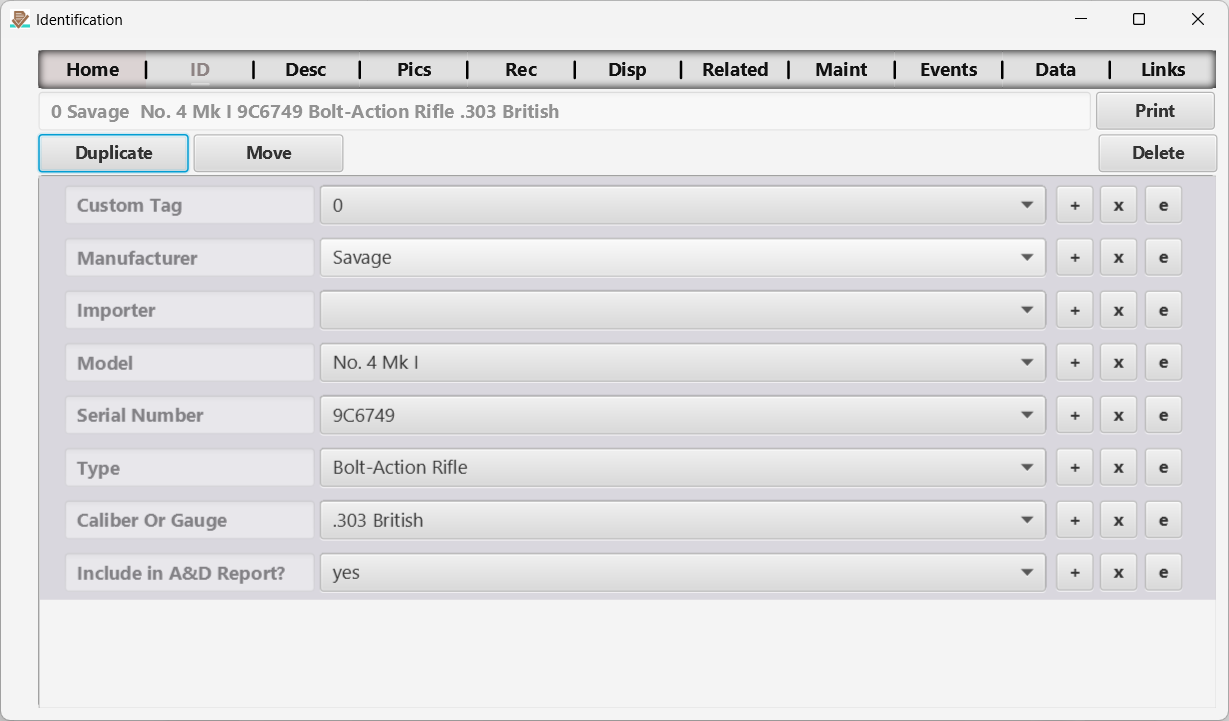
Figure 4 The Identification page.
This page is the center of control for an individual item. Not only does it display key identification information, but it also provides buttons for duplicating, deleting, and even moving an item from one collection to another.
Duplicate (Item) Button
This feature will replicate the current item’s identification, description, and receipt information a selected number of times. This is useful for entry of multiple similar items.
Move (Item) Button
You can move an item from one collection to another with this feature.
Delete (Item) Button
After confirmation, this deletes the current item from the database, together with its picture records and notes. Picture files are not deleted from the Picture Path.
Print Button
Prints currently displayed data. See reports section of this manual.
Fields
The remaining ID fields capture information about the item. Editable drop-down fields support autocomplete on desktop and searchable pickers on mobile. The same behavior applies to Description, Receipt, Disposition, Pictures metadata, Maintenance and Events. Tab labels and field captions can differ by collection. The +, x and e buttons appear beside each drop-down field.
Autocomplete and searchable choices
Use these controls to find a choice without scrolling through a long list. Searches ignore capitalization and match text anywhere in a value. For example, typing part of a manufacturer name narrows the list to matching manufacturers. Each field uses the choices for its own collection and tab.
Desktop instructions
1. Click the editable text/drop-down field. Select the existing text if you want to replace it, then type all or part of the value you need. Matching suggestions appear as you type.
2. Click a suggestion to save it, or use the Up and Down arrow keys to highlight a suggestion and press Enter. The drop-down arrow opens the available choices without requiring a search.
3. To save a new value, type it and press Enter with no suggestion highlighted. If an existing choice matches the text apart from capitalization, the existing spelling is used. Otherwise the new nonempty value is saved and added to this field’s reusable choices.
Cancel unfinished typing. Press Escape, press Tab or leave the field to discard an uncommitted edit. Selecting a suggestion or pressing Enter commits the value immediately; cancelling afterward does not undo a value already saved.
Android and iOS instructions
1. Tap the value area of an editable field. A searchable list opens. You can browse without typing; the current nonempty value appears first and is marked with a check.
2. Tap the search field and type to narrow the choices, then tap a result to save it and return to the item. An existing selected value keeps its stored text.
3. To create a new value, type it and tap Use new value. This action saves the entry and adds it to the field’s reusable choices. Leading and trailing spaces are removed from new entries. If the text exactly matches an existing choice, select that result instead.
Cancel without saving. Tap Cancel or use navigation Back to return without changing the original value. Typing, hiding the keyboard and pressing its Done or Return key do not save. On Android, the first Back press may dismiss the keyboard; another Back press closes the picker.
Phones and tablets. The picker uses the available phone width and a centered panel on larger tablet screens. Its result area adjusts when the keyboard opens. On shorter screens, Use new value moves into the header. Android retains portrait orientation; iPhone and iPad support the orientations available in the app.
Coverage and field controls
Autocomplete and searchable pickers apply to editable text/drop-down fields on the seven tabs listed above. Number, date and note fields use their own input controls. Picture paths are read-only. Collection selectors, report selectors and other navigation controls do not use autocomplete.
Large lists. At most 200 matching choices are displayed at once. Type more of the value to narrow a longer list; filtering searches the full set of choices. If there is no match, refine the search or explicitly save a new value.
Pictures, Maintenance and Events can contain several records for one item. Check the current picture or record before opening a field. Saving applies the value to that record. On mobile, returning from the picker keeps you on the same record and preserves your place on the page.
The buttons beside each drop-down field provide the following actions:
- +
The + button adds a reusable choice to this field’s drop-down list. You can also add a new value while editing, through desktop autocomplete or the mobile Use new value action described above. - x
The x button immediately saves an empty value for the current field. Clearing an item’s field does not remove the old value from its reusable drop-down list. Use e to manage those choices. - e
The e button opens the Edit Drop Down List (DDL) Page, where you can edit or remove reusable choices for the selected field. It does not open the autocomplete search.
← Reports | Contents | Edit Drop Down List (DDL) Page →
Part of the NM Collector CP 2.3 user manual. Download the full manual (PDF).