
Collection software for firearms, coins, stamps, knives, Japanese swords, geological specimens & more - offline - no cloud risks - Windows, Mac, Linux, iOS, and Android.
Try full features Free for 30 Days - No Credit Card. After 30 days you can upgrade or continue to use free version.
User manual › Features Available Through the Menu
Import Menu
When importing data, please keep in mind that the [Help > About] menu item will open the About page (see discussion elsewhere) which will show you where files were exported to. This location varies by operating system.
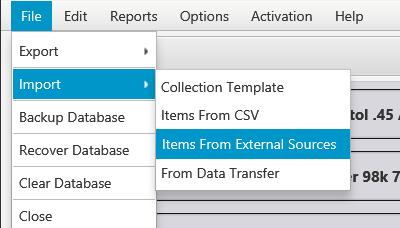
Figure 18 File > Import > …
Collection Template
This allows you to import collection definitions exported by you or others into your copy of NM Collector CP.
The template is matched to a collection by name. For example, the template file Coins_Collection.csv imports into your collection named Coins. If you do not have a collection with that name, it is created. The template’s field labels, tab labels and drop-down values are loaded in one step.
Importing a template over a collection you already have replaces its field labels with the template’s labels, tab by tab. A field the template leaves blank loses its label. Your items are not changed: their values stay in the same fields and show under the new labels. The template’s drop-down values are added to your lists, values already in your lists are kept, and values that differ only in capitalization are not added twice.
If the import would rename or remove a label that a field in your collection already has, a Field Labels Will Change message lists the affected fields before anything is written. Choose Import to continue or Cancel to leave the collection unchanged.
Before importing over a collection you use, export its template ([File > Export > Current Collection Template]) and its items ([File > Export > Current Collection Items To CSV]) so you can go back if you change your mind. To keep an existing collection as it is and load the template beside it, rename the existing collection first ([Edit > Collections]).
Items From CSV
Use this feature to import data that was exported from NM Collector CP. You can use this to transfer data from one operating system to another. This is also used along with the NM Collector JE to CP Data Migration tool to import JE data into CP.
If the items were exported from a collection whose field labels differ from yours, a Field Labels Differ message lists the differences before anything is loaded. The values show under your labels, or not at all where you have no label. Choose Import to continue or Cancel to stop.
Items From External Sources
Use this feature to add items to the currently selected collection from a CSV file made by another collection program, a spreadsheet or an AI assistant. Items From CSV, above, is for files exported from NM Collector CP itself.
Select the collection on the main page, then choose [File > Import > Items From External Sources] and the file. The first row of the file must be the column headings. A spreadsheet must first be saved as a CSV file; files separated by semicolons or tabs are read as well.
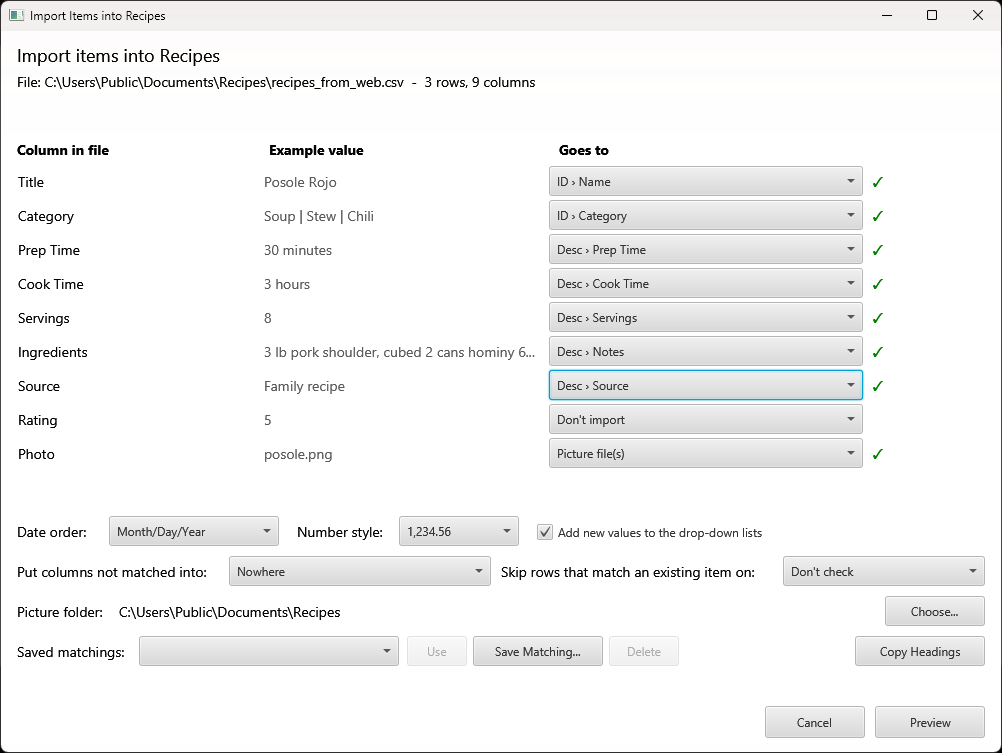
Figure 18.A Matching the columns of a file to the fields of the collection.
Each column of the file is listed with an example value and the field it goes to. The fields are filled in by comparing the column headings with your field labels and with common other names, such as Make for Manufacturer or Price Paid for the Amount on the Rec tab. To change one, choose from its drop-down list. Don't import leaves the column out. Picture file(s) is for a column of picture file names. Add a new field... gives an unused field a label for the column. A line marked "check this" is a guess worth checking; a line marked "moved" gave its field to another column.
A field takes one column, and choosing a field that another column already has moves it to the new column. A text field can also take two or more columns joined together: choosing it asks whether to join them or to move the field, and shows the joined value from the file, in file order with a space ("Pryor Clay"), with a comma ("Pryor, Clay"), or in reverse order ("Clay Pryor"). Such a line is marked "joined". A notes field can always take several columns; each is added as a "Heading: value" line.
In a yes/no field, such as Include in A&D Report? or C&R?, the values yes, y, true, 1 and x import as yes, and no, n, false, 0 and n/a as no. In other text fields a value that matches a drop-down list entry except for capitals, spaces or punctuation is stored with the list's spelling: Bolt-Action Rifle is stored as Bolt Action Rifle.
A Picture file(s) column can hold picture file names or the names of folders of pictures. The import never downloads pictures: a web address is listed in the report as not imported. Save the picture in the folder with the import file and use its file name instead. It can also hold an item number when the picture folder holds one folder of pictures per item, named after the collection and the number (Firearms1, Firearms2 and so on), as NM Collector JE saves them. Every picture in an item's folder is attached, in name order. The Data Sheet text has its own line in the list, Data > Data Sheet.
Date order and Number style are set from the values in the file: 25/04/2020 means Day/Month/Year and 1.234,56 means a decimal comma. Change them if the guess is wrong. Add new values to the drop-down lists adds each value that is not yet in a field's list to that list. Put columns not matched into adds every column set to Don't import to a notes field, as "Heading: value" lines, so nothing in the file is lost. Skip rows that match an existing item on leaves out a row whose value in that field, such as a serial number, is already in the collection or in an earlier row of the file. Picture folder is where picture file names are looked for; the folders inside it are searched as well.
Save Matching... keeps the matching and these settings under a name, together with the name of the program that made the file if you know it. When a file with the same column headings is opened again, the saved matching is used and the window shows which program the file appears to come from. Copy Headings copies the heading row of the file, and none of its data, so that you can send it to support when a file is not recognised.
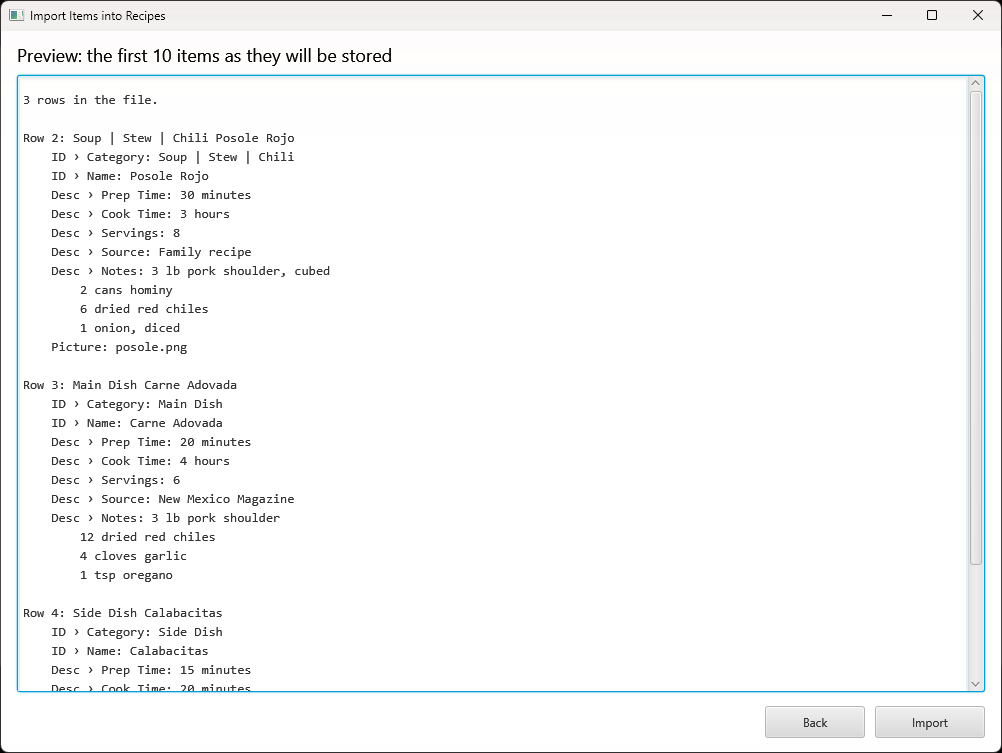
Figure 18.B Preview of the items as they will be stored.
Preview shows the first 10 items as they will be stored. Above them it counts, for the whole file, the values that could not be understood (they are left empty), the pictures that cannot be found and the rows that will be skipped. Back returns to the matching. Import adds the items.
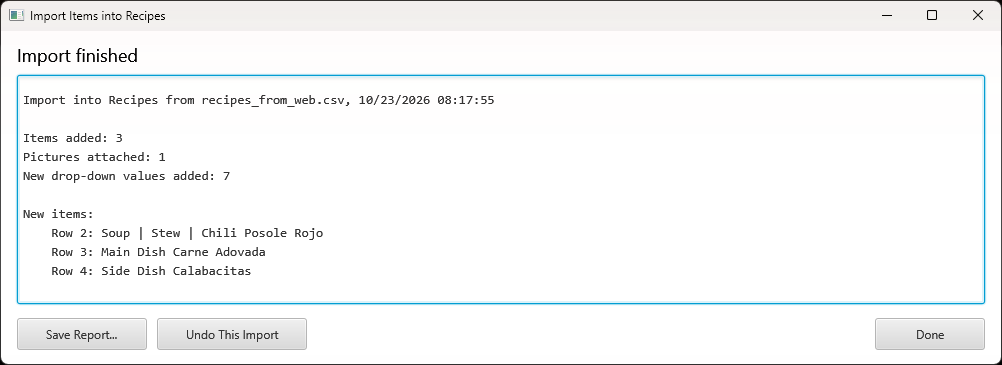
Figure 18.C The import report.
The report names each new item as it appears in the item list, with the row of the file it came from, and lists every value and picture that was left out. Save Report... saves it as a text file. Undo This Import removes the items it added, with their pictures and any drop-down values and field labels it added. Undo is available until you close the report.
Note: This is not available in mobile apps.
Moving from NM Gun Collector Software or NM Collector JE
NM Collector CP comes with ready-made matchings for the CSV exports of NM Gun Collector Software and NM Collector JE, so a firearms export from either imports into the Firearms collection with no matching to do. Select Firearms on the main page, choose [File > Import > Items From External Sources] and choose the export file. The window says which program the file comes from and fills in every column and setting; check the preview, then choose Import.
NM Gun Collector Software. Export the firearms to a CSV file (exportReport.csv). The first and last names of the people you bought from and sold to are joined into the Name field on the Rec and Disp tabs as first name then last name. C&R values of 1 and 0 become yes and no. The columns that have no field in NM Collector CP, BarCodeValue, Accessory, netValue, realizedValue and the eight custom columns, are added to Notes on the Desc tab as "Heading: value" lines.
NM Collector JE. Export each collection to a CSV file (JEFirearms.csv for the Firearms collection). NM Collector JE saves the pictures of each item in a folder beside the file, named after the collection and the item number (Firearms1, Firearms2 and so on). Leave the Picture folder set to the folder of the export, which is where it starts, and every item's pictures are attached. The Data Sheet text goes to the Data Sheet tab. The Unique ID column is left out.
Things to check after importing:
Include in A&D Report? NM Gun Collector Software has no such field, so it is empty on each imported item. Set it to yes on every firearm that belongs in the A&D report. The value from NM Collector JE is imported.
Drop-down lists. Values that are not in a drop-down list, such as bayonet, are added to it, and a value that differs from a list entry only in capitals, spaces or punctuation takes the list's spelling (No. 4 Mk 2 can become No 4 Mk 2). Review the lists afterwards on the Edit Drop-down List page, or clear Add new values to the drop-down lists before importing.
Pictures. The NM Gun Collector Software export has no pictures. Add them on the Pics tab.
Other NM Collector JE collections. Export each one separately and import it into the NM Collector CP collection with the same name. Its column headings are its field labels, so they match the collection's fields without a ready-made matching. Columns that have no heading in the export are left out.
Importing twice. Both ready-made matchings skip a row whose Serial Number is already in the collection, so importing the same file twice adds only the items that have no serial number a second time. Use Undo This Import on the report to take back an import.
Item numbers. Item numbers from the other program are not kept; NM Collector CP gives every item its own.
From Data Transfer
Use this feature to load a database and pictures exported with Export To Data Transfer. In the mobile apps, open the Import page and tap Collection Data Transfer. The app asks which method to use:
- Zip File loads the CP_Data_Transfer.zip file created with Share Data.
- Folder loads the CP_Data_Transfer folder created with Transfer.
Before anything changes, the app checks that the file or folder holds an NM Collector CP transfer and makes a backup of the data already on the device. On a phone or tablet it also checks that there is enough free space. If the load cannot be completed, your previous data is put back and the app tells you so. When the load succeeds, the app asks you to restart it, and your collection, pictures included, is there when it starts again.
Importing replaces everything. A data transfer import replaces all of the data on the receiving device with the data being imported. If the receiving device holds anything you want to keep, export it first. Use the same version of NM Collector CP on both devices.
← Export Menu | Contents | Reports Menu →
Part of the NM Collector CP 2.3 user manual. Download the full manual (PDF).