
Collection software for firearms, coins, stamps, knives, Japanese swords, geological specimens & more - offline - no cloud risks - Windows, Mac, Linux, iOS, and Android.
Try full features Free for 30 Days - No Credit Card. After 30 days you can upgrade or continue to use free version.
User manual › Features Available Through the Menu
Export Menu
When exporting data, please keep in mind that the [Help > About] menu item will open the About page (see discussion elsewhere) which will show you where the files are exported to. This location varies by operating system.
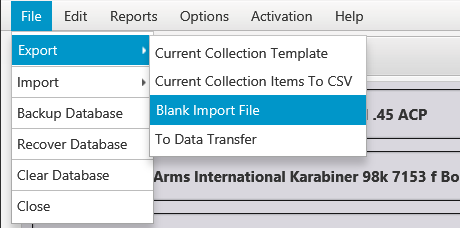
Figure 17 File > Export > …
Current Collection Template
This is how you export your collection template which defines all of the field names for a collection. This is a good way to share your collection template definitions with other users who can import your template for their own use.
Current Collection Items to CSV
You can export all of the items in the currently selected collection to a .csv file which is compatible with Excel and other spreadsheet programs. Pictures associated with each item will be stored in a pictures folder named after the item number. The item number is a behind the scenes number that you do not see in the user interface and is used to uniquely identify each item.
Blank Import File
This writes two files for the currently selected collection to a folder you choose. <Collection> Import.csv holds a single heading row: every field label of the collection, written as Tab > Label (for example Desc > Prep Time), and a last column for pictures. <Collection> Import Instructions.txt says what goes in each column: one line of text, notes that can run to several lines, a date or a number, and the values already in each drop-down list.

Figure 17.A The heading row of Recipes Import.csv.
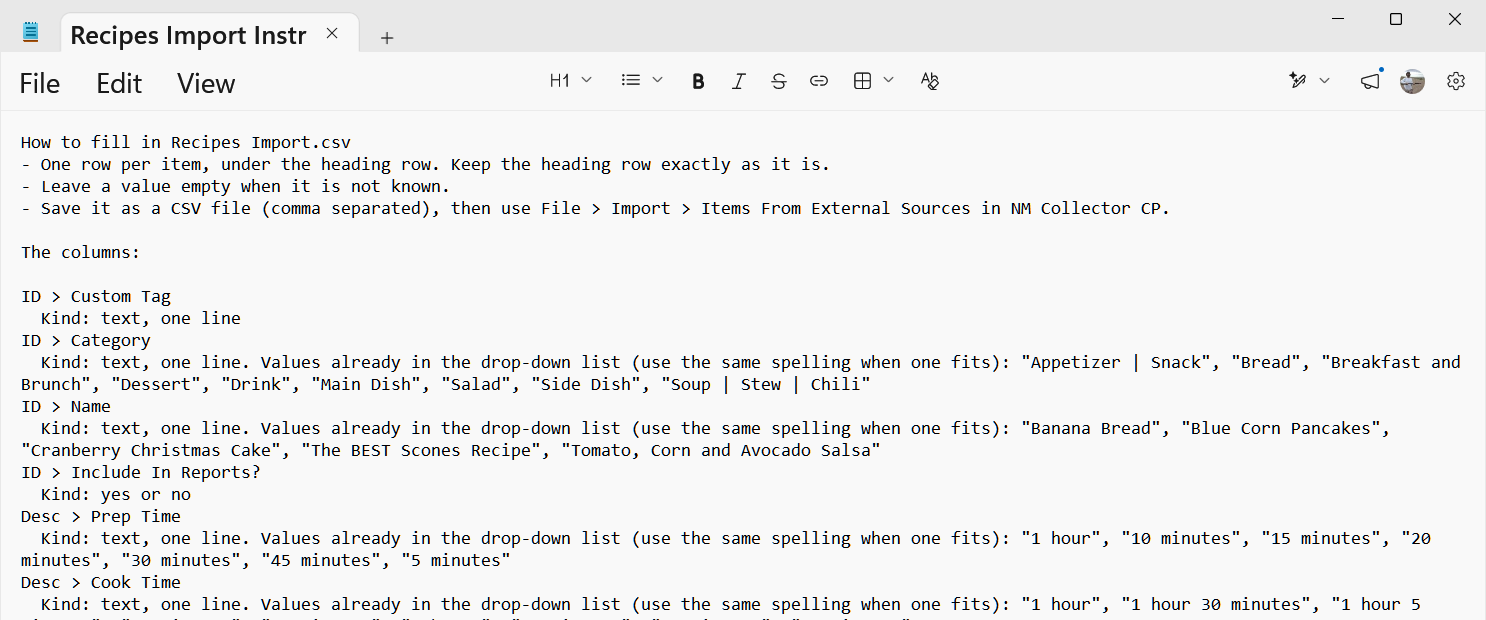
Figure 17.B The start of Recipes Import Instructions.txt.
Fill in one row per item in a spreadsheet program, or give both files to an AI assistant such as Copilot, ChatGPT, Gemini or Claude, together with a receipt, a photo or a web page, and ask it to fill in the file. Then use [File > Import > Items From External Sources]. A file made this way matches every column with no changes.
An AI assistant sends what you give it to the company that runs it, and most keep it in your chat history. The instructions file lists the values already in your drop-down lists, which can include names, businesses and serial numbers: delete any you don’t want to share before giving the file to an AI, and cover anything private on a receipt or other document before you scan it. NM Collector CP itself sends nothing to an AI.
Note: This is not available in mobile apps.
Export To Data Transfer
Use this feature along with From Data Transfer to copy your entire database and all of its pictures from one device to another (Windows, Mac, Linux, iOS, Android). In the mobile apps, open the Export page and tap Collection Data Transfer. The app asks which method to use:
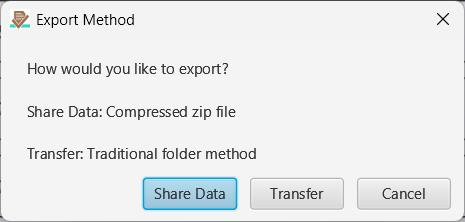
- Share Data packs the database and every picture into a single compressed file named CP_Data_Transfer.zip. On Windows, Mac and Linux, choose a folder and the zip file is written there, ready to copy to a USB flash drive, a network share or a phone. On Android and iOS, the device’s share sheet opens so you can AirDrop or Quick Share the file to another device, save it to Files, iCloud Drive or Google Drive, or send it any other way the device allows.
- Transfer writes the database and pictures to a folder named CP_Data_Transfer in the location you choose. Copy that folder to the other device. Exporting again to the same location updates the existing CP_Data_Transfer folder.
Before Share Data creates the file, the app reminds you where your data can go. The zip file is not encrypted. NM Collector CP never sends your data anywhere itself. On the desktop, if the folder you choose is synced by OneDrive, iCloud Drive, Dropbox, Google Drive or Box, the app says so and asks before saving there. It does the same for Backup Database, the item CSV export and the Stats and Custom Report exports. If you send the file by AirDrop, Quick Share, a USB flash drive or a cable, your collection never leaves your own devices. If you send it by email or through a cloud service, it travels through that provider and is only as private as that provider makes it.
On a phone or tablet, the app checks that there is enough free space before it creates the zip file. If there is not, it tells you how much space is needed.
← Features Available Through the Menu | Contents | Import Menu →
Part of the NM Collector CP 2.3 user manual. Download the full manual (PDF).