
Collection software for firearms, coins, stamps, knives, Japanese swords, geological specimens & more - offline - no cloud risks - Windows, Mac, Linux, iOS, and Android.
Try full features Free for 30 Days - No Credit Card. After 30 days you can upgrade or continue to use free version.
Pictures Page
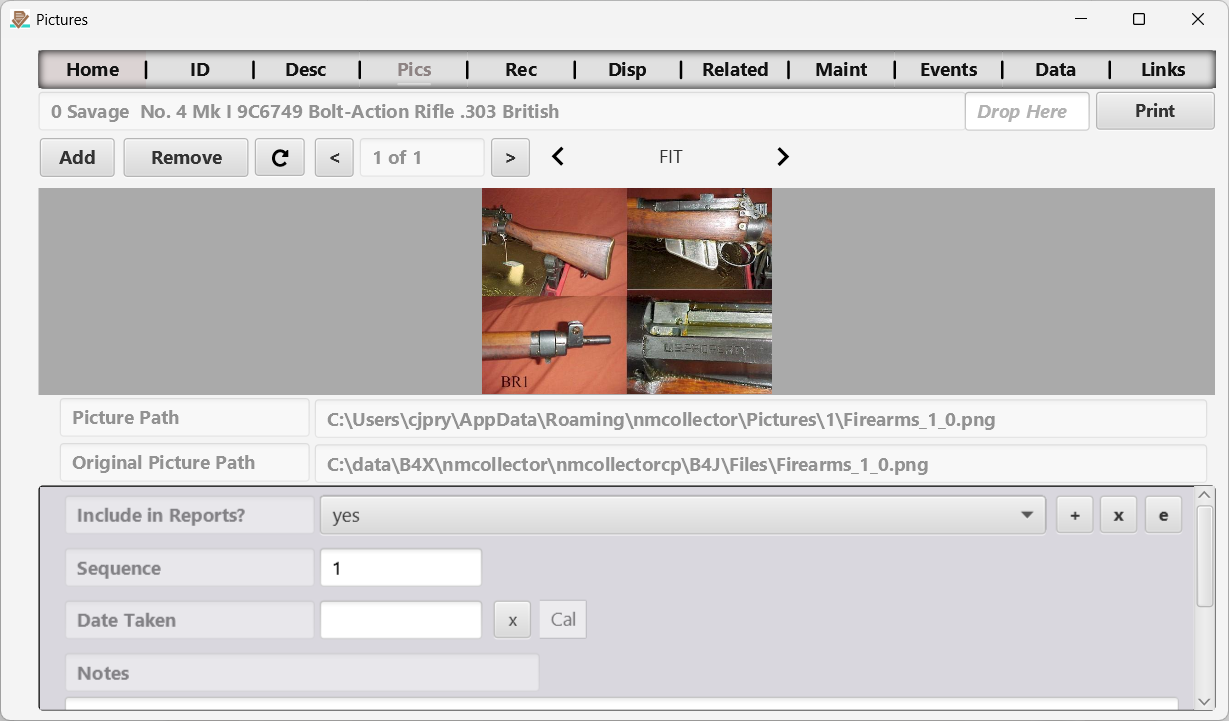
Figure 7 The Pictures page.
Capture one or more pictures and associated data for the selected item.
Use autocomplete or the mobile searchable picker for editable picture metadata. On mobile, switch to Meta Data to reach these fields. The picture path and original path are read-only. A selection changes the currently displayed picture’s metadata, and returning from the mobile picker keeps that picture selected.
NOTES:
- A primary objective is to preserve your data.
- When you remove a picture from an item, that picture is not deleted from the Picture Path. It is just removed from the database for that item.
- If you try to add a new picture that has the same name as a current picture for that item stored in the Picture Path, the old picture will not be replaced by the new picture. If you want to remove the old picture you must manually delete it from the file system.
- If you copy the database from one system to another the pictures will not load unless they are also manually copied to the specified Picture Path. This will not work if you copy from one operating system to another. For example, copy from Windows to Linux will not work because the paths will be a different format.
- Better to export (discussed elsewhere) your data from one system and then import it into the other. This will transfer the pictures as well.
Add (Picture) Button
Navigate to a picture on your file system to associate with this item. Only .jpg, .jpeg, .bmp, .gif and .png images are accepted. The original picture will be left in its original location and a copy of it will be placed in a designated location for your operating system. The original location and new location are captured and displayed in the first two fields located below the picture.
Drag and Drop Picture
You can drag a picture from anywhere and drop it in the “Drop Here” field. Only .jpg, .jpeg, .bmp, .gif and .png will be accepted in the “Drop Here” field. A picture dragged from a web page is downloaded when you drop it. If the download fails, for example because your security software blocks it, nothing is added and a message explains how to add the picture instead: right-click it in your web browser, choose Save image as, then drag the saved file to “Drop Here” or use Add.
Remove (Picture) Button
This removes the current picture from the item. The picture file is not deleted from the Picture Path (see the notes above).
Picture Scroll Bar
You can scroll through pictures using the “<” and “>” buttons located on either side of the current picture field which shows up as a number representing the current picture “of” a number representing the total number of pictures.
Picture Display Options
Just above the upper right corner of the picture you can select how you want the picture displayed. The options are FIT, FILL, FILL_NO_DISTORTIONS, FILL_WIDTH, FILL_HEIGHT, and NONE. Rather than trying to explain each of these options it is better for you to experiment with them to see for yourself how they work.
← Description Page | Contents | Receipt Page →
Part of the NM Collector CP 2.3 user manual. Download the full manual (PDF).