
Collection software for firearms, coins, stamps, knives, Japanese swords, geological specimens & more - offline - no cloud risks - Windows, Mac, Linux, iOS, and Android.
Try full features Free for 30 Days - No Credit Card. After 30 days you can upgrade or continue to use free version.
Unzip it into a templates folder, then choose File > Import > Collection Template.
Whistles collection template
Whistle Collection Software
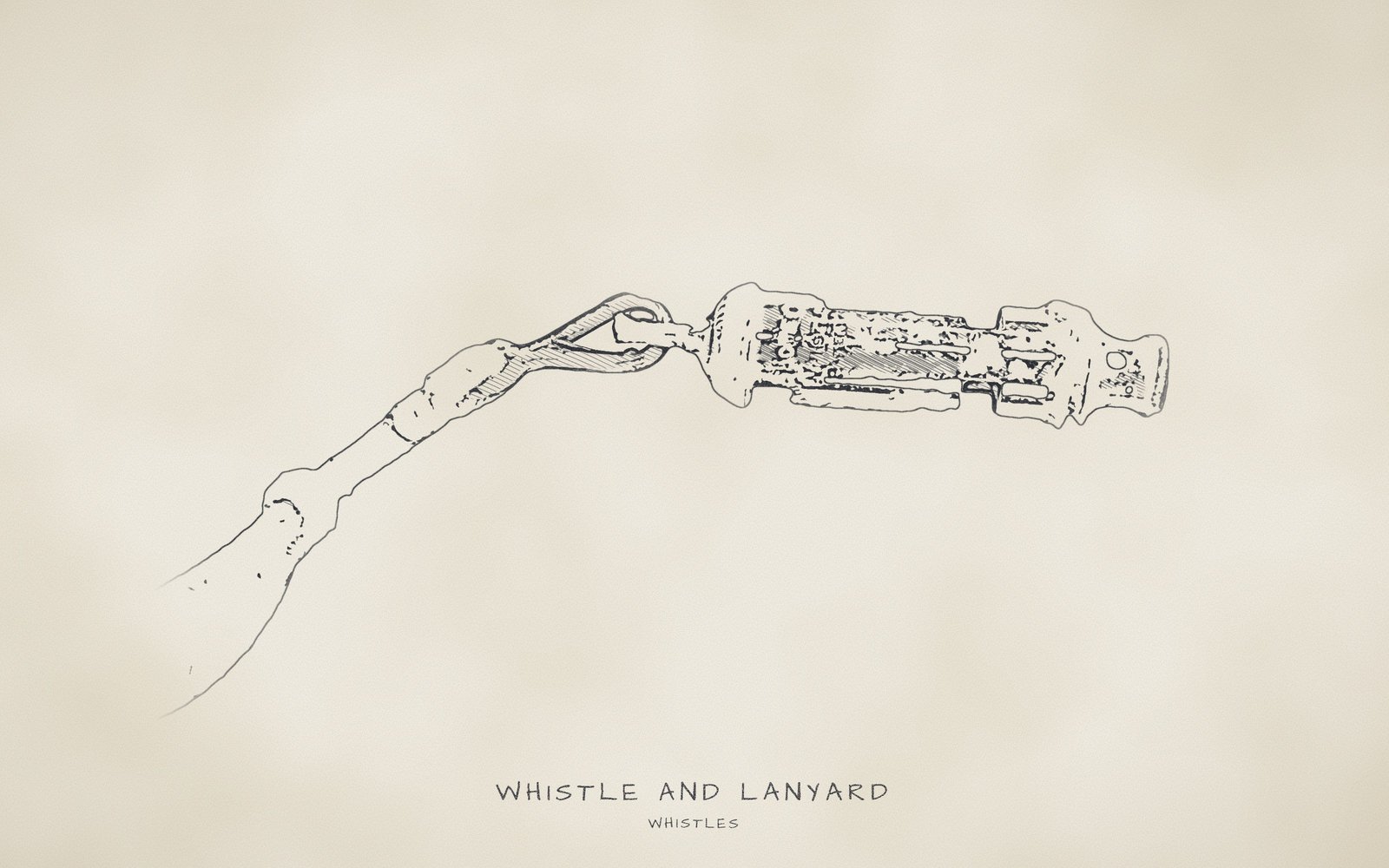
Drawing after a photo by Auckland War Memorial Museum, CC BY 4.0, via Wikimedia Commons.
Record each whistle's maker, built-in extras, sound, size, marks, condition and value in one organized collection.
33 labelled fields, 1 drop-down list, 1 preset value.
Makers, marks and measurements, recorded on your own computer, tablet or phone.
NM Collector CP gives every whistle you collect a record of its own, whether it is a two-note police whistle stamped for a force, a referee's pea whistle, a scout whistle or a Victorian combination piece with a cartridge extractor or corkscrew. The template's 33 fields follow what a collector asks of a piece: who made it, what is stamped on it, how it sounds, which tools it carries and what it is worth. It suits a few inherited pieces as well as a cabinet of police, fire and railway whistles.
Use the template as a starting point. Apart from the placeholder "Sample Whistle" in "Custom Tag", every list starts empty and grows with the makers, cases and sizes you add. Rename any label, edit any list, or make a copy for a narrower specialty such as boatswain's calls. The app itself never connects to the internet, and what you record is stored on your own computer or phone.
Browse the full lists
Choose a list in the first drop-down, then open the second one to scroll through every value in that list, or start typing to jump to a value. These are for browsing only; nothing you pick here is saved.
At a glance
- Built-in tools in "With Compass", "With Knife", "With corkscrew", "With extractor" and "With train or carriage key", each part of the item name when filled, and buttons fitted to the sides in "With buttons".
- Sound in 4 note-count fields from "One note" to "Four notes" and in "Sond Pea", each marked yes when it applies.
- Stamp text in "Engraved Hall Marks and Notes", a "Patent Numner" field, and "Notes of Damage" for dents, worn plating or a sticking pea.
- Size, material and age in "Length", "Diameter or Width", "Weight", "Matrial" and "Date", with "Cabinet", "Stand" and "Service" for display and use.
- "Appraised Value", "Current Value" and "Insured Value" hold figures you type, and a date field beside each shows how old the figure is.
- Close-ups of stamps on the Pictures tab, the seller and amount paid on the Receipt tab, and meetings or care on the Events and Maintenance tabs.
- Custom reports and printing on the desktop, and items exported to CSV for a spreadsheet.
- 3 sample whistles to open and copy from: a police whistle, a referee's pea whistle and a scout combination whistle.
- Records and pictures kept on your own devices, with no account to create and no internet connection needed.
Works offline on Windows, Mac, Linux, Android and iOS · Your records stay on your devices · Every feature free for 30 days · Activations from $24.95 a year.
What this template is for
Whistles, from police and referee whistles to scouting whistles and the combination whistles that carry a compass, knife or other tool, are recorded here by what makes each piece distinct, how it is built and how it sounds, where you keep it, and what it is worth. Each item also holds the condition notes, marks and values that an insurer, an appraiser or a future buyer will ask about.
Even without a serial number, the Identification tab tells one whistle from the next, using a "Custom Tag" of your choosing, the maker, the extras built into the whistle, and the sound details, meaning whether it has a pea (the small ball inside that gives a whistle its trill) and whether it sounds one, two, three or four notes. The Description tab holds storage, size, weight, material, date, marks, damage and value: the cabinet and stand, the measurements, the service the whistle saw, 2 longer note fields, and appraised, current and insured values, each with its own date.
Nearly every list in this template starts empty and fills from your own collection. Type a maker, a cabinet or a size once, add it to the list, and later items pick it in one step instead of retyping it. That keeps spelling consistent, which makes filters and reports reliable. Three labels, "Matrial", "Patent Numner" and "Sond Pea", keep their old spellings, and renaming any of them corrects it in your collection.
What you can do with it
- Build an insurance list from "Insured Value" and "Date Insured", alongside maker, material, weight and length, so an insurer receives a dated description of each whistle in the collection.
- Plan a display case around the whistles it holds: a custom report that filters on "Cabinet" or "Stand", for example every whistle in Display Case 1, shows what belongs together when you rearrange a display or check a shelf.
- Set apart the police, sports and scouting whistles with a custom report filtered on "Service", for a talk, an exhibit or a club show.
- Tell combination whistles from plain ones through "With Compass", "With Knife", "With extractor", "With corkscrew" and "With train or carriage key", and list only the whistles that carry a chosen extra.
- Keep a record of the care each whistle has had: log a gentle clean or a repair on the Maintenance tab that every collection shares, and note a follow-up date in "Next Due Date" if you want to revisit it.
- Print every stamp, dent and figure for the pieces you choose: a report of "Engraved Hall Marks and Notes", "Notes of Damage", "Date Appraised", "Appraised Value" and "Current Value" gives an appraiser or a buyer the details a whistle is judged on.
- A printed report or a CSV export of the items writes down each whistle's tag, maker, marks and values in one place, ready to hand to a fellow collector or to family.
- Keep a history for each whistle: the Receipt tab records who sold it and what you paid, and the Events tab records occasions such as a club meeting where a whistle was brought in for identification.
Best for: Hobbyists who own police, referee, scouting or combination whistles and want a flexible record of measurements, marks, condition and values for each piece, without a long preset catalog to work through.
Why collectors choose NM Collector CP for Whistles
Combination Whistles Told Apart by Their Tools
The template gives the compass, knife, corkscrew, extractor and carriage key a field each on the Identification tab. A short description in each, such as the bore of a cartridge extractor or where a compass is fitted, joins "Custom Tag" and "Maker" in the item name, so your list of whistles shows which pieces carry which tools without opening a record.
Pea, Pealess and the Number of Notes
The sound of a whistle has its own fields on the Identification tab. "Sond Pea" says whether a pea sits in the chamber, and "One note" to "Four notes" record whether it sounds one note or several. That keeps a pealess two-note police whistle of the Metropolitan pattern apart from a single-note referee's pea whistle, and a custom report on the desktop can list either group.
Stamps That Set Variants Apart
On many whistles the stamp is what separates one variant from the next: a maker's address, a force name, a patent number. With the stamp typed out in "Engraved Hall Marks and Notes" and a close-up on the Pictures tab, the difference is on record. For several near-identical whistles, Duplicate Item copies one record's identification, description and receipt details as many times as you choose; then change the stamp text, "Custom Tag" and anything else that differs.
Cases, Values and Holdings Kept to Yourself
Which whistles you own, which case each one sits in and what they are insured for are details you may prefer to keep private. NM Collector CP stores them on your own computer or phone, with no account to create. The app itself never connects to the internet. Nothing leaves your devices unless you make a report or a file and send it yourself, and a file sent by email or a cloud service travels through that provider.
At Antiques Fairs, Auctions and Club Meetings
Before you buy at a fair, bid at an auction or trade at a club meeting, it helps to know whether you already own that version. With the collection on an Android or iOS phone, you can open a whistle to read its stamp text or compare its pictures, with or without a signal, and log a purchase on the Receipt tab on the spot, with the dealer in "Business" and what you paid in "Amount".
A Record for the Insurer and the Next Owner
A whistle that came through a family or a chance find can leave its next owner unsure what it is or who made it. A record with the maker, the stamps, the material, the length and weight, the damage and 3 dated values holds what an insurer or appraiser may ask for and what an heir will wonder about. Print a report on the desktop or export items to CSV, and keep a copy away from the collection.
Tin Whistles, Trench Whistles and Other Collections
A new installation comes with 30 templates. A tin whistle played for music belongs in Musical Instruments, and a trench whistle kept with an officer's uniform and field gear may sit better in Militaria, while one collected for itself stays here beside police, sports and scouting pieces. The Related tab links a whistle to an item in another collection, such as a photograph of its first owner in Paper Items.
How the fields work
Every text field in a template is a drop-down field. Pick a value from the list or type your own; the + button adds what you typed to the list, the x button clears the field and the e button opens the list editor. Number fields accept any number, date fields hold dates and notes fields hold longer text. The details below cover every field on the Identification and Description tabs, and any drop-down on the other tabs that is specific to this template. Every list can be browsed in the drop-downs under Browse the full lists; lists of 10 values or fewer are also written out in full below.
Identification tab
The Identification tab tells one whistle apart from every other. The item's name in lists and page titles is built from 7 fields in this order: "Custom Tag", "Maker", "With Compass", "With Knife", "With extractor", "With corkscrew" and "With train or carriage key". An empty field adds nothing, and the order decides how items read, so put the wording you most want to see first into "Custom Tag". The remaining fields cover buttons, pea, note count and the reports marker.
Custom Tag
Drop-down · 1 preset value
A label of your own choosing that leads the item's name in lists. Use an inventory number or a short descriptive tag, as the samples do with Metropolitan Police whistle, Acme Thunderer referee whistle and Scout combination whistle.
The list ships with 1 starter entry, "Sample Whistle", which acts as a placeholder rather than a real tag. Every tag you add after that is your own, so the list grows into a record of the names you use.
All 1 preset value: Sample Whistle
Maker
Drop-down · no preset values
The company or workshop that made the whistle, such as J. Hudson and Co., which appears on two of the sample items, or Unknown (German) when the origin is only a best judgment. It follows the tag in the item's name.
This drop-down starts empty. Type a value into the field and use the + button to add it to the list; it will be there the next time you need it.
With Compass
Drop-down · no preset values
Records whether the whistle has a built-in compass and where it sits. The Scout combination whistle sample enters Compass in the end cap here. Leave the field empty for a whistle without one.
This drop-down starts empty. Type a value into the field and use the + button to add it to the list; it will be there the next time you need it.
With Knife
Drop-down · no preset values
For a combination whistle that has a knife built in. A brief description such as a single blade is more useful than a bare yes. Leave the field empty for a whistle without one.
This drop-down starts empty. Type a value into the field and use the + button to add it to the list; it will be there the next time you need it.
With extractor
Drop-down · no preset values
Notes a built-in extractor, a small tool for pulling something out, which some combination whistles carry. Enter a short description of what it is and where it is fitted, so a whistle with this feature can be told from a plain one at a glance.
This drop-down starts empty. Type a value into the field and use the + button to add it to the list; it will be there the next time you need it.
With corkscrew
Drop-down · no preset values
For a combination whistle that includes a corkscrew. A short entry is enough, or add how it is fitted. A whistle with several extras simply has several of the extras fields filled in.
This drop-down starts empty. Type a value into the field and use the + button to add it to the list; it will be there the next time you need it.
With train or carriage key
Drop-down · no preset values
Marks a whistle that doubles as a train or carriage key, one of the tools a combination whistle can carry. Enter a short description of the key, and leave the field empty otherwise.
This drop-down starts empty. Type a value into the field and use the + button to add it to the list; it will be there the next time you need it.
With buttons
Drop-down · no preset values
Records a whistle that has buttons. Describe them in a few words, such as how many there are and what they are made of. It sits outside the item's name, so it adds detail without lengthening entries in lists.
This drop-down starts empty. Type a value into the field and use the + button to add it to the list; it will be there the next time you need it.
Sond Pea
Drop-down · no preset values
Says whether the whistle has a pea, the small ball inside the chamber that produces the trilling sound. The Acme Thunderer sample has one. Leave it empty or enter no for a pea-less whistle.
This drop-down starts empty. Type a value into the field and use the + button to add it to the list; it will be there the next time you need it.
One note
Drop-down · no preset values
Mark a whistle that sounds a single note with yes, as the Acme Thunderer referee whistle sample is. Together with the other note-count fields it lets you list whistles by how many notes they sound.
This drop-down starts empty. Type a value into the field and use the + button to add it to the list; it will be there the next time you need it.
Two notes
Drop-down · no preset values
Enter yes for a whistle that sounds two different notes, as the Metropolitan Police whistle sample does. It is one of 4 note-count fields, so each whistle usually has just one of them filled in.
This drop-down starts empty. Type a value into the field and use the + button to add it to the list; it will be there the next time you need it.
Three notes
Drop-down · no preset values
Enter yes for a whistle that sounds three different notes, as the Scout combination whistle sample does. Marking the count lets you compare similar whistles that differ only in how they sound.
This drop-down starts empty. Type a value into the field and use the + button to add it to the list; it will be there the next time you need it.
Four notes
Drop-down · no preset values
Use this for a whistle that sounds four different notes. None of the sample items uses it, so it stays empty until a matching whistle arrives.
This drop-down starts empty. Type a value into the field and use the + button to add it to the list; it will be there the next time you need it.
Include In Reports?
Drop-down · no preset values
A yes or no marker you set for each item for report purposes. All three sample whistles are set to yes. Use no for pieces such as those you have not finished cataloging.
This drop-down starts empty. Type a value into the field and use the + button to add it to the list; it will be there the next time you need it.
Description tab
The Description tab holds what you record once a whistle is identified: where it is stored and displayed, its size, weight, material, date and service, its marks and damage, and 3 values that each have a date beside them. Most fields take short text with a unit, such as 3 in or 1 oz.
Cabinet
Drop-down · no preset values
The display case, cabinet or drawer where the whistle is kept. Two of the three samples record Display Case 1. Using one consistent name lets you list everything stored in one place, for example when you check a shelf or plan a move.
This drop-down starts empty. Type a value into the field and use the + button to add it to the list; it will be there the next time you need it.
Depth
Drop-down · no preset values
A depth measurement for shapes where "Length" and "Diameter or Width" do not tell the whole story. The sample items leave it empty. Type the unit with the number, as the samples do for length and weight (3 in, 1/2 oz), so entries compare cleanly.
This drop-down starts empty. Type a value into the field and use the + button to add it to the list; it will be there the next time you need it.
Stand
Drop-down · no preset values
The stand or mount the whistle is displayed on, such as the Acrylic stand recorded on the Acme Thunderer sample. Noting it helps you match stands to whistles when a display is rearranged or repacked.
This drop-down starts empty. Type a value into the field and use the + button to add it to the list; it will be there the next time you need it.
Small Barrel Diameter
Drop-down · no preset values
The diameter of the whistle's small barrel, entered with its unit, as in the 1/2 in recorded for the Metropolitan Police sample. It complements "Diameter or Width" for the overall size.
This drop-down starts empty. Type a value into the field and use the + button to add it to the list; it will be there the next time you need it.
Service
Drop-down · no preset values
The role or organization the whistle served, such as Police, Sports (referee) or Scouting in the sample items. It lets you filter reports by use and tells an appraiser what a plain-looking whistle was made for.
This drop-down starts empty. Type a value into the field and use the + button to add it to the list; it will be there the next time you need it.
Weight
Drop-down · no preset values
The whistle's weight with the unit typed in, for example 1 oz or 1/2 oz as in the samples. It is worth recording next to the length when you describe a piece to an insurer or a buyer. Metric units such as g work just as well if you prefer them.
This drop-down starts empty. Type a value into the field and use the + button to add it to the list; it will be there the next time you need it.
Matrial
Drop-down · no preset values
The metal or other material the whistle is made from, such as Nickel-plated brass or Brass in the samples. Material affects appearance, wear and value, so note plating as well as the base metal where you know it.
This drop-down starts empty. Type a value into the field and use the + button to add it to the list; it will be there the next time you need it.
Date
Drop-down · no preset values
When the whistle was made, typed as text so approximate dates fit: the samples use circa 1920, 1950s and circa 1930. This is the age of the whistle, not the day you acquired it, which belongs with the receipt details.
This drop-down starts empty. Type a value into the field and use the + button to add it to the list; it will be there the next time you need it.
Length
Drop-down · no preset values
The overall length of the whistle with its unit, as in 3 in, 2 in and 3 1/2 in from the samples. Entered the same way each time, it helps you compare similar models.
This drop-down starts empty. Type a value into the field and use the + button to add it to the list; it will be there the next time you need it.
Patent Numner
Drop-down · no preset values
A patent number stamped on the whistle, where it has one, so the design can be researched later. Leave the field empty for whistles without a patent mark.
This drop-down starts empty. Type a value into the field and use the + button to add it to the list; it will be there the next time you need it.
Diameter or Width
Drop-down · no preset values
The diameter or width of the whistle, with its unit, as in the 5/8 in on the Scout combination sample. Read it with "Length" and "Small Barrel Diameter" to get a full picture of the whistle's size.
This drop-down starts empty. Type a value into the field and use the + button to add it to the list; it will be there the next time you need it.
Notes of Damage
Notes
Free text describing wear, dents, cracks or repairs, such as the light plating wear at the mouthpiece and the sticking compass needle in the samples. Plain condition notes give an insurer, buyer or appraiser the details they ask for.
Engraved Hall Marks and Notes
Notes
Text of stamps and engraved marks, copied as it appears, including any hallmarks (the small official assay marks struck on silver or gold pieces). The samples hold maker and place stamps, such as ACME THUNDERER MADE IN ENGLAND on the top and GERMANY stamped on the barrel.
Date Appraised
Date
The day an appraiser assessed the whistle. It goes with "Appraised Value", so the figure always has a date beside it. The Scout combination whistle sample records both.
Date Current Value
Date
The day you last set or reviewed the figure in "Current Value". The software does not look up prices, so this date is yours to enter, and it shows at a glance how recent your estimate is.
Date Insured
Date
The date you last set or confirmed the figure in "Insured Value". Keeping it current means you can answer quickly when an insurer asks when a whistle's cover amount was last checked.
Appraised Value
Number
The amount an appraiser put on the whistle, typed as a plain number with no formatting. The Scout combination whistle sample shows 60.0. The figure comes from an appraisal you hold, since the software does not look up prices.
Current Value
Number
Your own working estimate of what the whistle is worth today, entered as a plain number. The samples show 45.0, 20.0 and 60.0. You revise it as you learn more, and the date field beside it says when.
Insured Value
Number
The amount stated for the whistle on an insurance policy, entered as a plain number. It can differ from "Current Value". None of the sample items fills it in.
Tabs every collection shares
Besides Identification and Description, each item has these tabs. They work the same way in every collection.
- Pictures: Attach photographs to an item, with a note, the date each was taken, a sequence number and a flag saying whether the picture belongs in reports. Pictures are copied into the application’s own folder and stay on your device.
- Receipt: Who you got the item from and when: the business or person, address, date and amount, plus notes.
- Disposition: The same layout for the other end of an item’s life: to whom it was sold, traded or given, where, when and for how much.
- Related: Link an item to other items in your collections, for example a rifle and its scope or a watch and its box.
- Maintenance: Record maintenance operations with what was done, who did it, where, what it cost, when it was completed and when the next one is due. Repeat an operation each time you perform it.
- Events: A dated log of things that happen to an item: shows, appraisals, loans, repairs and outings, with a description, results, helpers, location and cost.
- Data Sheet: A large free-form area for anything that does not fit elsewhere, such as detailed measurements or component notes.
- Links: Links to web pages, documents and pictures related to an item, each with an optional description.
The three sample items
Every new installation includes three sample items in this collection so you can see how the fields are meant to be filled in.
- Metropolitan Police whistle by J. Hudson and Co. (listed as “Metropolitan Police whistle J. Hudson and Co.”): A whistle identified by "Custom Tag" and "Maker", with "Two notes" and "Include In Reports?" both marked yes. The Description tab records Display Case 1, nickel-plated brass, circa 1920, 3 in long, 1 oz, Police service, stamped marks, light plating wear and a current value of 45.0.
- Acme Thunderer referee whistle (listed as “Acme Thunderer referee whistle J. Hudson and Co.”): A plain sports whistle: the pea marker and "One note" are both yes. The Description tab notes an Acrylic stand, Sports (referee) service, 1/2 oz, the 1950s, 2 in length, the engraved text ACME THUNDERER MADE IN ENGLAND on the top and a current value of 20.0.
- Scout combination whistle with compass (listed as “Scout combination whistle Unknown (German) Compass in the end cap”): A combination whistle: "With Compass" holds Compass in the end cap, "Three notes" is yes and the maker is Unknown (German). Damage notes record a sticking needle and a small dent, and an appraisal date pairs with an appraised value of 60.0. An Events entry logs a club meeting for identification.
Tips
- Choose one habit for "Custom Tag", such as a short descriptive name or an inventory number, and keep to it. It leads the item's name, so a consistent tag keeps your lists easy to scan.
- In the extras fields, a short description such as Compass in the end cap is more useful than yes, because the first 5 extras also become part of the item's name in lists.
- Type measurements and dates the same way each time, such as 3 in or circa 1930, and add each new form to its list so later whistles can pick it instead of retyping.
- Copy stamped text into "Engraved Hall Marks and Notes" and note existing wear in "Notes of Damage" as soon as a whistle arrives, and add photographs of the stamps on the Pictures tab, so you can show later what the piece looked like when you acquired it.
Frequently asked questions about Whistles
How do I record whether a whistle has a pea and how many notes it sounds?
Enter yes in "Sond Pea" if the whistle has a pea and no, or nothing, if it is pealess. Then mark the matching field, from "One note" to "Four notes", with yes: the police sample marks "Two notes" and the referee sample "One note". The pea label keeps its old spelling in release 2.3; Edit Collection Templates on the Edit menu lets you rename it.
Can I record combination whistles with a compass, knife, corkscrew or cartridge extractor?
Yes. The Identification tab has a field for each of 5 tools, from "With Compass" to "With train or carriage key", and a cartridge extractor goes in "With extractor". A whistle with several tools fills several of them, and whatever you type there becomes part of the item name. A tool with no field of its own, such as a cigar cutter or a dog call, can be described on the Data Sheet tab.
How should I record the stamps, force markings and patent numbers on a whistle?
Copy each stamp into "Engraved Hall Marks and Notes" exactly as struck, including any address, force or railway name and number, because collectors date and attribute whistles by such details and by makers' old catalogs. A patent number goes in "Patent Numner", and a British registered design number can go there or in the stamp text. Strictly, hallmarks are official assay marks on precious metals, so a brass or nickel-plated whistle has stamps, not hallmarks, and a name among them may be a retailer's rather than the maker's.
Will the software tell me who made my whistle, how old it is or what it is worth?
No. It does not read stamps, match photographs or estimate values, and it holds no makers' catalog. It keeps what you learn elsewhere: "Maker" takes a firm's name or a likely origin, as the scout sample does with its German attribution, and "Date" is text, so a decade or a circa date fits. The Links tab can point to the article or catalog page that settled a question, and the value fields hold what an appraisal or your own research tells you.
How do I keep values and dates for insurance or an appraisal?
Put an appraiser's figure in "Appraised Value" with "Date Appraised", your own estimate in "Current Value" with "Date Current Value", and the figure on your policy in "Insured Value" with "Date Insured". What you paid goes in "Amount" on the Receipt tab. Insurers generally advise keeping photographs, receipts and appraisals with the list, and yours can tell you what it needs. The software only stores what you record.
Can I keep the story of where a whistle came from?
Yes. The Receipt tab records who you got it from, when and for how much, with "Notes" for the family or the find behind it. The Events tab logs dated occasions with a place, such as an exhibit or the auction where a piece changed hands, and the Data Sheet tab holds a longer history, such as an officer's service or a letter that came with it.
Where are my whistle records stored, and can anyone else see them?
Everything you enter, pictures included, lives on your own computer or phone. Since the app itself never connects to the internet and asks for no account, no company server holds a copy of your list. Others see your collection only if you hand them a copy: a printed report, a CSV export or a transfer file made with Share Data. A file moved by cable, USB drive, AirDrop or Quick Share goes straight to the device you choose; one sent by email or a cloud service also passes through that provider.
Can I check my whistles at an antiques fair, an auction or a club meeting without a signal?
Yes. The Android and iOS apps hold their own copy of the collection and never need a connection, so you can read a stamp or look at pictures before buying a variant you may already have. On the computer, make the file with Share Data under Collection Data Transfer on the Export page; on the phone, open it from the Import page with Zip File. An import replaces everything on the receiving device, so export from it first if it holds anything new.
How do I add the Whistles template to an installation I already use?
Usually you do not need to: Whistles has not changed in release 2.3, so an existing Whistles collection already matches it. If your installation has no Whistles collection, the Downloads page has the template, and Import > Collection Template adds it and creates the collection. Before any template import would change what a field is called, the app shows the change and lets you cancel.
What do the three sample items in the Whistles collection show?
One whistle each for police, sports and scouting. The Hudson Metropolitan Police whistle is a two-note piece in nickel-plated brass from about 1920, kept in a display case with its stamps and worn plating noted, with a current value of 45.0. The Acme Thunderer, a referee's whistle with a pea and a single note, sits on an acrylic stand and is valued at 20.0. The scout combination whistle, of unknown German make, has a compass in its end cap, three notes, a dent, an appraisal of 60.0 and a club-meeting event.
Getting this template
New installations of NM Collector CP start with all 30 templates. If you already use NM Collector CP, use the Download Template button at the top of this page, unzip the file into a templates folder on your computer, and add it with File > Import > Collection Template. The app matches the collection by name, creates it if you do not have it, and asks before it changes what any field is called.
NM Collector CP is free to try with all features for 30 days, with no credit card. After that you can keep using the free version, which needs no activation, or buy an activation for the full-feature version, for 1, 2 or 5 years or for life.
If you already have a Whistles collection
Whistles is the one original template that is unchanged in release 2.3, so its labels and drop-down lists are exactly what they were before. There is no need to import it. If you already keep a Whistles collection, you can leave it as it is, and nothing about it will be renamed or altered.
Try it with your own collection
Every feature is free for 30 days, with no credit card, on Windows, Mac, Linux, Android and iOS. Download the free trial.