
Collection software for firearms, coins, stamps, knives, Japanese swords, geological specimens & more - offline - no cloud risks - Windows, Mac, Linux, iOS, and Android.
Try full features Free for 30 Days - No Credit Card. After 30 days you can upgrade or continue to use free version.
Unzip it into a templates folder, then choose File > Import > Collection Template.
Tools and Shop Equipment collection template
Tool Inventory Software for Your Shop
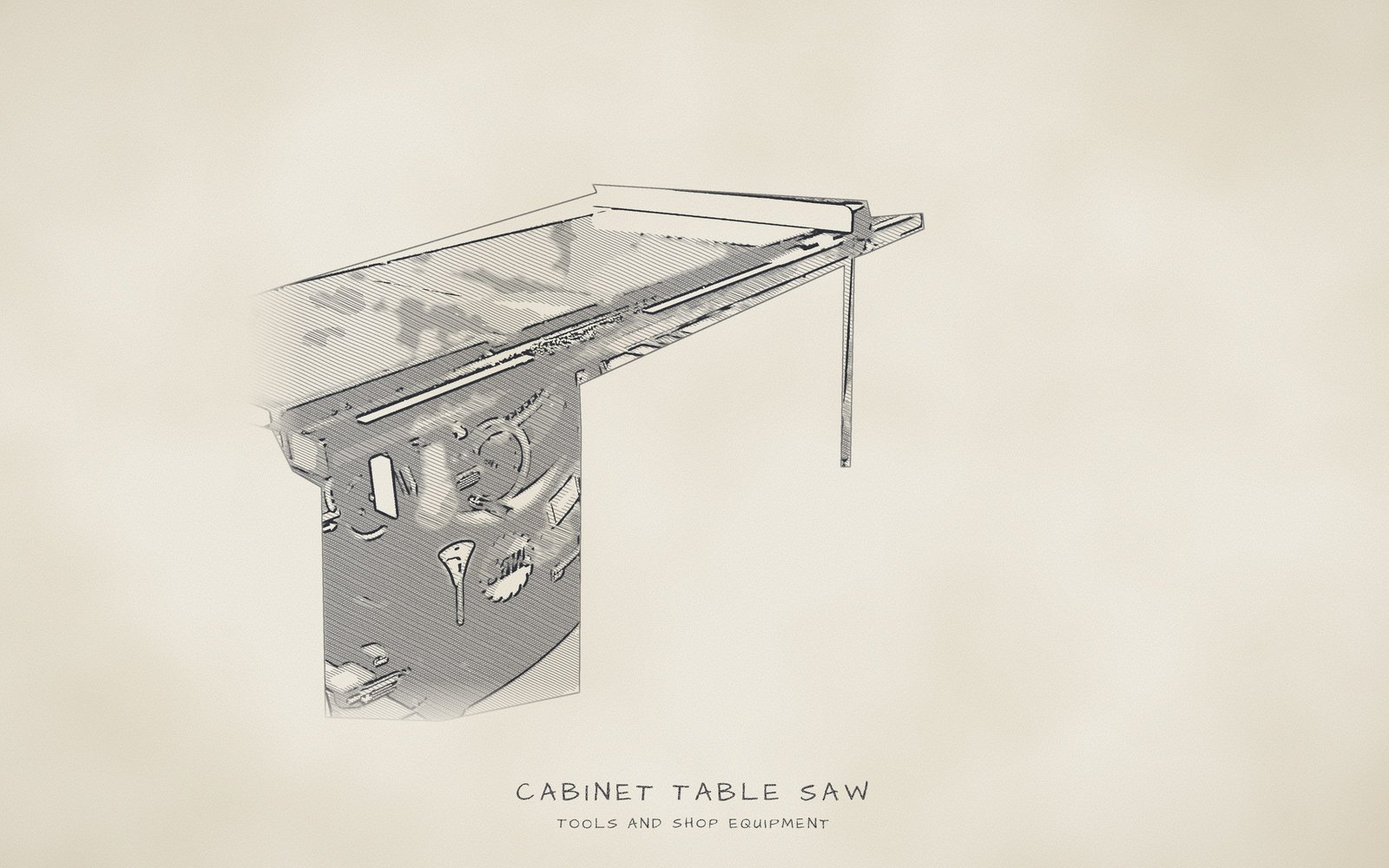
Record every tool and shop machine with its power, drive, storage place and service history.
40 labelled fields, 19 drop-down lists, 663 preset values.
Your tool list on your own computer and phone, in the shop or on the job site.
NM Collector CP gives each tool its own record, whether it is a cordless drill that rides in the truck, a cabinet saw wired into the shop or a jack plane found at a tailgate sale. In the Tools and Shop Equipment template, "Type" has 60 entries, such as "Chisel Set", "Router Table" and "Welder (TIG)", and "Brand" has 62. Separate fields record the power source, the battery platform and what holds the blade or bit. It suits home woodworkers, welders, mechanics and contractors, and collectors who date an old plane, which has no serial number, by its patent dates and type features.
None of this is fixed: rename any label, trim "Type" to the tools you own, and add a battery platform the list lacks so it is offered for the next tool. Serial numbers, what you paid and where each tool is kept stay on your own computer or phone. The app itself never connects to the internet, and there is no account to create.
Browse the full lists
Choose a list in the first drop-down, then open the second one to scroll through every value in that list, or start typing to jump to a value. These are for browsing only; nothing you pick here is saved.
At a glance
- "Type" has 60 entries, such as "Hand Saw", "Drill Press" and "Plasma Cutter", and "Brand" has 62, including "Veritas" and "Stihl".
- "Power Source" (10 entries), "Voltage or Battery Platform" (21, such as "M18") and "Arbor / Chuck / Drive" (17, such as "SDS-Plus") record what runs a tool and what fits it.
- "Serial Number", "Asset Tag" and "Owner Marking or Engraving" identify a tool, with "Year" from "1850" to "2027" and "Color / Finish" to date and describe it.
- "Condition" (9 entries, such as "Worn" and "Restored"), "Accessories Included" (7) and "Warranty" (6) describe a tool's state.
- "Replacement Cost", "Current Value", "Appraised Value" and "Insured Value" are figures you type; the software does not look up prices.
- "Storage Location" has 9 places, such as "Basement" and "Tool Chest", and "Loaned To" names whoever holds a tool marked "On Loan".
- The Pictures tab holds photos, the Maintenance tab offers 19 "Operation" entries such as "Sharpen", and the Events tab 11 "Event" entries such as "Tool Swap".
- Item lists can be printed or saved as CSV, custom reports are made on the desktop, and 3 sample tools show how a record is filled in.
- No account and no connection needed: records and pictures live on your own computer and phone.
Works offline on Windows, Mac, Linux, Android and iOS · Your records stay on your devices · Every feature free for 30 days · Activations from $24.95 a year.
What this template is for
This template is built for woodworkers, metalworkers, mechanics, builders and homeowners who own more tools than they can keep in their heads. It records what each tool is, who made it, how it is powered, where it is kept, what it is worth and when it was last serviced. It handles a hand tool such as an old bench plane as comfortably as a cabinet table saw or a cordless drill.
The Identification tab holds what tells one tool apart from another even when the serial number is missing or unreadable: type, brand, model, power source, voltage or battery platform, size, year, finish and any owner marking or engraving. That last group matters for old and hand tools, which often carry no serial number at all. The Description tab holds condition, accessories, warranty, hours of use, storage location, country of manufacture and the four value fields that an insurer, appraiser or buyer asks about.
Most of the typing is replaced by drop-down lists. "Type" offers 60 values and "Brand" 62, while "Power Source", "Voltage or Battery Platform" and "Arbor / Chuck / Drive" cover the details that decide which battery, blade or bit fits. "Model", "Size / Capacity", "Serial Number" and "Custom Tag" start empty because they are different for every tool. Any list can be edited and any label renamed at any time.
What you can do with it
- Build an insurance list of your tools and shop machines, with model, serial number, replacement cost, insured value and photos gathered in one record per item, ready to print as a report or export to CSV.
- Find everything kept in one place, such as the "Truck Box", the "Job Site" or a "Storage Unit", by choosing "Storage Location" as a field and a filter in a custom report.
- Keep a service history on the Maintenance tab, logging each blade change, sharpening or calibration with its "Next Due Date", so you can see when each job was last done and when it falls due again.
- Keep track of lent tools with "Loaned To", the "On Loan" storage location and the "Loaned Out" and "Returned" events, so you always know who has your router and since when.
- Prepare for an appraisal or a sale by recording condition, accessories, "Replacement Cost" and your own "Current Value", then handing over a printed or exported list. Once the appraiser has finished, enter "Appraised By", "Date Appraised" and "Appraised Value" beside your own figure.
- Describe a lost or stolen tool precisely, using "Serial Number", "Asset Tag", "Owner Marking or Engraving" and "Identifying Marks and Features", and log the "Theft Report" and "Recovered" events as they happen.
- Share the whole workshop with heirs or an executor, so they can see what each tool is, where it is kept, how it was cared for and what it is worth, through reports or a CSV export.
Best for: Woodworkers, machinists, mechanics, contractors and home workshop owners, and anyone cataloging an inherited tool chest, who want one record covering identity, value, storage, warranty and maintenance for tools that often have no serial number.
Why collectors choose NM Collector CP for Tools and Shop Equipment
Blades, Bits and the Fittings That Hold Them
At the hardware store the question is usually what fits. "Arbor / Chuck / Drive" answers it with 17 entries, from a "5/8-inch arbor" or "1-inch arbor" for saw blades to a "1/4-inch collet" for router bits and an "MT2 taper" for a drill press or lathe. "Model" and "Size / Capacity" keep the maker's own wording, so a saw's blade diameter or a plane's iron width is at hand when you shop.
A Service History Counted in Hours, Months or Uses
A saw may be squared once a year, while a generator's oil is changed by running hours. On the Maintenance tab, pick an "Operation" such as "Brush Replacement", "Wax Table" or "Winterize", then count the interval in "hours", "months" or "uses" and choose its length, such as "50 hours", "6 months" or "10 uses". Each entry keeps "Completed By", "Completion Cost" and a "Next Due Date", and a repeated job is duplicated, not retyped.
Serial Numbers, Marks and a Record of Theft
Marking tools and writing down serial numbers is common advice against theft, and separate fields hold the results: "Serial Number", "Asset Tag" and "Owner Marking or Engraving". Photograph the data plate and the mark too. If a tool goes missing, log a "Theft Report" on the Events tab with the date and location, and a "Recovered" event if it comes back. When a whole truck is stolen, "Truck Box" in "Storage Location" shows which tools went with it.
Your Tool List Stays on Your Own Devices
A list of every tool, its serial number, its value and the building it sits in is worth keeping to yourself. NM Collector CP stores it on your own computer or phone and asks for no account, and the app itself never connects to the internet, so nothing is uploaded.
On the Job Site, in the Storage Unit and at Tool Meets
The Android and iOS apps hold their own copy of your records and work with no signal, in a basement shop, a storage unit or on a job site. At a tool meet's tailgate sales or an auction you can check which planes or saws you already own and what you paid, then log the purchase or a "Tool Swap" there and then.
What an Insurer or an Heir May Ask
After a fire or break-in, what an insurer may ask about each tool can already be in its record. An heir may not know a rare plane from a common one, but "Current Value", "Appraised Value" with "Appraised By", and "Storage Location" show which tools deserve a closer look and where they are. A desktop custom report can leave out spares marked "no" in "Include In Reports?", and a CSV export hands the list over.
Where Axes, Tractors and Test Gear Belong
A new installation has 30 templates. A tractor or trailer belongs in Motor Vehicles. A hatchet kept as an edged tool fits Knives, while a broad axe or adze kept with woodworking tools can stay here, its kind typed into "Type". Radio test gear kept with old sets suits Radios and Electronics, though "Multimeter" is a "Type" here too, and household contents go room by room in Home Inventory. The Related tab links a charger or spare battery recorded as its own item to the tools it serves.
How the fields work
Every text field in a template is a drop-down field. Pick a value from the list or type your own; the + button adds what you typed to the list, the x button clears the field and the e button opens the list editor. Number fields accept any number, date fields hold dates and notes fields hold longer text. The details below cover every field on the Identification and Description tabs, and any drop-down on the other tabs that is specific to this template. Every list can be browsed in the drop-downs under Browse the full lists; lists of 10 values or fewer are also written out in full below.
Identification tab
The Identification tab holds what sets one tool apart from another: type, brand, model, power, size, serial number, year, finish, markings, asset tag and drive fitting. The item's name is built from "Custom Tag", "Type", "Brand", "Model", "Power Source", "Voltage or Battery Platform" and "Size / Capacity", in that order, so the order decides how tools read in lists. An empty field adds nothing.
Custom Tag
Drop-down · no preset values
Your own label for the tool, and the first thing in its name in lists. Use an inventory number, a shop code or a nickname, such as a room letter plus a running number. Leave it empty if type, brand and model already tell your tools apart.
This drop-down starts empty. Type a value into the field and use the + button to add it to the list; it will be there the next time you need it.
Type
Drop-down · 60 preset values
The kind of tool or machine, such as "Table Saw", "Hand Plane" or "Drill / Driver". It comes right after the "Custom Tag" in the item's name, and it is the natural field to filter a report on. Pick the closest match, or type your own value and add it to the list.
Sixty values that mix hand tools, portable power tools, stationary shop machines and outdoor power equipment. Examples are "Band Saw", "Impact Wrench", "Lathe (wood)" and "Workbench". A value called "Other" catches anything not listed.
All 60 preset values: choose “Type (Identification tab, 60 values)” in the Browse the full lists drop-downs, further down this page.
Brand
Drop-down · 62 preset values
The maker's name as marked on the tool, such as "DeWalt" on a cordless drill or "Stanley" on a bench plane. Enter the name as it appears on your tool, and add any maker the list does not have, since brand and model together identify a tool.
Sixty-two values in alphabetical order: makers running from traditional hand tool names to large power tool, welding and outdoor equipment brands, plus "Other" for makers not listed. Examples include "Festool", "Lie-Nielsen", "Lincoln Electric" and "Snap-on".
All 62 preset values: choose “Brand (Identification tab, 62 values)” in the Browse the full lists drop-downs, further down this page.
Model
Drop-down · no preset values
The maker's model name or number as stamped or printed on the tool, for example PCS 3HP Professional Cabinet Saw or No. 5 Bailey Jack Plane. It is what you quote when ordering parts or looking up a manual.
This drop-down starts empty. Type a value into the field and use the + button to add it to the list; it will be there the next time you need it.
Power Source
Drop-down · 10 preset values
How the tool gets its power: "Cordless (battery)" for a drill, "Electric (hard-wired)" for a cabinet saw, "Hand (manual)" for a plane. It shows at a glance which tools need batteries, fuel, an air line or a dedicated circuit.
A short list of 10 power sources that runs from muscle to engine. It includes "Hand (manual)", "Cordless (battery)", "Gas Engine" and "Pneumatic (air)", along with mains, hydraulic, propane and traditional drives such as treadle and belt.
All 10 preset values: Belt Drive • Corded • Cordless (battery) • Electric (hard-wired) • Gas Engine • Hand (manual) • Hydraulic • Pneumatic (air) • Propane • Treadle
Voltage or Battery Platform
Drop-down · 21 preset values
The electrical rating or battery system the tool uses. Record "120V" for a corded tool, or a platform such as "M18" or "20V MAX", because batteries generally fit only tools of the same platform. Use "Not applicable" for hand tools.
Twenty-one values, mostly cordless battery platforms. Generic platforms such as "12V" and "18V" sit beside many that belong to one maker, such as "M18", "LXT 18V", "54V FlexVolt" and "ONE+ 18V". Three mains ratings ("120V", "240V" and "240V 3-phase"), "90 psi air" for compressed-air tools and "Not applicable" for hand tools complete the list.
All 21 preset values: choose “Voltage or Battery Platform (Identification tab, 21 values)” in the Browse the full lists drop-downs, further down this page.
Size / Capacity
Drop-down · no preset values
The main dimension or rating that separates one tool from a similar one: blade diameter and rip capacity (the widest board the fence allows) on a saw, sole length and blade (iron) width on a plane, or a word such as Compact for a drill. Write it the way the maker states it.
This drop-down starts empty. Type a value into the field and use the + button to add it to the list; it will be there the next time you need it.
Serial Number
Drop-down · no preset values
The manufacturer's serial number, usually stamped on a data plate or the body. It is the most exact identifier for a warranty registration, an insurance claim or a theft report. Many old hand tools have none, so leave it empty and rely on the marks fields.
This drop-down starts empty. Type a value into the field and use the + button to add it to the list; it will be there the next time you need it.
Year
Drop-down · 178 preset values
The year the tool was made, as best you can tell, such as "2021" for a cabinet saw or "1915" for an old bench plane. It gives a quick sense of age in reports and filters, while "Date Manufactured" on the Description tab can hold an exact date when you know it.
One value for each year in ascending order, 178 in all, from "1850" to "2027". The range spans antique hand tools, mid-century shop machines and current cordless tools, so the year is normally one pick away.
All 178 preset values: choose “Year (Identification tab, 178 values)” in the Browse the full lists drop-downs, further down this page.
Color / Finish
Drop-down · 14 preset values
The paint color or surface finish of the tool. It helps tell apart similar tools and records period finishes, such as "Japanned (black)", the glossy black lacquer found on old bench planes, or "Hammertone Gray" paint on a vintage machine.
Fourteen values that mix plain colors, two-tone schemes and traditional finishes. Examples include "Yellow and Black", "Teal", "Japanned (black)" and "Wood Handle", so both a modern drill and a wooden-handled hand tool can be described in one pick.
All 14 preset values: choose “Color / Finish (Identification tab, 14 values)” in the Browse the full lists drop-downs, further down this page.
Owner Marking or Engraving
Drop-down · no preset values
Any mark you or an earlier owner put on the tool: initials etched on a battery, a shop name engraved on a fence rail, or a stamp in a wooden handle. Marks like these help identify a tool as yours and let you pick your own tool out of a crowded job site.
This drop-down starts empty. Type a value into the field and use the + button to add it to the list; it will be there the next time you need it.
Asset Tag
Drop-down · no preset values
The number on a sticker or metal tag you attach for inventory purposes, such as SHOP-001 on a table saw. Unlike "Custom Tag" it does not appear in the item's name, but it lets you match a physical tool to its record quickly.
This drop-down starts empty. Type a value into the field and use the + button to add it to the list; it will be there the next time you need it.
Arbor / Chuck / Drive
Drop-down · 17 preset values
The size and style of the fitting that holds the blade, bit or socket: a "5/8-inch arbor" on a table saw, a "1/2-inch chuck" on a drill or "SDS-Plus" on a rotary hammer. An arbor is the shaft a blade mounts on, and a chuck or collet grips a bit or cutter. It tells you which accessories will fit.
Seventeen values for how a tool holds its cutter or accessory: arbors, chucks, collets, square drives, tapers and hammer drill shanks. Examples are "1/4-inch collet", "3/8-inch drive", "MT2 taper" and "SDS-Max". One entry covers tools with no such fitting.
All 17 preset values: choose “Arbor / Chuck / Drive (Identification tab, 17 values)” in the Browse the full lists drop-downs, further down this page.
Include In Reports?
Drop-down · 2 preset values
A "yes" or "no" marker that says whether this tool should appear in your reports. Mark "yes" for the tools you want on an insurance list or an appraisal sheet, and "no" for spares or items you are not tracking for that purpose.
Just two values, "yes" and "no", so setting the marker is a single pick for each tool. All three sample items in this template are marked "yes".
All 2 preset values: no • yes
Identifying Marks and Features
Notes
Free text for anything that sets this tool apart: a mobile base, a fence length, an installed brake cartridge, or on an antique tool a type number and patent dates. Write what a stranger would need to recognize your tool among similar ones.
Description tab
The Description tab holds condition, storage, provenance and value: country of manufacture, condition and comments, accessories, warranty and its expiry date, hours of use, storage location, who has borrowed the tool, and the replacement cost plus the appraised, current and insured values, the last three with a date each. Two notes fields take everything else.
Country of Manufacture
Drop-down · 216 preset values
The country where the tool was made, which is often printed on the data plate or cast into the body. It is worth recording on vintage tools in particular. Use "Unknown" when the marking has worn away.
A list of 216 values in alphabetical order: current countries plus former states such as "Czechoslovakia" and "Soviet Union (USSR; Soviet)". Tool-making origins such as "Germany", "Japan" and "Taiwan" are included, and "Unknown" covers a worn or missing marking.
All 216 preset values: choose “Country of Manufacture (Description tab, 216 values)” in the Browse the full lists drop-downs, further down this page.
Condition
Drop-down · 9 preset values
The overall state of the tool in one short phrase, from "New in Box" to "For Parts". Detail such as a chipped tooth or a rusted table belongs in "Condition Comments". A consistent rating makes it easy to list the tools that need repair before a sale.
Nine values that cover condition from new to worn, with a separate "Restored" value for tools that have had restoration work, as the sample 1915 plane has. Others include "Like New", "Needs Repair" and "For Parts".
All 9 preset values: Excellent • Fair • For Parts • Good • Like New • Needs Repair • New in Box • Restored • Worn
Accessories Included
Drop-down · 7 preset values
What came with the tool: manual, case, battery and charger, blade. A complete set adds to a tool's usefulness and resale appeal, and missing pieces are worth writing down. A cordless drill might read "With Battery and Charger" and a cabinet saw "Manual Included".
Seven choices describing what comes with the tool. They include "Complete in Case", "Kit (several tools)", "Partial" and "Tool Only", along with entries for a manual, a blade, or a battery and charger.
All 7 preset values: Complete in Case • Kit (several tools) • Manual Included • Partial • Tool Only • With Battery and Charger • With Blade
Warranty
Drop-down · 6 preset values
The warranty status of the tool, such as "In Warranty" for a recent purchase, "Lifetime" for a tool with a lifetime guarantee, or "None" for a secondhand or vintage piece. Pair it with "Warranty Expires" to see when cover ends.
Six values that describe the state of a tool's warranty: "In Warranty", "Expired", "Registered", "Extended Plan", "Lifetime" and "None". The three sample items use "Registered", "Expired" and "None".
All 6 preset values: Expired • Extended Plan • In Warranty • Lifetime • None • Registered
Hours or Usage
Drop-down · no preset values
How much the tool has been used, in your own words: hours on a meter, jobs since the last service, or a rough figure such as About 300 hours. Wear-based servicing on saws, compressors and engines depends on knowing this.
This drop-down starts empty. Type a value into the field and use the + button to add it to the list; it will be there the next time you need it.
Storage Location
Drop-down · 9 preset values
Where the tool normally lives: in the "Shop", a "Tool Chest", a "Truck Box" or a "Storage Unit". Recording it makes a tool easy to find, and shows at once what is exposed if one building is damaged or broken into.
Nine places to keep a tool, covering fixed spots such as "Garage" and "Shed", mobile spots such as "Job Site" and "Truck Box", and "On Loan" for tools currently out of your hands.
All 9 preset values: Basement • Garage • Job Site • On Loan • Shed • Shop • Storage Unit • Tool Chest • Truck Box
Loaned To
Drop-down · no preset values
The person or business currently holding the tool, such as a neighbor, a club or a job crew. Use it with the "On Loan" storage location, so a missing tool is easy to trace back to whoever borrowed it.
This drop-down starts empty. Type a value into the field and use the + button to add it to the list; it will be there the next time you need it.
Appraised By
Drop-down · no preset values
The name of the appraiser, dealer or valuer who assessed the tool, for example a machinery dealer or a vintage tool specialist. Record it next to "Date Appraised" and "Appraised Value" so the figure can be traced to its source.
This drop-down starts empty. Type a value into the field and use the + button to add it to the list; it will be there the next time you need it.
Condition Comments
Notes
The detail behind the condition rating: rust, missing parts, worn bearings, a repaired handle, blade sharpness, or restoration work done and by whom. Dated remarks here make the rating easy to check later.
Notes
Notes
Anything about the tool that fits nowhere else: where it was bought, its story, previous owners, planned repairs, projects it was used for, or a reminder that an accessory is missing.
Date Manufactured
Date
The exact date the tool was made, when you know it, for instance from a date code or a dated data plate. When only the year is known, record it in "Year" on the Identification tab and leave this empty.
Date Appraised
Date
The date of the appraisal whose result you entered as the "Appraised Value". Values move with the market and with condition, so this date shows how current the figure is.
Date Current Value
Date
The date on which you last set the "Current Value". It is your own record of when the estimate was made, and a reminder to review it.
Date Insured
Date
The date the insured value was set, for example when a policy was written or last reviewed. Together with the value itself it shows whether your insurance list has kept pace with what you own.
Warranty Expires
Date
The date the warranty ends, taken from the receipt or registration papers. With this date filled in, a report can show which tools are still covered and which have passed out of warranty.
Replacement Cost
Number
What you expect it would cost to replace the tool today, entered as a plain number in whatever currency you use, such as 4200 for a cabinet saw or 179 for a cordless drill. It is your own figure, and it is the number to have ready when you talk to an insurer.
Appraised Value
Number
The value a professional appraiser or dealer put on the tool, entered by hand as a plain number. Most tools never need one, but for a rare vintage plane or an expensive machine it documents an outside opinion.
Current Value
Number
Your own estimate of what the tool is worth now, entered as a plain number, such as 3200 for a table saw or 85 for a restored plane. The software does not look up prices, so update it as you learn more.
Insured Value
Number
The amount the tool is covered for under a policy, entered as a plain number, such as 4200 for a cabinet saw. Keep it beside the "Replacement Cost" so both figures are ready when you speak to your insurer.
Drop-downs on the other tabs
These fields belong to tabs that every collection has, but this template gives them values of its own.
Maintenance tab
Operation
Drop-down · 19 preset values
The service task performed, such as "Blade Change" on a saw, "Sharpen" on a plane iron, "Drain Compressor Tank" on an air compressor or "Engine Oil Change" on a generator or mower. Each entry adds to a dated service history for that tool.
Nineteen service tasks spanning wear parts, machine setup, engine care and seasonal jobs. Examples are "Brush Replacement", "Calibrate / Square", "Fence Alignment" and "Winterize".
All 19 preset values: choose “Operation (Maintenance tab, 19 values)” in the Browse the full lists drop-downs, further down this page.
Completed Units
Drop-down · 3 preset values
The unit used to count the service interval for the job just completed. Choose "months" for calendar jobs such as a yearly calibration, "hours" for a compressor or engine, and "uses" for a tool worn by jobs.
Three values, "hours", "months" and "uses", that describe how a service interval is counted: by running time, by the calendar or by the number of jobs.
All 3 preset values: hours • months • uses
Next Due Units
Drop-down · 3 preset values
The unit in which the planned interval until the next service is counted. It normally matches "Completed Units", as it does for the sample table saw and hand plane, where both are "months".
The same three units are offered here: "hours", "months" and "uses". Choosing from a fixed short list keeps entries consistent from tool to tool.
All 3 preset values: hours • months • uses
Completed Increment
Drop-down · 8 preset values
The length of the service interval recorded with the job just done, for example "12 months" for the sample table saw calibration or "6 months" for honing the sample plane iron.
Eight ready-made intervals, each a number and a unit. Calendar choices such as "3 months" and "12 months" sit beside running-time and usage choices such as "50 hours" and "10 uses".
All 8 preset values: 1 month • 10 uses • 100 hours • 12 months • 25 hours • 3 months • 50 hours • 6 months
Next Due Increment
Drop-down · 8 preset values
The interval you set before the same job is due again. In the sample items it matches the gap between the "Completion Date" and the "Next Due Date": "12 months" for the table saw calibration and "6 months" for the plane sharpening. A machine might use "50 hours" instead.
The same eight intervals offered for completed work: calendar choices from "1 month" to "12 months", hour choices from "25 hours" to "100 hours", and "10 uses". Reusing the list keeps planned and completed intervals easy to compare.
All 8 preset values: 1 month • 10 uses • 100 hours • 12 months • 25 hours • 3 months • 50 hours • 6 months
Events tab
Event
Drop-down · 11 preset values
The type of event in a tool's life, such as "Purchase", "Loaned Out", "Repair Shop" or "Theft Report". Events build a timeline for the tool, like the sample drill that was lent out for a deck repair and then returned.
Eleven events that cover a tool's life, including acquisition and disposal, lending, repair and loss, plus activities such as "Class / Workshop", "Project" and "Tool Swap". Examples are "Purchase", "Loaned Out", "Theft Report" and "Estate Sale".
All 11 preset values: choose “Event (Events tab, 11 values)” in the Browse the full lists drop-downs, further down this page.
Tabs every collection shares
Besides Identification and Description, each item has these tabs. They work the same way in every collection.
- Pictures: Attach photographs to an item, with a note, the date each was taken, a sequence number and a flag saying whether the picture belongs in reports. Pictures are copied into the application’s own folder and stay on your device.
- Receipt: Who you got the item from and when: the business or person, address, date and amount, plus notes.
- Disposition: The same layout for the other end of an item’s life: to whom it was sold, traded or given, where, when and for how much.
- Related: Link an item to other items in your collections, for example a rifle and its scope or a watch and its box.
- Maintenance: Record maintenance operations with what was done, who did it, where, what it cost, when it was completed and when the next one is due. Repeat an operation each time you perform it.
- Events: A dated log of things that happen to an item: shows, appraisals, loans, repairs and outings, with a description, results, helpers, location and cost.
- Data Sheet: A large free-form area for anything that does not fit elsewhere, such as detailed measurements or component notes.
- Links: Links to web pages, documents and pictures related to an item, each with an optional description.
The three sample items
Every new installation includes three sample items in this collection so you can see how the fields are meant to be filled in.
- SawStop cabinet table saw, hard-wired 240V (listed as “Table Saw SawStop PCS 3HP Professional Cabinet Saw Electric (hard-wired) 240V 10-inch blade, 36-inch rip”): Fills every Identification field except Custom Tag, including serial number, asset tag and an engraving on the fence rail. The Description tab adds a registered warranty and about 300 hours of use, and Maintenance logs a calibration set to repeat every 12 months.
- DeWalt 20V MAX cordless drill and driver (listed as “Drill / Driver DeWalt DCD791 20V MAX XR Cordless (battery) 20V MAX Compact”): Shows a battery tool: cordless power, the 20V MAX platform, a 1/2-inch chuck and a mark etched on the battery foot. It records battery and charger as accessories, an expired warranty, and a Loaned Out event naming the borrower and the return date.
- Stanley No. 5 Bailey jack plane, 1915 (listed as “Hand Plane Stanley No. 5 Bailey Jack Plane Hand (manual) Not applicable 14-inch sole, 2-inch iron”): An antique hand tool with no serial number and no asset tag. Identity rests on model, year, black japanned finish, an earlier owner's stamped initials and a marks note giving its type and patent dates. It was bought rusty, restored, and is sharpened every 6 months.
Tips
- Decide what goes in "Custom Tag" before you enter many tools. A short code such as a room letter plus a number leads every item's name, so all tools read the same way in lists.
- Extend the lists where your shop differs: add local makers to "Brand" and your own places to "Storage Location". A value you delete is put back automatically if any tool still uses it.
- Record "Model" and "Serial Number" as soon as a tool comes home, and note the seller, date and amount on the Receipt tab. These details are hardest to find after a loss or years later.
- Log each service on the Maintenance tab with a "Next Due Date", and note running time in "Hours or Usage", so jobs that depend on running time, such as an engine oil change or a compressor pump service, are easy to plan.
Frequently asked questions about Tools and Shop Equipment
What should I record about each tool for an insurance claim?
Insurance guides ask for the make, model and serial number, photos, proof of purchase and today's replacement cost. Those go in "Brand", "Model" and "Serial Number", on the Pictures tab (include the data plate and the receipt), on the Receipt tab (seller, date and "Amount") and in "Replacement Cost", with "Insured Value" and "Date Insured" if your policy lists the tool. The guides also advise keeping a copy away from the shop and the truck. Whether that is enough is for your insurer to say.
How do I record an old hand tool that has no serial number?
Record what collectors identify it by instead: maker, marks, patent dates and finish. Put the maker in "Brand", such as "Disston" or "Stanley", the maker's number in "Model", the likely year in "Year" and the finish in "Color / Finish", such as "Japanned (black)". An earlier owner's stamp goes in "Owner Marking or Engraving", and patent dates or a plane's type number in "Identifying Marks and Features". A tool made before "1850" needs its year typed and added.
Can I see which of my tools take the same battery?
Yes. Choose "Cordless (battery)" in "Power Source" and the platform in "Voltage or Battery Platform", whose 21 entries include "20V MAX", "M18", "40V XGT" and "ONE+ 18V". A pack usually fits only the tools of its own platform, and one maker's platforms may not take each other's packs, so record the platform, not just the voltage. On the desktop, a custom report filtered on "M18" in that field lists every tool that takes those packs.
Can I record who borrowed a tool and when it came back?
Yes. When a tool goes out, set "Storage Location" to "On Loan", type the borrower in "Loaned To" and log a "Loaned Out" event on the Events tab with the date and what the tool was for. When it comes home, add a "Returned" event, set the storage place back and clear "Loaned To".
Does restoring an old tool lower its value, and how do I record the work?
Collectors generally say cleaning up a common plane bought for use does little harm to its value, while stripping or repainting a rare one can lower it, so find out what a tool is before you start. Photograph it as found, with "Date Taken" on the Pictures tab, and describe rust or missing parts in "Condition Comments". Log the work and its cost on the Maintenance tab, or as a "Repair Shop" event if a shop did it, and set "Condition" to "Restored" when it is done.
Will NM Collector CP tell me what my tools are worth?
No. It does not look up or estimate values, so every figure is one you type. What you paid goes in "Amount" on the Receipt tab, the cost of a new equivalent in "Replacement Cost", your own estimate in "Current Value" with "Date Current Value", and a dealer's or appraiser's figure in "Appraised Value", with "Appraised By" and "Date Appraised".
Is my tool inventory private, and where is it stored?
Your records and pictures are stored on your own computer or phone. The app itself never connects to the internet and needs no account, so it uploads nothing. Nothing leaves your devices unless you make a copy: a printed report, a CSV export or a Share Data transfer file. A copy moved by AirDrop, Quick Share, a USB stick or a cable goes straight to the other device; sent by email or a cloud service, it travels through that provider.
Can I use it in the shop, on a job site or at a tool auction without an internet connection?
Yes. Neither the desktop program nor the Android and iOS apps needs a connection. Records live on the phone itself, so on a busy job site you can match a tool to its "Asset Tag" or "Owner Marking or Engraving", or see in "Loaned To" who has it. To copy the collection over, use Share Data under Collection Data Transfer on the desktop's Export page, then Zip File on the phone's Import page. An import replaces everything on the receiving device, so export from the phone first.
How do I add the Tools and Shop Equipment template to an installation I already use?
New installations of 2.3 include it already. Otherwise, download it from the Downloads page and choose Import > Collection Template, on the desktop or in the Android and iOS apps. The template is new in 2.3, so the import creates a Tools and Shop Equipment collection unless you already have one by that name. If you do, the app shows which field labels would change and lets you cancel before anything is renamed.
What do the three sample items in the Tools and Shop Equipment collection show?
The SawStop cabinet saw carries a serial number, an asset tag and an engraved fence rail, with a "Registered" warranty, about 300 hours of use and a calibration repeated every 12 months. The DeWalt 20V MAX drill has a "1/2-inch chuck", its battery and charger, an "Expired" warranty and a loan for a deck repair. The 1915 Stanley No. 5 jack plane has no serial number, so its japanned finish, stamped initials and patent dates identify it; bought rusty and since restored, it has its iron sharpened every 6 months.
Getting this template
New installations of NM Collector CP start with all 30 templates. If you already use NM Collector CP, use the Download Template button at the top of this page, unzip the file into a templates folder on your computer, and add it with File > Import > Collection Template. The app matches the collection by name, creates it if you do not have it, and asks before it changes what any field is called.
NM Collector CP is free to try with all features for 30 days, with no credit card. After that you can keep using the free version, which needs no activation, or buy an activation for the full-feature version, for 1, 2 or 5 years or for life.
Try it with your own collection
Every feature is free for 30 days, with no credit card, on Windows, Mac, Linux, Android and iOS. Download the free trial.