
Collection software for firearms, coins, stamps, knives, Japanese swords, geological specimens & more - offline - no cloud risks - Windows, Mac, Linux, iOS, and Android.
Try full features Free for 30 Days - No Credit Card. After 30 days you can upgrade or continue to use free version.
Unzip it into a templates folder, then choose File > Import > Collection Template.
Pens and Writing Instruments collection template
Fountain Pen Collection Software
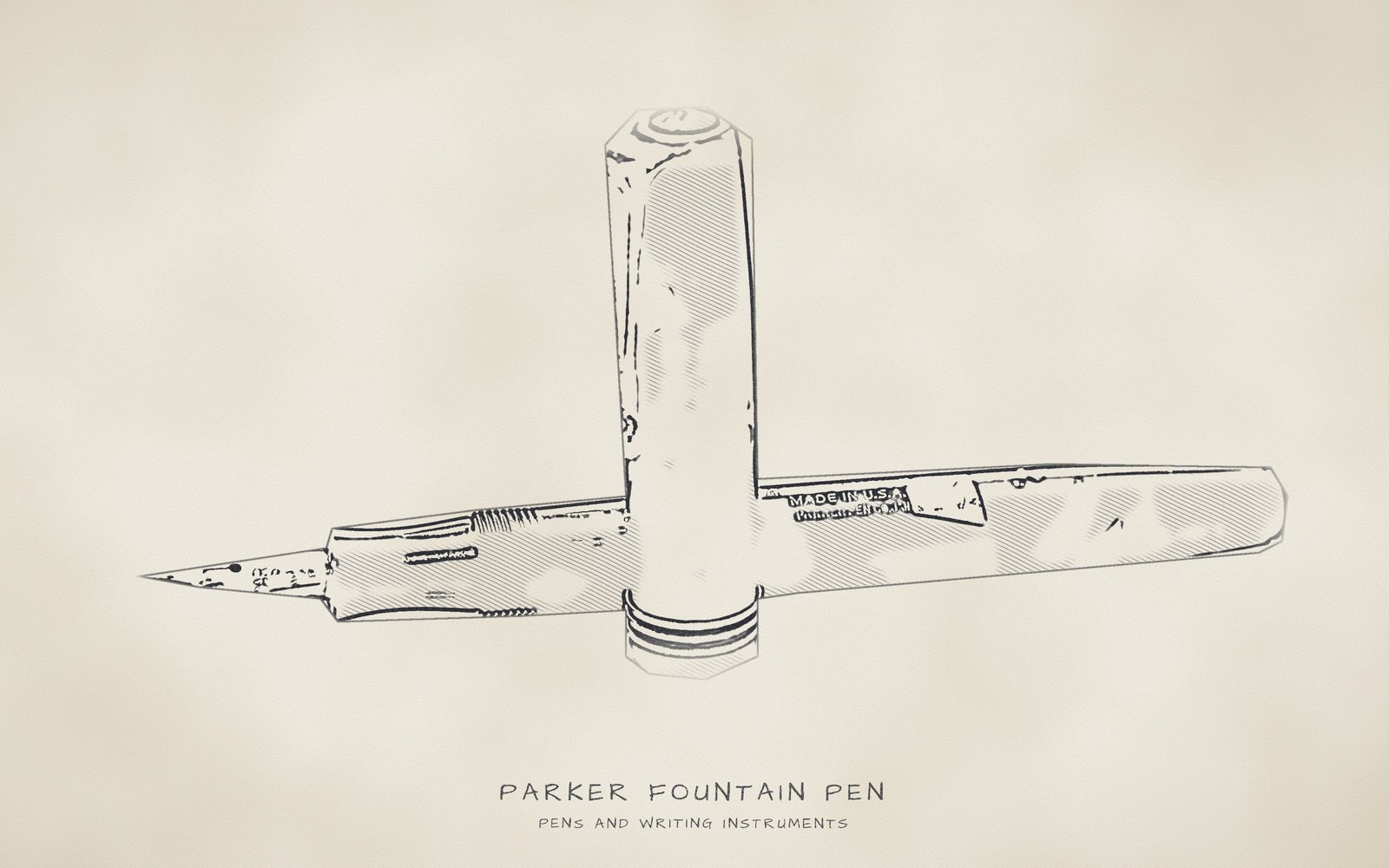
Drawing after a photo by M Dreibelbis, CC BY 2.0, via Wikimedia Commons.
Catalog fountain pens, mechanical pencils, inks and inkwells with nib details, filling systems, condition and service history for every piece.
37 labelled fields, 23 drop-down lists, 225 preset values.
Pen records on your own computer and phone, readable at a pen show with no signal.
NM Collector CP gives each fountain pen, mechanical pencil, dip pen, ink bottle or inkwell its own record: maker, model, decade, finish, nib, filler and any restoration work. The lists already hold 31 "Brand" entries such as "Conway Stewart", "Esterbrook" and "Namiki", filling systems including "Lever", "Button", "Piston" and "Snorkel", and nib grinds such as "Cursive Italic" and "Architect". A drawer of lever fillers waiting for new sacs belongs here as much as the pens you write with every day.
Treat the template as a starting point. Rename any label, cut "Brand" down to the makers you collect, or type a model or a missing grind once and add it to its list for the next pen. What you record, from insured values to the drawer a pen lives in, stays on your own computer or phone, and the app itself never connects to the internet.
Browse the full lists
Choose a list in the first drop-down, then open the second one to scroll through every value in that list, or start typing to jump to a value. These are for browsing only; nothing you pick here is saved.
At a glance
- "Type" has 11 entries, such as "Fountain Pen", "Rollerball" and "Desk Set".
- "Era" covers 14 decades from "1890s" to "2020s", and "Color / Pattern" has 23 finishes such as "Red Ripple" and "Tortoise".
- Three nib fields: "Nib Size" (9 entries, such as "Stub 1.1 mm"), "Nib Material" (8, such as "14k Gold") and "Nib Grind" (10, such as "Oblique").
- "Filling System" has 17 entries, such as "Aerometric", "Lever" and "Cartridge / Converter", and "Body Material" has 19, such as "Celluloid" and "Lucite".
- "Condition" (8 entries), "Originality" (7) and "Writing?" (5) describe each pen's state, and "Storage Location" has 6 entries such as "Pen Case" and "In Daily Use".
- Pictures of the nib and imprint, 10 Maintenance "Operation" entries such as "Nib Regrind", and 8 "Event" entries such as "Nibmeister Visit".
- Your own estimate in "Current Value", your policy figure in "Insured Value" and an appraiser's in "Appraised Value", each with its own date.
- Custom reports on the desktop and CSV export, plus 3 sample pens that show a finished record.
- No account and no internet connection needed, and your records stay on your devices unless you choose to send a copy.
Works offline on Windows, Mac, Linux, Android and iOS · Your records stay on your devices · Every feature free for 30 days · Activations from $24.95 a year.
What this template is for
Picture a pen tray holding a vintage Parker 51, a jade green Sheaffer with a white dot on the cap and a modern Pelikan that is used every day, with a mechanical pencil, a dip pen, a bottle of ink and an inkwell nearby. This template records each one with the details pen people use to tell one piece from another: brand, model, era, color or pattern, nib (the metal writing tip), filling system (how ink gets into the pen), body material, trim (the metal fittings) and the text stamped on it. One "Type" list keeps all of these, and ballpoints, rollerballs, loose nibs and desk sets, in a single collection.
The Identification tab describes what the pen is. It holds most of the specialist detail, including "Nib Size", "Nib Material", "Nib Grind", "Filling System", "Body Material" and "Trim", along with a note for distinguishing marks. Together with the "Custom Tag" and the note, that is what lets you tell two pens of the same model apart even without a serial number. The Description tab describes this particular pen: its condition, whether its parts are original, whether the box and papers survive, the ink in it, whether it writes, where it is stored, and its appraised, current and insured values with their dates.
Picking "Parker" from "Brand", "1950s" from "Era" or "Tortoise" from "Color / Pattern" is a single choice that reads the same on every item, so a report can filter your pens without near-duplicates. The lists also carry vocabulary that newcomers may not know, such as the "Aerometric" and "Snorkel" filling systems, or "Urushi" (Japanese lacquer) and "Maki-e" (lacquer decorated with sprinkled metal powder). Fields such as "Model", "Custom Tag" and "Imprint / Markings" start empty because their content is yours alone. A maker or finish missing from the lists is added by typing it once, and it is offered on every later pen.
What you can do with it
- Make an insurance list: a custom report showing each pen's maker, model, condition, "Insured Value" and "Date Insured" gathers the details an insurer asks for into one report, and the same items can be exported to CSV.
- Locate a pen without opening every case: a custom report filtered on "Storage Location" lists the pens in the "Safe" or the "Display Case", or the ones that are "In Daily Use".
- Keep up with service: record a "Next Due Date" after each flush, ink change or sac job (a sac is the soft rubber or silicone ink reservoir inside some pens), so the date each pen is next due for attention is on record.
- Sort out what needs repair: "Writing?" separates pens marked "Writes Well" from those marked "Needs Restoration" or "Not Working", so a repair list is a single filtered report.
- Tell an untouched pen from a restored one: "Originality" separates "All Original" from "Replaced Sac", "Replated" and "Restored", and with "Condition" and "Box and Papers" it gives a buyer or appraiser the details they ask about.
- Trace each pen's history: log purchases, trades, pen shows and visits to a nibmeister, a specialist who tunes and grinds nibs, as events with a date and cost, so how a pen reached you and what was done to it stays on record.
Best for: Everyday fountain pen users with a few favorites, collectors of vintage Parker and Sheaffer pens, and anyone who also keeps mechanical pencils, dip pens or inkwells and wants nib details, filling system, service history and insured value for each piece in one record.
Why collectors choose NM Collector CP for Pens and Writing Instruments
Vintage and Modern Pens in One Collection
The lists carry the terms for an early hard rubber eyedropper pen as well as for a new piston filler. Vintage entries include "Crescent" and "Matchstick" fillers, "Casein" and "Celluloid" bodies and "Chased (engraved)" finishes; modern ones include "Cartridge / Converter" filling, "Resin" bodies, "Titanium" nibs and "Rhodium" trim. A filler the list lacks, such as a coin filler, is typed once and added for the next pen.
Sacs, Seals and Nib Work on Record
Rubber sacs and diaphragms age, and replacing them is a normal part of restoring a vintage pen. The Maintenance tab has 10 pen jobs for that work and for routine care, such as "Sac Replacement", "Diaphragm Replacement", "Seal Replacement" and "Nib Tune", each logged with the repairer, the place, the cost and the date. The Events tab adds "Repair Shop" and "Nibmeister Visit", so you can see when a pen was away and why.
Original, Restored and Still Writing
Buyers of vintage pens ask how a pen looks, what has been done to it and whether it writes, and the Description tab keeps those answers apart. "Condition" gives the grade, with "Parts Pen" for a donor. "Originality" can read "All Original", "Replaced Nib", "Replated" or "Unknown". "Writing?" says whether the pen writes today, with "Untested" for a recent find, and "Condition Comments" holds details such as brassing on the trim.
What You Own and Where It Is, Kept Private
Insured values, receipts and the drawer or case each pen is kept in are details many owners keep to themselves. They are stored on your own computer or phone, no account is needed, and the app itself never connects to the internet. To move the collection to another device, you make one transfer file with Share Data and send it yourself; email or a cloud service carries it through that provider.
Your Pens on Your Phone at Shows and Club Meetings
Large pen shows bring dealers, repairers and nibmeisters together. With your collection on an Android or iOS phone, you can check at a table, with or without a signal, whether you already own that model in that finish and nib and what you paid, then record a purchase on the spot and log a "Pen Show", "Trade" or "Pen Club Meeting" event.
An Insurance List and a Record for Heirs
Many homeowners policies limit coverage for collections, and listing a valuable pen on its own often calls for good documentation and sometimes an appraisal. Each record keeps the maker, model, nib, condition and originality beside "Appraised Value", "Appraised By" and "Insured Value", and "Notes" can tell an heir where a pen came from. A desktop custom report gathers it all, and a filter on "Include In Reports?" leaves out any parts pen marked "no". The app keeps the record; it does not value or appraise a pen.
Catalogs, Watches and Books in Their Own Collections
A new installation includes other templates for what often sits around a pen collection. Pen catalogs, advertising and old letters go in Paper Items, a shelf of pen reference books in Books, and a pocket watch or desk clock in Watches and Clocks. The Related tab links items across collections, such as a pen and the catalog page that shows it.
How the fields work
Every text field in a template is a drop-down field. Pick a value from the list or type your own; the + button adds what you typed to the list, the x button clears the field and the e button opens the list editor. Number fields accept any number, date fields hold dates and notes fields hold longer text. The details below cover every field on the Identification and Description tabs, and any drop-down on the other tabs that is specific to this template. Every list can be browsed in the drop-downs under Browse the full lists; lists of 10 values or fewer are also written out in full below.
Identification tab
The Identification tab holds what tells one pen apart from another: maker, model, era, finish, nib, filling system, body material, type, trim and markings, plus a note for distinguishing features. The item name is built from "Custom Tag", "Brand", "Model", "Era", "Color / Pattern", "Nib Size" and "Nib Material", in that order, so the order decides how each pen reads in lists.
Custom Tag
Drop-down · no preset values
A label of your own choosing that leads the item name in every list. Use an inventory number, a shelf code or a nickname for a favorite pen, so one pen is easy to pick out when several share a brand and model.
This drop-down starts empty. Type a value into the field and use the + button to add it to the list; it will be there the next time you need it.
Brand
Drop-down · 31 preset values
The maker whose name is on the pen, such as "Parker", "Sheaffer" or "Pelikan" in the samples. Brand is usually the first thing a collector asks about, and it lets a report filter your pens by maker. If a maker is missing, type its name and add it to the list; "Other" covers a one-off piece.
An alphabetical list of 31 entries: 30 pen makers from "Aurora" to "Waterman" plus "Other" for any maker that is missing. It mixes European, American and Japanese makers, such as "Pelikan" and "Pilot".
All 31 preset values: choose “Brand (Identification tab, 31 values)” in the Browse the full lists drop-downs, further down this page.
Model
Drop-down · no preset values
The model name or number the maker gave the pen, such as 51 Aerometric, Balance Lifetime or Souveran M800 in the sample items. Model is what separates one Parker or Sheaffer from another, so copy it as it appears on the pen or in the maker's catalog.
This drop-down starts empty. Type a value into the field and use the + button to add it to the list; it will be there the next time you need it.
Era
Drop-down · 14 preset values
The decade in which the pen was made, such as "1930s" for the Sheaffer Balance Lifetime sample. Era groups a collection by period when the exact date is unknown, while "Date Manufactured" on the Description tab can hold a full date when you have one.
A list of 14 decades in chronological order, from "1890s" to "2020s", spanning more than a century of pen making. Each entry is a plain decade label such as "1950s", so a pen dated only roughly can still be placed.
All 14 preset values: choose “Era (Identification tab, 14 values)” in the Browse the full lists drop-downs, further down this page.
Color / Pattern
Drop-down · 23 preset values
The finish or color of the barrel and cap, for example "Burgundy", "Jade Green" or "Green Striated" in the sample items. Many pens are sold in several finishes, so this field often separates two otherwise identical models, and pattern names matter to collectors.
The list has 23 entries that mix plain colors such as "Black" and "Burgundy" with the patterns and materials collectors look for, such as "Tortoise" and "Marble". The entries "Demonstrator (clear)" and "Chased (engraved)" carry a short hint in parentheses, so those terms are easy to recognize.
All 23 preset values: choose “Color / Pattern (Identification tab, 23 values)” in the Browse the full lists drop-downs, further down this page.
Nib Size
Drop-down · 9 preset values
The width of the line the nib (the metal writing tip) is made to draw, such as "Fine" in the Parker and Sheaffer samples or "Medium" in the Pelikan sample. Nib size is a main reason collectors choose one pen over another.
The list has 9 sizes in alphabetical order, including everyday widths such as "Fine" and "Medium" and specialty nibs such as "Accountant", "Posting" and "Stub 1.5 mm". The list is short, and you can type any other size you need.
All 9 preset values: Accountant • Broad • Double Broad • Extra Fine • Fine • Medium • Posting • Stub 1.1 mm • Stub 1.5 mm
Nib Material
Drop-down · 8 preset values
What the nib is made of, such as "14k Gold" for the Parker and Sheaffer samples and "18k Gold" for the Pelikan sample. It can differ between pens of the same model, so it helps tell them apart.
The list has 8 materials covering 3 gold purities, plated finishes and plain metals. Entries include "14k Gold", "21k Gold", "Steel" and "Titanium", so a vintage gold nib and a modern steel nib can each be recorded exactly.
All 8 preset values: 14k Gold • 18k Gold • 21k Gold • Gold-plated Steel • Palladium • Platinum-plated • Steel • Titanium
Filling System
Drop-down · 17 preset values
How ink gets into the pen: "Aerometric" for the Parker 51, "Lever" for the Sheaffer and "Piston" for the Pelikan in the samples. It matters for service, because the system decides which repairs a pen may need, from replacing a sac (the flexible ink reservoir inside some pens) to renewing seals.
The list has 17 methods in alphabetical order, from "Aerometric" to "Vacuum". They range from cartridge and converter designs to mechanical fillers and older systems such as "Snorkel", and "Not applicable" covers items with no filling mechanism at all.
All 17 preset values: choose “Filling System (Identification tab, 17 values)” in the Browse the full lists drop-downs, further down this page.
Body Material
Drop-down · 19 preset values
What the barrel and cap are made of, such as "Lucite" for the Parker 51, "Celluloid" for the Sheaffer and "Resin" for the Pelikan. The material shapes how a pen ages and how it should be cared for, so it is worth recording accurately.
The list has 19 materials covering early plastics, hard rubber, wood, metals and lacquer. Entries include "Celluloid", "Ebonite", "Sterling Silver" and the Japanese lacquer material "Urushi", so both antique and modern pens have a fitting choice.
All 19 preset values: choose “Body Material (Identification tab, 19 values)” in the Browse the full lists drop-downs, further down this page.
Type
Drop-down · 11 preset values
The kind of writing instrument or accessory, such as "Fountain Pen" for all three sample items. Type lets one collection hold pens, pencils, dip pens, ink bottles and inkwells side by side and separate them again in reports.
The list has 11 types in alphabetical order, from "Ballpoint" to "Rollerball". Writing instruments such as "Fountain Pen" sit beside accessories such as "Inkwell", and there are entries for "Pen and Pencil Set", "Desk Set", "Nib Only" and a catch-all "Other".
All 11 preset values: choose “Type (Identification tab, 11 values)” in the Browse the full lists drop-downs, further down this page.
Trim
Drop-down · 8 preset values
The metal finish of the clip, bands and other fittings, shown as "Gold" in all three sample items. Trim tells apart versions of one model that differ only in their fittings, such as "Chrome" against "Gold", and a pen without fittings can use "None".
The list has 8 finishes for the metal fittings, running from everyday "Chrome" to precious-metal finishes such as "Palladium" and "Rhodium". "None" covers pens without metal trim, and "Two-tone" covers mixed fittings.
All 8 preset values: Chrome • Gold • None • Palladium • Rhodium • Ruthenium • Silver • Two-tone
Imprint / Markings
Drop-down · no preset values
The text and marks stamped or engraved on the pen, such as PARKER 51 MADE IN USA with a date code, or a white dot on the cap, in the samples. Copy it as it reads, since imprints help identify the model and period and separate lookalike pens.
This drop-down starts empty. Type a value into the field and use the + button to add it to the list; it will be there the next time you need it.
Nib Grind
Drop-down · 10 preset values
How the tip of the nib is shaped, at the factory or later by a nibmeister (a specialist who adjusts and regrinds nibs). "Standard" is the ordinary tip used in all three sample pens, while "Oblique" or "Cursive Italic" changes the line the pen draws. Record the width stamped on the nib in "Nib Size" and the shaping here.
The list has 10 grind styles, from "Standard" to specialist shapes such as "Architect" and "Oblique". "Custom Grind" covers a nib shaped to your own specification, and the remaining entries include flex, italic and needlepoint profiles.
All 10 preset values: Architect • Crisp Italic • Cursive Italic • Custom Grind • Flex • Needlepoint • Oblique • Semi-flex • Standard • Stub
Include In Reports?
Drop-down · 2 preset values
A yes or no marker you set for each pen for reporting purposes. All three sample items use "yes". Set "no" for anything you do not intend to include in reports, such as a parts pen kept only for spares.
The list holds 2 values, "no" and "yes", so every item in the collection is marked in exactly the same way.
All 2 preset values: no • yes
Identifying Marks and Features
Notes
Free text for anything distinctive that the lists cannot capture, such as the gold-filled cap with a jewel and hooded nib (one mostly covered by a hood) in the Parker 51 sample. Note small flaws, engraved names, unusual parts or earlier repairs that would let you recognize this exact pen.
Description tab
The Description tab holds what has happened to this particular pen: its condition and originality, whether the box and papers survive, the ink in it, whether it writes, and where it is stored. It also holds the "Condition Comments" and "Notes" text fields, dates for manufacture, appraisal, current value and insurance, and the three values beside them.
Condition
Drop-down · 8 preset values
An overall grade for the pen, from "Mint" to "Poor", such as "Excellent" for the Parker 51 sample and "Very Good" for the Sheaffer, with "Parts Pen" for one kept for spares. Because grading is a matter of judgment, write in "Condition Comments" what "Excellent" means to you and apply it the same way to every pen.
The list has 8 entries that step down from "Mint" through "Very Good" to "Poor", with "Parts Pen" as a separate entry for pens kept for their components rather than for display or use.
All 8 preset values: Excellent • Fair • Good • Mint • Near Mint • Parts Pen • Poor • Very Good
Originality
Drop-down · 7 preset values
Whether the pen is as it left the factory or has been worked on, such as "All Original" for the Parker 51 and "Replaced Sac" for the Sheaffer sample. Buyers, appraisers and heirs ask about replaced parts and refinishing, so this field is worth completing.
The list has 7 entries, from "All Original" to specific work such as "Replaced Sac" and "Replated", with "Unknown" for a pen whose history is not known.
All 7 preset values: All Original • Polished • Replaced Nib • Replaced Sac • Replated • Restored • Unknown
Box and Papers
Drop-down · 5 preset values
Whether the original packaging and paperwork survive, such as "Box and Papers" for the Pelikan sample or "None" for the two older pens. Recording what came with a pen keeps its documented history together with the pen itself.
The list has 5 entries describing what came with the pen, from "Box and Papers" and "Box Only" to "None". "Pouch" covers a pen supplied in a pouch, and "Papers Only" covers papers on their own.
All 5 preset values: Box and Papers • Box Only • None • Papers Only • Pouch
Ink Color
Drop-down · 10 preset values
The ink currently in the pen, such as "Blue-Black" in the Parker 51 sample or "Black" in the Pelikan sample. It reminds you what to flush out before changing colors, and "Not inked" marks a pen that is dry.
The list has 10 entries, from everyday inks such as "Black" and "Blue-Black" to the traditional "Iron Gall", plus "Not inked" for a pen that is empty. Colors such as "Brown", "Green", "Purple", "Red" and "Turquoise" round out the list.
All 10 preset values: Black • Blue • Blue-Black • Brown • Green • Iron Gall • Not inked • Purple • Red • Turquoise
Writing?
Drop-down · 5 preset values
Whether the pen works today, such as "Writes Well" for all three sample items. Separating working pens from those that are "Untested" or need attention gives you a ready repair list and a quick view of which pens are ready to use.
The list has 5 statuses that run from "Writes Well" to "Not Working", with "Untested" for pens not yet tried and "Display Only" for pens kept to look at rather than use.
All 5 preset values: Display Only • Needs Restoration • Not Working • Untested • Writes Well
Storage Location
Drop-down · 6 preset values
Where the pen is kept, such as "Pen Case" for the Parker 51, "Pen Box" for the Sheaffer and "In Daily Use" for the Pelikan. A current location makes a pen quick to find and lets you check what is in the safe or on display.
The list has 6 locations, from long-term places such as "Safe" and "Display Case" to "Pen Box", "Pen Case" and "Desk", with "In Daily Use" for pens that are carried or used rather than put away. Add your own rooms, drawers or cabinets as you go.
All 6 preset values: Desk • Display Case • In Daily Use • Pen Box • Pen Case • Safe
Appraised By
Drop-down · no preset values
The person or firm that appraised the pen, for instance a pen dealer or a professional appraiser. Recording the name beside "Date Appraised" and "Appraised Value" shows anyone reading the record who set the figure and when.
This drop-down starts empty. Type a value into the field and use the + button to add it to the list; it will be there the next time you need it.
Condition Comments
Notes
Free text that explains the "Condition" grade in detail: hairline cracks, brassing (plating worn through to the brass), a dented cap, a stained barrel or a fading imprint, and how the nib performs. Detailed comments back up the grade when the pen is sold or insured.
Notes
Notes
General notes about the pen that fit nowhere else: its history, who owned it, where you found it, research on the model and any plans for restoration or sale.
Date Manufactured
Date
The date the pen was made, when you know it from a date code, a catalog or the maker's records. When only the decade is known, leave this empty and rely on "Era" on the Identification tab.
Date Appraised
Date
The date of the most recent appraisal. Enter it together with "Appraised Value" and "Appraised By" so the figure can be read in the right context when you or someone else reviews the collection later.
Date Current Value
Date
The day you last set the figure in "Current Value". The software does not look up prices, so this date shows how recent your own estimate is when you review the collection.
Date Insured
Date
The date the pen was added to your insurance list or last covered at the amount in "Insured Value". It gives you and your insurer a reference point when you review what is covered.
Appraised Value
Number
The value an appraiser assigned, typed as a plain number in whatever currency you use. The software applies no formatting and does not look up prices. Pair it with "Date Appraised" and "Appraised By".
Current Value
Number
Your own estimate of what the pen is worth today, typed as a plain number, such as 180 for the Parker 51, 220 for the Sheaffer and 480 for the Pelikan in the samples. It is a figure you maintain by hand.
Insured Value
Number
The amount for which the pen is insured, typed by hand as a plain number in the same currency as your other values. It may differ from "Current Value", and it is a figure an insurer will ask you for.
Drop-downs on the other tabs
These fields belong to tabs that every collection has, but this template gives them values of its own.
Maintenance tab
Operation
Drop-down · 10 preset values
The service job that was done, such as "Flush and Clean" for the Parker 51 sample or "Sac Replacement" for the Sheaffer sample. Logging each job builds a service history that a buyer, restorer or heir can read.
The list has 10 pen-specific jobs, from routine care such as "Flush and Clean" and "Ink Change" to nib work such as "Nib Tune" and repairs such as "Sac Replacement".
All 10 preset values: Converter Replacement • Diaphragm Replacement • Flush and Clean • Ink Change • Nib Regrind • Nib Tune • Piston Lube • Polish • Sac Replacement • Seal Replacement
Completed Units
Drop-down · 2 preset values
The unit of time, months or years, for the interval in "Completed Increment". The Parker 51 sample uses months with "3 months" for a flush and clean, and the Sheaffer sample uses years with "5 years" for a sac replacement.
Just 2 units, "months" and "years", so an interval such as 3 months or 5 years can be recorded in the same way on every pen.
All 2 preset values: months • years
Next Due Units
Drop-down · 2 preset values
The unit of time, months or years, for "Next Due Increment". Both sample maintenance entries use the same unit for the next due interval as for the completed one: months for the Parker 51 and years for the Sheaffer.
The list offers 2 units, "months" and "years", the same choices as for the completed job, so the next service can be planned in whichever unit suits it.
All 2 preset values: months • years
Completed Increment
Drop-down · 5 preset values
The interval attached to the completed job, chosen from a list of standard spans and read together with "Completed Units", such as "3 months" for the Parker 51 flush and clean or "5 years" for the Sheaffer sac replacement.
The list has 5 common service intervals: "1 month", "3 months", "6 months", "12 months" and "5 years". Short spans suit cleaning and ink changes, and the longest span suits work done rarely, such as a sac replacement. Choose the interval that fits your own pens.
All 5 preset values: 1 month • 12 months • 3 months • 5 years • 6 months
Next Due Increment
Drop-down · 5 preset values
The interval used to plan the next service, such as "3 months" after a flush and clean or "5 years" after a sac replacement in the samples. In both samples the "Next Due Date" falls exactly that far after the "Completion Date".
The same 5 spans offered under "Completed Increment", from "1 month" and "6 months" to "12 months" and "5 years", so the next service can be scheduled in the same terms.
All 5 preset values: 1 month • 12 months • 3 months • 5 years • 6 months
Events tab
Event
Drop-down · 8 preset values
The kind of occasion in a pen's life, such as "Pen Show" for the Pelikan sample, where the nib was tuned. Use it to record how a pen came to you or was serviced, for example by a "Purchase", a "Trade" or a "Nibmeister Visit".
The list has 8 occasions from a pen collector's year: acquisitions such as "Auction" and "Trade", service stops such as "Nibmeister Visit" (a visit to a specialist who adjusts nibs), and social events such as "Pen Show".
All 8 preset values: Auction • Gift • Nibmeister Visit • Pen Club Meeting • Pen Show • Purchase • Repair Shop • Trade
Tabs every collection shares
Besides Identification and Description, each item has these tabs. They work the same way in every collection.
- Pictures: Attach photographs to an item, with a note, the date each was taken, a sequence number and a flag saying whether the picture belongs in reports. Pictures are copied into the application’s own folder and stay on your device.
- Receipt: Who you got the item from and when: the business or person, address, date and amount, plus notes.
- Disposition: The same layout for the other end of an item’s life: to whom it was sold, traded or given, where, when and for how much.
- Related: Link an item to other items in your collections, for example a rifle and its scope or a watch and its box.
- Maintenance: Record maintenance operations with what was done, who did it, where, what it cost, when it was completed and when the next one is due. Repeat an operation each time you perform it.
- Events: A dated log of things that happen to an item: shows, appraisals, loans, repairs and outings, with a description, results, helpers, location and cost.
- Data Sheet: A large free-form area for anything that does not fit elsewhere, such as detailed measurements or component notes.
- Links: Links to web pages, documents and pictures related to an item, each with an optional description.
The three sample items
Every new installation includes three sample items in this collection so you can see how the fields are meant to be filled in.
- Parker 51 Aerometric, Burgundy 1950s fountain pen (listed as “Parker 51 Aerometric 1950s Burgundy Fine 14k Gold”): A fully described vintage pen. Identification is filled in from "Parker" and "1950s" through the nib and filling details to the imprint, and the note field describes the gold-filled cap with a jewel and the hooded nib. It is rated "Excellent" and "All Original", with a current value of 180, and a receipt for 150 and a "Flush and Clean" entry are recorded too.
- Sheaffer Balance Lifetime, Jade Green celluloid pen (listed as “Sheaffer Balance Lifetime 1930s Jade Green Fine 14k Gold”): A 1930s pen that shows how repairs are recorded. "Originality" reads "Replaced Sac", condition is "Very Good", and the Maintenance tab logs a "Sac Replacement" done by Acme Pen Repair at a cost of 35, with "5 years" as the interval to the next service. The "Imprint / Markings" field holds a white dot on the cap.
- Pelikan Souveran M800, Green Striated piston pen (listed as “Pelikan Souveran M800 2010s Green Striated Medium 18k Gold”): A modern pen in everyday use. It has "Box and Papers", is stored as "In Daily Use", filled with black ink and valued at 480. Its Events entry records a "Pen Show" in Albuquerque, NM, where the nib was tuned by the show nibmeister.
Tips
- For an ink bottle or inkwell, choose the matching "Type", set "Filling System" to "Not applicable" and leave the nib fields empty.
- Extend the lists you use most, such as "Brand" for a maker not listed or "Storage Location" for your own drawers and cabinets, so future entries are one pick away.
- Start the service history early: after a "Flush and Clean" or a repair, fill in "Operation", "Completion Date" and "Next Due Date". After a repair, also update "Originality" (for example "Replaced Sac") and use "Condition Comments" for anything the single value cannot say.
- Copy the stamped text exactly into "Imprint / Markings" and keep "Nib Size" and "Nib Grind" separate, because small marks and nib details are what tell similar pens apart.
Frequently asked questions about Pens and Writing Instruments
How do I record a pen's nib: its width, metal and grind?
Each has its own field on the Identification tab. "Nib Size" takes the width, such as "Fine", "Broad" or "Stub 1.5 mm", or a stiff fine nib such as "Accountant" or "Posting". "Nib Material" takes the metal, such as "18k Gold", "Gold-plated Steel" or "Palladium". "Nib Grind" takes the shape, such as "Standard", "Crisp Italic" or "Needlepoint", and "Flex" or "Semi-flex" marks a nib whose tines spread under pressure.
Can I keep track of which ink is in each pen and when it was last flushed?
Yes. "Ink Color" on the Description tab holds the ink in the pen now, such as "Blue-Black" or "Turquoise", or "Not inked" for a pen stored dry. Log each "Ink Change" or "Flush and Clean" on the Maintenance tab with its "Completion Date", duplicating the entry each time; the newest is shown first. Iron gall inks call for regular flushing, so you may add a "Next Due Increment" such as "3 months" and a "Next Due Date". No reminder is sent.
Can the software tell me what a pen is worth or when it was made?
No. It does not look up prices, identify pens or read date codes. Your own estimate goes in "Current Value" with "Date Current Value", an appraiser's figure in "Appraised Value" with "Appraised By", and the price paid in "Amount" on the Receipt tab. For age, pick a decade in "Era", copy any date code into "Imprint / Markings", and enter the date in "Date Manufactured" once you have worked it out. Parker, for one, stamped date codes on many barrels and nibs.
Can I number my pens, and tell apart two of the same model?
Yes. Type an inventory number or a tray code in "Custom Tag" and it becomes the start of the pen's name on the main page. When two pens match in maker, model, finish and nib, copy each imprint letter for letter into "Imprint / Markings", note engraving, small flaws or a replaced clip in "Identifying Marks and Features", and add close-up pictures.
Can mechanical pencils, dip pens and inkwells go in the same collection as my pens?
Yes. "Type" tells them apart, with entries such as "Mechanical Pencil", "Ink Bottle", "Nib Only" and "Ballpoint", and on the desktop a custom report filtered on "Type" lists one kind at a time. A dip pen uses the nib fields, and a mechanical pencil's lead size can go in "Notes". A boxed pair can be recorded as one "Pen and Pencil Set", or as two items joined on the Related tab.
Can I keep a record of pens I have sold or traded?
Yes. The Disposition tab records where a pen went: the buyer's "Name" or "Business", the "Date", the "Amount" and "Notes". Keeping the item rather than deleting it keeps its service history and pictures with the sale. Log a swap as a "Trade" event, and set "Include In Reports?" to "no", so a desktop custom report filtered on that field leaves out the pens you no longer own.
Where are my pen records stored, and is anything uploaded?
On your own computer or phone, nowhere else. The app itself never connects to the internet and asks for no account, so it uploads nothing. A copy goes elsewhere only when you make one and pass it on yourself: a printed or saved report, a CSV export or a transfer file made with Share Data. AirDrop, Quick Share, a USB stick or a cable keeps a file among your own devices; email or a cloud service carries it through that provider.
Can I look through my pens at a pen show with no internet connection?
Yes. Your phone or tablet keeps its own copy of the collection, and the app never needs a connection. Make a transfer file on the computer with Share Data, then open it on the phone's Import page with Zip File. An import replaces everything on the receiving device, so if you have added pens on the phone, make a transfer file from it first. At a dealer's table, type a model into the filter on the main page to see whether you already own one.
How do I add the Pens and Writing Instruments template to an installation I already use?
New 2.3 installations already include it. If you installed an earlier release, download it from the Downloads page, then use Import > Collection Template, which also works on Android and iOS. Because the template is new in 2.3, the app creates the collection unless you already have one with that name; if you do, it shows any field whose label would change and asks before renaming it.
What do the three sample items in the Pens and Writing Instruments collection show?
A documented vintage pen, a repaired one and a modern pen in daily service. The 1950s Parker 51 in "Burgundy" is the fullest: an "Aerometric" filler and "Lucite" body, "Excellent" and "All Original", bought for 150 and now valued at 180, with a "Flush and Clean" logged. The 1930s Sheaffer Balance Lifetime in "Jade Green" is "Very Good" and marked "Replaced Sac", and its Maintenance tab holds a repair shop's "Sac Replacement". The 2010s Pelikan Souveran M800, a "Piston" filler with its "Box and Papers", had its nib tuned at a "Pen Show".
Getting this template
New installations of NM Collector CP start with all 30 templates. If you already use NM Collector CP, use the Download Template button at the top of this page, unzip the file into a templates folder on your computer, and add it with File > Import > Collection Template. The app matches the collection by name, creates it if you do not have it, and asks before it changes what any field is called.
NM Collector CP is free to try with all features for 30 days, with no credit card. After that you can keep using the free version, which needs no activation, or buy an activation for the full-feature version, for 1, 2 or 5 years or for life.
Try it with your own collection
Every feature is free for 30 days, with no credit card, on Windows, Mac, Linux, Android and iOS. Download the free trial.