
Collection software for firearms, coins, stamps, knives, Japanese swords, geological specimens & more - offline - no cloud risks - Windows, Mac, Linux, iOS, and Android.
Try full features Free for 30 Days - No Credit Card. After 30 days you can upgrade or continue to use free version.
Unzip it into a templates folder, then choose File > Import > Collection Template.
Militaria collection template
Militaria Collection Software
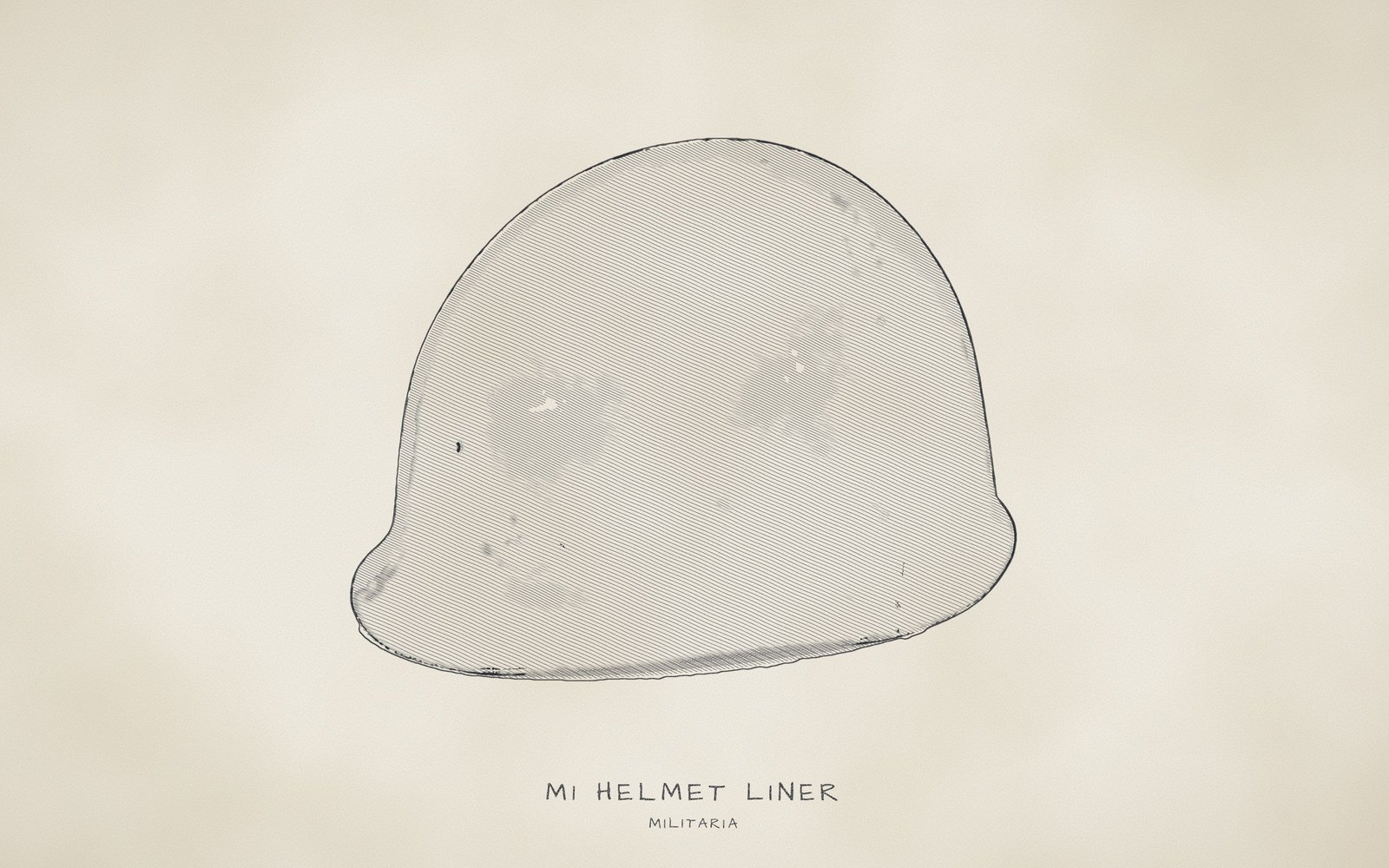
Track helmets, medals, uniforms and other military collectibles with maker, unit, markings and authenticity recorded for each piece.
37 labelled fields, 18 drop-down lists, 414 preset values.
Each piece and its papers, recorded offline on your own computer or phone.
NM Collector CP gives each piece of militaria its own record, whether you buy at shows and auctions, research soldiers and their units, or have inherited a relative's medals and papers. The template records the details collectors look for: maker and markings, nation, service and conflict, the soldier a piece is named to, whether it is original and how it reached you. Its lists use the hobby's terms, with 44 categories from "Ammo Pouch" to "Web Gear" and condition entries such as "Salty" and "Relic".
Adapt the template to how you collect: labels can be renamed and lists edited, and the + button keeps a maker, unit or name you type for the next piece. You might add the forces you collect to "Service", or copy the template for a narrow specialty such as WWI headgear. What you record stays on your own computer or phone. No account is needed, and the app itself never connects to the internet.
Browse the full lists
Choose a list in the first drop-down, then open the second one to scroll through every value in that list, or start typing to jump to a value. These are for browsing only; nothing you pick here is saved.
At a glance
- "Category" lists 44 kinds of object, such as "Canteen", "Gas Mask" and "Trench Art".
- "Country" has 216 entries, among them historical states such as "Confederate States (CSA)"; "Service" has 22, such as "Kriegsmarine", and "Conflict / Era" 21, such as "Russo-Japanese".
- "Variant / Model" offers 23 designations, such as "SSh-40" and "ALICE", while "Maker / Contractor", "Unit" and "Named To" start empty and hold what you add.
- "Authenticity" has 7 values, including "Original (period modified)" and "Undetermined", and "Condition" 9, such as "Mint / Unissued" and "Restored".
- "Provenance", "Grouping?" and "Storage Location" hold entries such as "Veteran Direct", "Part of Named Group" and "Riker Mount".
- Pictures of maker's stamps, tags and papers, 10 care jobs such as "Mothproof" on the Maintenance tab, and 10 occasions such as "Museum Loan" on the Events tab.
- Appraised, current and insured values you type, each with its own date, plus desktop custom reports and CSV export.
- 3 sample pieces show finished records: an M1 helmet, a named Purple Heart and a WWII service coat.
- Runs offline with no account on Windows, Mac, Linux, Android and iOS, and the collection stays on your own devices.
Works offline on Windows, Mac, Linux, Android and iOS · Your records stay on your devices · Every feature free for 30 days · Activations from $24.95 a year.
What this template is for
Military collectibles of every kind, from headgear and field gear to edged weapons and inert ordnance (shells and grenades described as deactivated; the software records what you know but cannot confirm that any piece is safe, so keep any certificate with the item and treat a piece with no paperwork as unverified), uniforms and insignia, medals, documents, photographs and trench art (souvenirs made from shell casings and other war material), are recorded here piece by piece. Each item gets a record of what it is, which country and service used it, which conflict or era it belongs to, who made it and what is stamped on it. Collection data stays on your own computer or phone, so a private collection can be documented in full without an account.
Two tabs carry the fields that describe the piece itself and divide the work. Identification holds what tells one piece apart from another even when nothing is numbered: category, name, country, conflict, variant and service, plus the maker, stamps, year marked, and for personal items the soldier's name and unit. Description then answers what a buyer, appraiser or heir asks next: is it original, what condition is it in, what is it made of, where did it come from, is it part of a group, where is it kept and what value have you recorded for it. The other tabs, such as Pictures and Receipt, work the same in every collection, although Maintenance and Events come with lists suited to militaria, such as "Mothproof" and "Militaria Show".
Category, country, conflict, variant, service, authenticity, condition, material, provenance, grouping and storage come with ready-made lists, which keep spelling the same from one item to the next and matter when you later want a report of every WWII piece or every item from one service. The remaining text fields, such as maker, markings, unit and the soldier a piece is named to, start empty and build their own lists from what you type. Type a contractor or a division once and it is offered on every later piece, so items from one maker or one unit line up in a report.
What you can do with it
- Print or export an inventory for your insurer that lists each piece with its category, condition and the "Insured Value" and "Date Insured" you recorded, using a ready-made report or a custom report with the fields you choose.
- Know which uniforms are on a "Mannequin", which medals are in a "Shadow Box" and what is locked in the "Safe" by filtering a custom report on "Storage Location".
- Keep up with care schedules: record a "Mothproof" or "Leather Condition" job on the Maintenance tab together with a "Next Due Date", so upkeep on uniforms and leather gear does not slip.
- Build the file a buyer or appraiser will ask for from what is on the piece itself: maker, markings, authenticity and condition comments, plus who valued it and when in "Appraised By" and "Date Appraised".
- Keep a named group identifiable: give a medal, its discharge papers and its photographs the "Part of Named Group" grouping and write the recipient in "Named To" on each, so a report can pull the whole group together.
- Separate originals from reproductions by setting "Authenticity" on every piece, so you can see which items are "Original", which are "Undetermined" and which still need research.
- A CSV export of your items, with provenance, condition comments and notes, shows heirs or an appraiser where each piece came from and what has been done to it.
- Keep a display and show history on the Events tab, such as a "Militaria Show" or a "Veterans Day Display", with the date, location, cost and results of each outing.
Best for: Anyone who keeps uniforms, medals, headgear, field gear, documents or inert ordnance and cares about makers, markings and named-soldier history, and families who have inherited a military group and want it recorded properly. Use Firearms, Ammo or Knives when a piece is collected mainly as a gun, a cartridge or a knife.
Why collectors choose NM Collector CP for Militaria
Makers, Markings and the Evidence on the Piece
For many pieces, the maker's stamp and other markings are key evidence of age and originality, and a buyer or appraiser may ask about them. Maker, markings and marked year each have their own field on the Identification tab rather than a line in the notes, and a long marking can be transcribed in full in "Identifying Marks and Features". Photograph each mark close up on the Pictures tab too, so the record shows what you read, not what you remember.
Named Soldiers and Their Groups
A name gives a medal or a tunic a history you can research. "Named To" and "Unit" hold what the engraving or papers show, and "Grouping?" marks each item as a "Single Item", "Part of Lot" or "Part of Named Group". Collectors generally prefer a grouping kept whole, so link a medal to its papers and photographs on the Related tab, and the link stays in your records even when the pieces are displayed or stored apart.
Originals and Reproductions Kept Apart
Many reproductions are made openly for reenactors and living-history groups, and plenty of collections hold both. "Authenticity" separates them, from "Original" and "Original (period modified)" to "Reproduction" and "Fantasy". "Reproduction (aged)" flags a copy made to look old, a warning worth leaving for whoever owns it next. A reenactor can log each "Reenactment" on the Events tab and still see which pieces are period originals.
Soldiers' Names and Values Stay in Your Hands
A militaria inventory holds the names of soldiers and families, lists values and shows which pieces sit in the "Safe". It is stored on your own computer or phone, with no account to create, and the app itself never connects to the internet. When you move the collection to another device, you make the transfer file yourself and choose the route; a file sent by email or a cloud service travels through that provider.
At Shows, Auctions and Estate Sales
The Android and iOS apps need no connection, so your records work in a show hall or at an estate sale whether or not there is a signal. Record a purchase at the table: the seller and amount on the Receipt tab, "Provenance" set to "Show", "Auction" or "Estate", and the story you were told in "Notes" while it is fresh.
A Paper Trail for Insurers and Heirs
Many homeowners policies limit coverage for collectibles, and an insurer or appraiser may ask for photographs, condition, receipts and provenance. Each has a place here, beside "Appraised By" and the values you type yourself; the software does not look up prices. An "Insurance Photo" job on the Maintenance tab dates your last photographs, and a desktop report or CSV export gives heirs a list they can follow.
Firearms, Knives and Papers in the Same Program
All 30 templates come with a new installation. Guns go in Firearms and cartridges in Ammo, while inert ordnance stays here. Bayonets kept with uniforms and field gear belong in Militaria, but a knife collected for itself goes in Knives and a Japanese sword collected for its blade in Nihonto. A general paper collection fits Paper Items and a military vehicle Motor Vehicles, and the Related tab links a piece to items in other collections.
How the fields work
Every text field in a template is a drop-down field. Pick a value from the list or type your own; the + button adds what you typed to the list, the x button clears the field and the e button opens the list editor. Number fields accept any number, date fields hold dates and notes fields hold longer text. The details below cover every field on the Identification and Description tabs, and any drop-down on the other tabs that is specific to this template. Every list can be browsed in the drop-downs under Browse the full lists; lists of 10 values or fewer are also written out in full below.
Identification tab
The Identification tab holds what tells one piece apart from every other, even without a serial number. The item's name in lists and page titles is built from "Custom Tag", "Category", "Item Name", "Country", "Conflict / Era", "Variant / Model" and "Service", in that order, so a short tag placed first leads every entry. The other fields record maker, markings, year, the soldier a piece is named to, unit and size.
Custom Tag
Drop-down · no preset values
A short label of your own choosing, such as an inventory number or a nickname, that comes first in the item's name. Because it leads every entry in a list, keep it brief and consistent, for example a running number in the order pieces joined the collection.
This drop-down starts empty. Type a value into the field and use the + button to add it to the list; it will be there the next time you need it.
Category
Drop-down · 44 preset values
The kind of object, and the second part of the item's name after "Custom Tag", so it shows in list entries and page titles. Choose the closest match, such as "Helmet" or "Medal / Decoration", and let "Item Name" carry the specifics without repeating the category.
An alphabetical list of 44 object types covering headgear, field gear, uniforms, insignia, edged weapons, inert ordnance, paper items and keepsakes. Examples include "Bayonet", "Entrenching Tool", "ID Card / Soldbuch" (a German soldier's identity and pay book) and "Trench Art".
All 44 preset values: choose “Category (Identification tab, 44 values)” in the Browse the full lists drop-downs, further down this page.
Item Name
Drop-down · no preset values
A plain description that says what the piece is, including its main distinguishing detail. The sample items are named M1 steel helmet with liner, Enlisted service coat and a cased Purple Heart.
This drop-down starts empty. Type a value into the field and use the + button to add it to the list; it will be there the next time you need it.
Country
Drop-down · 216 preset values
The nation whose forces issued or used the piece, which is not always where you found it. A German helmet found in an American estate is recorded as "Germany"; choose "Unknown" when the origin cannot yet be established.
An alphabetical list of 216 entries covering present-day countries and territories as well as historical states, including names that matter to military collectors, such as "Prussia (historical)", "Soviet Union (USSR; Soviet)" and "Manchukuo (historical; Japanese-occupied Manchuria)", and an "Unknown" entry for pieces of uncertain origin.
All 216 preset values: choose “Country (Identification tab, 216 values)” in the Browse the full lists drop-downs, further down this page.
Conflict / Era
Drop-down · 21 preset values
The war or period the piece belongs to. This is often more useful than a single year, because a design can stay in service for many years. All three sample items are "WWII"; a later issue piece might be "Cold War".
A short alphabetical list of 21 wars and periods, including "Boer War", "Napoleonic", "Civil War" (listed apart from "Spanish Civil War"), "WWI", "WWII" and "Iraq / Afghanistan". Several are American wars, such as "Mexican-American War", "Spanish-American War", "War of 1812" and "Indian Wars". Broad periods such as "Interwar", "Victorian", "Cold War" and "Modern" cover pieces that fall between named conflicts.
All 21 preset values: choose “Conflict / Era (Identification tab, 21 values)” in the Browse the full lists drop-downs, further down this page.
Variant / Model
Drop-down · 23 preset values
The pattern, model or type designation, whether official or the name collectors use, which separates otherwise similar pieces. The helmet sample uses "M1 (front seam)", which tells it apart from an "M1 (rear seam)" shell. Leave it empty when a piece has no designation.
A list of 23 designations sorted alphabetically, covering models and patterns from several armies. Many are US designations, such as "ALICE", "M1917" and "MOLLE", alongside others such as "Pattern 37", "SSh-40" and "Type 98". It includes "M1 (front seam)" and "M1 (rear seam)", and "Other" for anything not listed.
All 23 preset values: choose “Variant / Model (Identification tab, 23 values)” in the Browse the full lists drop-downs, further down this page.
Service
Drop-down · 22 preset values
The branch or force the piece was made for, such as "Army" for the helmet sample and "Air Corps" for the service coat. Recording it also lets you separate a "British Army" item from a "Royal Navy" one.
An alphabetical list of 22 branches and forces, from US services to British, German, Japanese and Soviet ones. Examples are "Marine Corps", "Luftwaffe", "Royal Navy" and "Red Army"; the list includes "Other" for anything missing.
All 22 preset values: choose “Service (Identification tab, 22 values)” in the Browse the full lists drop-downs, further down this page.
Maker / Contractor
Drop-down · no preset values
The firm that manufactured the piece, read from a stamp, tag or label. The helmet sample records McCord Radiator. Makers help you judge dating and authenticity, so spell each one the same way every time.
This drop-down starts empty. Type a value into the field and use the + button to add it to the list; it will be there the next time you need it.
Markings / Stamps
Drop-down · no preset values
What is stamped, printed, engraved or inked on the piece. The samples show a heat stamp (a lot number stamped into the steel) 875B under a helmet brim, an engraved medal reverse and a Quartermaster tag dated 1942. Put longer transcriptions in "Identifying Marks and Features".
This drop-down starts empty. Type a value into the field and use the + button to add it to the list; it will be there the next time you need it.
Date / Year Marked
Drop-down · no preset values
The date or year that appears on the piece itself, such as 1943 on the helmet sample or 1942 on the service coat tag. Enter what is marked, even a year alone. "Date Manufactured" on the Description tab holds a full date.
This drop-down starts empty. Type a value into the field and use the + button to add it to the list; it will be there the next time you need it.
Named To
Drop-down · no preset values
The person a piece is named to, taken from engraving, ink or an accompanying document. The Purple Heart sample records Pvt. John Doe here. Named pieces can often be researched through the recipient's papers, so keep any paperwork with the piece.
This drop-down starts empty. Type a value into the field and use the + button to add it to the list; it will be there the next time you need it.
Unit
Drop-down · no preset values
The regiment, division, squadron or other formation tied to the piece. The samples record 3rd Infantry Division for a medal and an 8th Air Force shoulder patch for a service coat. Record it as marked or documented, not guessed.
This drop-down starts empty. Type a value into the field and use the + button to add it to the list; it will be there the next time you need it.
Size
Drop-down · no preset values
The size as marked or measured, for example 38R on the service coat sample (a chest size of 38 in a regular length). Use it for tunic and trouser sizes, boot, glove and cap sizes, or the dimensions of a flag, map or poster.
This drop-down starts empty. Type a value into the field and use the + button to add it to the list; it will be there the next time you need it.
Include In Reports?
Drop-down · 2 preset values
A "yes" or "no" marker that says whether an item belongs in your reports. All three sample items are set to "yes"; choose "no" for a piece you want left out of your reports.
A short list of 2 values, "no" and "yes", so the marker is always set the same way on every item.
All 2 preset values: no • yes
Identifying Marks and Features
Notes
Free text for anything that distinguishes this exact piece: transcribed markings, repairs, unusual construction or decals. The helmet sample notes fixed chinstrap bails and a Westinghouse liner with an eagle decal.
Description tab
The Description tab holds condition, storage, provenance and value: authenticity, condition, material, where the piece came from, whether it belongs to a group, where it is kept, appraisal details, condition comments, notes, and the values and dates you record by hand for appraised, current and insured worth.
Authenticity
Drop-down · 7 preset values
Your judgment of whether a piece is a period original, a reproduction, or still unresolved. Honest entries matter when you sell, insure or hand pieces on. All three sample items are "Original". Note who confirmed a piece, and how, in "Notes".
A list of 7 values sorted alphabetically. "Authenticated" suits a piece someone you trust has confirmed, "Original" a period piece, and "Original (period modified)" a genuine piece altered during or soon after service. 2 values cover reproductions, "Reproduction" and "Reproduction (aged)". "Fantasy" means a piece in a military style that was never actually issued, and "Undetermined" is for pieces still under research.
All 7 preset values: Authenticated • Fantasy • Original • Original (period modified) • Reproduction • Reproduction (aged) • Undetermined
Condition
Drop-down · 9 preset values
The overall state of the piece. Pick a grade for a quick sort and put the detail in "Condition Comments", such as the two small moth nips noted on the service coat sample.
9 values sorted alphabetically. Grades run from "Mint / Unissued" through "Excellent", "Very Good", "Good" and "Fair" to "Poor". "Restored" marks a piece that has been repaired or refurbished, and two terms from the hobby cover special cases: "Relic" for pieces recovered from the field and "Salty" for pieces showing genuine service wear.
All 9 preset values: Excellent • Fair • Good • Mint / Unissued • Poor • Relic • Restored • Salty • Very Good
Material
Drop-down · 19 preset values
The main material the piece is made of, which guides how you store and care for it. Pick the dominant one: the samples are "Steel" for the helmet, "Enamel" for the Purple Heart and "Wool" for the service coat.
An alphabetical list of 19 materials common in militaria, covering metals, textiles, leather, rubber, paper and early plastic. Examples are "Bakelite", "Brass", "HBT" (herringbone twill, a sturdy cotton cloth) and "Leather".
All 19 preset values: choose “Material (Description tab, 19 values)” in the Browse the full lists drop-downs, further down this page.
Provenance
Drop-down · 9 preset values
Where the piece came from before you owned it, which supports its story and value. The helmet, Purple Heart and coat samples read "Estate", "Family" and "Dealer" in that order. Add the seller's or veteran's name in "Notes".
9 values sorted alphabetically that describe how a piece reached you, including "Auction", "Estate" and "Veteran Direct", with "Unknown" for pieces whose history has been lost.
All 9 preset values: Auction • Dealer • Estate • Family • Online • Show • Trade • Unknown • Veteran Direct
Grouping?
Drop-down · 3 preset values
Says whether a piece stands alone or belongs with others, for example a medal kept with a soldier's papers and photographs. Use the same value on every piece in the group, so a report can list them together even when they are stored apart.
3 values: "Part of Lot", "Part of Named Group" and "Single Item". They separate an ordinary single piece from something bought in a batch and from a set tied to one named person.
All 3 preset values: Part of Lot • Part of Named Group • Single Item
Storage Location
Drop-down · 9 preset values
Where the piece is physically kept, so you can find it or check on it quickly. In the samples the helmet is in a "Display Case", the Purple Heart in a "Shadow Box" and the coat on a "Mannequin". Add room or shelf detail in the same entry if you need it.
9 values in alphabetical order naming common places to keep militaria: "Archival Box", "Closet", "Display Case", "Mannequin", "Riker Mount" (a shallow glass-topped display box), "Safe", "Shadow Box", "Storage Tote" and "Wall".
All 9 preset values: Archival Box • Closet • Display Case • Mannequin • Riker Mount • Safe • Shadow Box • Storage Tote • Wall
Appraised By
Drop-down · no preset values
The person or firm that appraised the piece, with a credential or reference number if you have one. Pair it with "Date Appraised" and "Appraised Value" so a buyer or insurer can see who gave the figure and when.
This drop-down starts empty. Type a value into the field and use the + button to add it to the list; it will be there the next time you need it.
Condition Comments
Notes
Free text for the specifics behind the condition entry: tears, moth nips, rust, repairs, missing parts or later restoration. The service coat sample records two small moth nips on the left sleeve.
Notes
Notes
General notes that do not fit elsewhere: the story of a piece, research findings, or how items relate. The Purple Heart sample notes that it is grouped with the recipient's discharge papers and photographs.
Date Manufactured
Date
The date the piece was made, when a full date is known, for example from paperwork. If the piece carries only a year, or no date at all, leave this empty: put a year that is stamped or tagged on the piece in "Date / Year Marked", and keep your own dating research in "Notes".
Date Appraised
Date
The day the piece was last appraised. With the appraiser and the appraised figure it records who valued the item, when, and at what amount. When a new appraisal is done, update the three fields and keep the earlier figures in "Notes".
Date Current Value
Date
The day you last set or reviewed the current value. Prices for militaria move over time, so this date tells anyone reading the record how fresh the figure is.
Date Insured
Date
The date the insured value was set or last confirmed with your insurer. It gives an insurer or agent a dated record, and you can see at a glance how old the figure is.
Appraised Value
Number
The amount an appraiser gave the piece, entered as a plain number. The software does not look up prices, so type what you were told, in the same currency you use for the other value fields.
Current Value
Number
Your own estimate of what the piece is worth today, entered by hand as a plain number. The samples hold 450.0, 350.0 and 400.0 with no currency symbol, so choose one currency and use it throughout.
Insured Value
Number
The amount listed for the piece on your insurance coverage, entered as a plain number. It is a separate field from "Current Value", so you can keep both figures side by side when they differ.
Drop-downs on the other tabs
These fields belong to tabs that every collection has, but this template gives them values of its own.
Maintenance tab
Operation
Drop-down · 10 preset values
The care or conservation task done or planned on the piece. The samples use "Frame / Mount" for a Purple Heart placed in a shadow box and "Mothproof" for the service coat.
10 care tasks in alphabetical order, aimed at militaria upkeep. Examples are "Leather Condition", "Rust Removal" and "Inert Certification", which suits inert ordnance, and "Insurance Photo" for documenting a piece.
All 10 preset values: Clean • Frame / Mount • Inert Certification • Insurance Photo • Leather Condition • Mothproof • Polish (gently) • Re-box • Re-stitch • Rust Removal
Completed Units
Drop-down · 2 preset values
Choose "months" or "years" as the unit that goes with "Completed Increment". The mothproofing sample uses "months".
A list of 2 values, "months" and "years", offered as the preset time units.
All 2 preset values: months • years
Next Due Units
Drop-down · 2 preset values
The unit that goes with "Next Due Increment", chosen the same way as "Completed Units". The mothproofing sample also uses "months" here.
The same 2 values as "Completed Units", "months" and "years", so both units can be chosen the same way.
All 2 preset values: months • years
Completed Increment
Drop-down · 3 preset values
The interval attached to the work just done, such as a six month cycle. The service coat sample records "6 months" for its mothproofing routine.
3 ready-made intervals: "6 months", "12 months" and "24 months", which cover half-yearly, yearly and two-yearly care cycles.
All 3 preset values: 12 months • 24 months • 6 months
Next Due Increment
Drop-down · 3 preset values
How long after this job the next one should fall due. On the service coat sample it is "6 months", and its "Next Due Date" lies six months after its "Completion Date".
The same 3 ready-made intervals, "6 months", "12 months" and "24 months", so a repeat cycle can be chosen quickly.
All 3 preset values: 12 months • 24 months • 6 months
Events tab
Event
Drop-down · 10 preset values
The occasion where the piece was shown, sold, valued or lent. The coat sample was taken to a "Militaria Show". Over time the entries build a history of where each piece has been.
10 occasions in alphabetical order, mixing sale venues with display and loan settings. Examples are "Auction", "Gun Show", "Living History" and "Veterans Day Display".
All 10 preset values: Appraisal • Auction • Gun Show • Living History • MAX Show • Militaria Show • Museum Loan • Reenactment • SOS Show • Veterans Day Display
Tabs every collection shares
Besides Identification and Description, each item has these tabs. They work the same way in every collection.
- Pictures: Attach photographs to an item, with a note, the date each was taken, a sequence number and a flag saying whether the picture belongs in reports. Pictures are copied into the application’s own folder and stay on your device.
- Receipt: Who you got the item from and when: the business or person, address, date and amount, plus notes.
- Disposition: The same layout for the other end of an item’s life: to whom it was sold, traded or given, where, when and for how much.
- Related: Link an item to other items in your collections, for example a rifle and its scope or a watch and its box.
- Maintenance: Record maintenance operations with what was done, who did it, where, what it cost, when it was completed and when the next one is due. Repeat an operation each time you perform it.
- Events: A dated log of things that happen to an item: shows, appraisals, loans, repairs and outings, with a description, results, helpers, location and cost.
- Data Sheet: A large free-form area for anything that does not fit elsewhere, such as detailed measurements or component notes.
- Links: Links to web pages, documents and pictures related to an item, each with an optional description.
The three sample items
Every new installation includes three sample items in this collection so you can see how the fields are meant to be filled in.
- M1 steel helmet with liner (listed as “Helmet M1 steel helmet with liner United States WWII M1 (front seam) Army”): Fills most of the Identification fields, from category, country, era, variant and service to maker, heat stamp and marked year, and uses "Identifying Marks and Features" for the chinstrap and liner detail. The Description tab records "Original" authenticity, "Good" condition, "Steel", "Estate" provenance, a "Display Case" and a current value of 450.0.
- Cased Purple Heart named to Pvt. John Doe (listed as “Medal / Decoration Purple Heart, cased United States WWII Army”): Shows a personal item: "Named To" and "Unit" are filled in, and the Description tab marks it as "Part of Named Group" with a note about the recipient's discharge papers and photographs. A "Frame / Mount" job on the Maintenance tab records the shadow box mounting by Acme Frame Shop, costing 120.0.
- Enlisted service coat with 8th Air Force patch (listed as “Uniform (tunic) Enlisted service coat United States WWII Air Corps”): The fullest sample: size 38R and the shoulder patch are recorded, the moth nips go into "Condition Comments", and the Receipt, Maintenance and Events tabs are all used. It has a "Mothproof" job with a 6 month increment and a next due date, and a "Militaria Show" display.
Tips
- Give every piece a short "Custom Tag", such as a running inventory number. It leads the item's name, so consistent tags make a long list easy to scan and each piece easy to refer to.
- Type each maker and unit the same way every time. "Maker / Contractor" and "Unit" start empty and build their own lists, so steady spelling lets you pick earlier entries and keeps reports tidy.
- Record markings and stamps the day a piece arrives, before it is cleaned or mounted, and photograph them on the Pictures tab. Do the same for discharge papers, letters and any certificates, noting them in "Notes". Later handling can hide details that help show a piece is original.
- Set "Authenticity" honestly and give your reasons in "Notes" or "Identifying Marks and Features". Use "Undetermined" while research continues rather than guessing, so you can list the pieces that still need work.
Frequently asked questions about Militaria
Where are my militaria records kept, and who can see them?
Only on your own computer or phone. The app itself never connects to the internet and asks for no account, so nothing you record is uploaded. Some collector guides advise against advertising rare pieces publicly; here, a copy leaves your devices only when you pass on a CSV export, a saved report or a transfer file. AirDrop, Quick Share or a USB drive take a file straight to the device you choose; email or a cloud service routes it through that provider.
Can I look through my collection at a militaria show or gun show without a signal?
Yes. Every edition works offline, and once you move the collection to your phone or tablet with a transfer file, it holds its own copy. At the table you can check whether you already have that maker, stamp or variant, and see your condition notes and what you paid for similar pieces. The phone and computer copies are separate, and a transfer import replaces what is on the receiving device, so export from it first.
How do I keep a named group together in my records?
Record each piece of the group as its own item, with "Grouping?" set to "Part of Named Group" and the same recipient in "Named To". A desktop custom report filtered on "Named To" then lists the group, even if the medal hangs in a "Shadow Box" and the papers sit in an "Archival Box". Collectors warn that groups tend to grow with pieces that never belonged, so record in "Notes" what came with the group and what was added later.
How do I record whether a piece is original or a reproduction?
Set "Authenticity" on the Description tab. The choice is yours; the software does not examine or authenticate anything, so photograph the marks and construction details behind your decision. Note any part you doubt in "Identifying Marks and Features", because a genuine piece may carry a reproduction part, and leave a piece you have not checked as "Undetermined" until someone you trust has seen it.
How do I record makers, heat stamps and other markings?
Put the firm in "Maker / Contractor", the stamp, ink or tag text in "Markings / Stamps" and any date marked on the piece in "Date / Year Marked". On an M1 helmet, collectors read the seam, the chinstrap bails, the maker and the heat stamp together, so pick "M1 (front seam)" or "M1 (rear seam)" in "Variant / Model" and note fixed or swivel bails in "Identifying Marks and Features". Add close-ups on the Pictures tab. The app stores what you read; it does not decode or date a mark.
How do I describe condition when militaria has no standard grading scale?
Pick the nearest "Condition" entry and let "Condition Comments" carry the detail. The list pairs grades from "Mint / Unissued" to "Poor" with "Restored", "Salty" for honest service wear and "Relic" for a dug or recovered piece. Dealers and auction houses use such words differently, so describe what you see, such as moth nips, dents or a replaced part, and add pictures of any damage.
Does the software tell me what my militaria is worth?
No. It does not look up or estimate prices; every figure is one you type. "Current Value" holds your own estimate, "Appraised Value" an appraiser's figure with "Appraised By", and "Insured Value" what your policy lists, each with its own date. What you paid goes in "Amount" on the Receipt tab. The Stats page shows the values in a table, and a CSV export or a desktop custom report lists them side by side.
I have inherited a relative's medals and papers. Where do I start?
Start with one item per medal, document or photograph, set "Provenance" to "Family", and put the relative's name in "Named To" and the unit in "Unit" when the papers show it. Photograph discharge papers and letters on the Pictures tab and keep the originals together: many US Army service files from the World War II era were lost in a fire at the National Personnel Records Center, so family papers may fill gaps that official records cannot.
How do I add the Militaria template to an installation I already use?
Download it from the Downloads page, then choose Import > Collection Template; this works in the Android and iOS apps too. A new 2.3 installation already includes it. Militaria is new in 2.3, so the app creates the collection unless you already have one by that name; in that case it lists any field it would rename and lets you cancel.
What do the three sample items in the Militaria collection show?
They cover three kinds of piece. The M1 helmet fills in identification, from "M1 (front seam)" to the maker and the heat stamp, and is an "Original" in "Good" condition from an "Estate". The cased Purple Heart is named to a soldier and set to "Part of Named Group", with its framing in a shadow box logged as a "Frame / Mount" job. The service coat is the fullest record: a 38R size, moth nips in "Condition Comments", a receipt, a "Mothproof" job every "6 months" and a "Militaria Show" event.
Getting this template
New installations of NM Collector CP start with all 30 templates. If you already use NM Collector CP, use the Download Template button at the top of this page, unzip the file into a templates folder on your computer, and add it with File > Import > Collection Template. The app matches the collection by name, creates it if you do not have it, and asks before it changes what any field is called.
NM Collector CP is free to try with all features for 30 days, with no credit card. After that you can keep using the free version, which needs no activation, or buy an activation for the full-feature version, for 1, 2 or 5 years or for life.
Try it with your own collection
Every feature is free for 30 days, with no credit card, on Windows, Mac, Linux, Android and iOS. Download the free trial.