
Collection software for firearms, coins, stamps, knives, Japanese swords, geological specimens & more - offline - no cloud risks - Windows, Mac, Linux, iOS, and Android.
Try full features Free for 30 Days - No Credit Card. After 30 days you can upgrade or continue to use free version.
Unzip it into a templates folder, then choose File > Import > Collection Template.
Knives collection template
Knife and Sword Collection Software
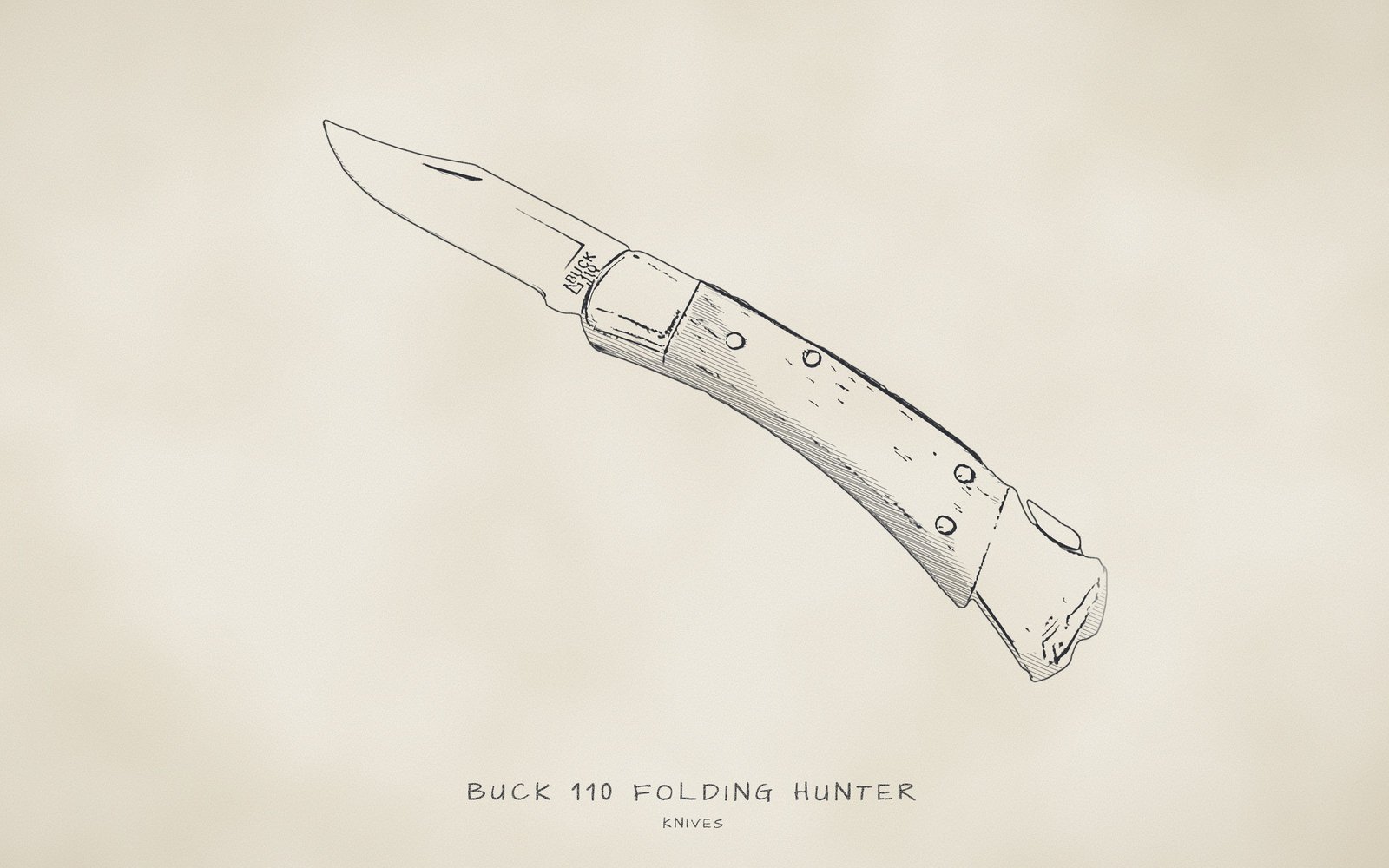
Drawing after a photo by James Case, CC BY 2.0, via Wikimedia Commons.
Catalog pocketknives, hunting knives, kitchen knives and more, down to blade steel, handle material and pivot care.
42 labelled fields, 16 drop-down lists, 479 preset values.
Works offline and keeps your records on your own computer or phone.
NM Collector CP gives knife collectors a record for every blade they own, from custom makers to factory folders, and from kitchen and hunting knives to military fighting knives. The Knives template is set up for the way knives are described: maker, model, type, pattern, blade count, steel, handle material and finish, with ready-made lists behind the fields. You can rename any label, edit any list and add your own values at any time.
It suits owners of traditional Case patterns and modern tactical folders, working knives that ride in a pocket or a knife roll, and boxed pieces that rarely leave the safe. Everything is stored on your own computer or phone, and the app works without an internet connection or an account. It runs on Windows, Mac, Linux, Android and iOS.
Browse the full lists
Choose a list in the first drop-down, then open the second one to scroll through every value in that list, or start typing to jump to a value. These are for browsing only; nothing you pick here is saved.
At a glance
- Maker records in "Manufacturer", "Model", "Model Number", "Pattern Number" and "Pattern Name", with 53 preset makers including "Custom / Handmade".
- Blade and handle details in "Blade Material", "Handle Material", "Handle Color", "Blade Finish", "Blade Length" and "Number of Blades".
- Serial numbers for limited editions and custom pieces in "Serial Number", with "Number Made" for the size of a run.
- Condition grading from "Mint / NIB" to "Poor", plus history flags such as "Sharpened" and "Re-handled", and "Condition Comments" for detail.
- Storage tracking in "Storage Location", from the "Safe" and "Display Case" to the "Knife Roll" and "Carried".
- Pictures for each knife, such as the tang stamp and blade etch, plus a Receipt record of what you paid and when.
- Values you enter by hand in "Appraised Value", "Current Value" and "Insured Value", each with a date field beside it.
- A maintenance log with 9 care jobs such as "Sharpen", "Strop" and "Oil Pivot", each with a "Next Due Date".
- Custom reports where you choose the fields, printing and CSV export, plus 3 sample knives that show how the Identification, Description and Receipt tabs are filled in.
Works offline on Windows, Mac, Linux, Android and iOS · Your records stay on your devices · Every feature free for 30 days · Activations from $24.95 a year.
What this template is for
Pocketknives, hunting knives, kitchen knives and military fixed blades are recorded here by the details that tell one knife from another: maker, model, type, pattern, blade count, materials and finish. Each knife gets its own record, so a Buck lockback, a Case trapper and a Ka-Bar fighting knife can sit in one collection and still be told apart. Its "Type" list also reaches related tools such as "Axe", "Hatchet", "Tomahawk", "Machete" and "Letter Opener".
The Identification tab holds what tells one knife from another: the maker, model, type and serial number, plus the catalog details a maker uses for its own patterns, namely a model number, a pattern number and a pattern name. The number of blades sits here too, because knives that share a model or pattern name can come with different blade counts. The Description tab then carries everything about the particular example in your hands: condition, materials, finish, length, markings, storage, appraisals and values.
Knife collecting comes with a lot of specialist vocabulary, and the drop-down lists spare you from typing it. Steels such as "154CM", "S30V" and "1095", handle materials such as "Jigged Bone" and "Micarta", blade finishes and 53 makers are all one click away. Fields with no preset list, such as "Model", "Marks" and "Blade Length", start empty and fill with your own entries. A custom maker's name or a steel newer than the list is added by typing it once, and it is offered on every later knife.
What you can do with it
- Build a list of your knives for a conversation with an insurer, showing "Manufacturer", "Model", "Condition", "Blade Length" and the "Insured Value" you recorded for each one, using a canned or custom report.
- Know which knives belong in the "Safe", the "Display Case" or the "Knife Roll" by running a custom report filtered on "Storage Location".
- Keep sharpening and care on a schedule by logging each job on the Maintenance tab with a "Completion Date", a "Next Due Date" and notes on what was done.
- Back up a claim that a knife is scarce or early by keeping "Manufacturer", "Marks", "Series / Line", "Number Made", "Condition Comments" and the appraisal details together, then print or export what an appraiser or buyer asks to see.
- Record where a knife came from and why it matters: an exported list of each knife's "Manufacturer", "Nationality", receipt details, "Notes" and "Current Value" gives a future owner the story as well as the specifications.
- Compare what you paid with what a knife is worth now by recording the "Amount" and "Date" on the Receipt tab beside your own "Current Value" and "Date Current Value".
- Keep a history of where a knife has been by logging a "Knife Show", an "Auction", a "Hunt" or a "Camping Trip" on the Events tab, with the "Date", "Location", "Cost" and "Results" of each.
Best for: Pocketknife enthusiasts, hunters with a drawer of favorite blades and owners of military fixed blades who want each piece identified by maker and pattern, plus kitchen and outdoor knife owners who want sharpening and care records kept beside each knife.
Why collectors choose NM Collector CP for Knives
Maker and Pattern Records for Every Knife
Each knife records its maker in "Manufacturer", its name in "Model", and the maker's catalog details in "Model Number", "Pattern Number" and "Pattern Name". A Case trapper can carry its traditional pattern number and name, while a modern knife may need only a model number. The "Type" list adds 48 kinds of knife, so blade styles, folding patterns and lock types such as "Liner Lock" can be grouped across makers.
Blade and Handle Specifications With Preset Lists
Record the steel in "Blade Material", the handle in "Handle Material" and "Handle Color", the surface treatment in "Blade Finish" and the size in "Blade Length". The lists carry steels such as "S30V", "154CM" and "1095", plus "Damascus" and "Ceramic", and handle materials such as "Stag" and "Micarta". There is no separate field for overall length, so put it in "Notes" or "Condition Comments" if you want it.
Your Knife Records Stay on Your Own Devices
The app never connects to the internet and needs no account. Your collection, including serial numbers, receipts and the values you record, is kept on your own computer or phone rather than on a company server. If you later choose to share a whole-collection transfer file, you decide where it goes, and the app reminds you before the file is handed off.
Check What You Own at Shows and Events
Similar patterns and makers are easy to confuse at a knife show. With your collection copied to your phone, you can check which makers, models and patterns you already own and read your condition notes, all without a signal. Copy it with a whole-collection transfer file. Afterward, log the show itself on the Events tab with a value such as "Knife Show" or "Blade Show".
Working Knives and Keepers in One Collection
Some knives are carried and sharpened often, others stay in the box. Log care on the Maintenance tab with jobs such as "Sharpen", "Strop", "Oil Pivot" and "Condition Sheath", each with a "Completion Date" and a "Next Due Date". For keepers, grade the knife with "Mint / NIB" and describe the box, papers or patina in "Condition Comments". A custom report filtered on "Storage Location" separates the two groups.
Custom Makers and Factory Knives Side by Side
A hand-made knife and a factory pocketknife need different details, and the template holds both. Choose "Custom / Handmade" in "Manufacturer", or type the maker's own name and add it to the list, or pick a factory brand such as "Buck" or "Ka-Bar". Use "Serial Number" for numbered pieces, "Number Made" for the run size and "Marks" for stamps. The Related tab can connect a knife to other items you have recorded.
Records an Insurer, Appraiser or Heir Can Use
The Description tab holds "Appraised By", "Date Appraised", "Appraised Value", "Insured Value" and "Date Insured", and the Receipt tab holds what you paid and when. The values are figures you type in yourself, because the software does not look up prices. Add pictures, then print a report or export the items to CSV for whoever asks. Those details are what an insurer, an appraiser or your heirs will want to see.
More Than Knives in One Program
Many knife collectors also keep related pieces. A new installation starts with 30 collection templates, including Firearms, Militaria and Tools and Shop Equipment, so those can be recorded in their own collections beside your knives. Every template is built the same way, with Identification and Description tabs that hold what tells one item apart and what describes its condition, storage and value.
How the fields work
Every text field in a template is a drop-down field. Pick a value from the list or type your own; the + button adds what you typed to the list, the x button clears the field and the e button opens the list editor. Number fields accept any number, date fields hold dates and notes fields hold longer text. The details below cover every field on the Identification and Description tabs, and any drop-down on the other tabs that is specific to this template. Every list can be browsed in the drop-downs under Browse the full lists; lists of 10 values or fewer are also written out in full below.
Identification tab
This tab holds what tells one knife from another. The item's name is built from "Custom Tag", "Manufacturer", "Model", "Type", "Serial Number", "Model Number" and "Pattern Number", in that order. That order decides how every knife reads in the item list and page title. The remaining fields cover the pattern name, the blade count and the report marker.
Custom Tag
Drop-down · no preset values
A label you choose that comes first in the knife's name, so whatever you type here leads in lists and page titles. Use an inventory number such as K-014, a nickname, or a storage code, and leave it empty if maker and model are enough.
This drop-down starts empty. Type a value into the field and use the + button to add it to the list; it will be there the next time you need it.
Manufacturer
Drop-down · 53 preset values
The maker or brand marked on the blade, the tang (the part of the blade inside the handle) or the handle, for example "Case", "Buck" or "Ka-Bar". It is one of the main details an appraiser or buyer is likely to want. Pick "Custom / Handmade" for a knife made by an individual maker and "Unknown" when nothing is stamped.
An alphabetical list of 53 makers, running from "Al Mar" to "Zero Tolerance". It mixes American pocketknife houses such as "Case", "Schrade" and "Camillus", modern makers such as "Benchmade" and "Spyderco", European names such as "Victorinox" and "Morakniv", the kitchen brand "Shun", and entries for "Custom / Handmade" and "Unknown".
All 53 preset values: choose “Manufacturer (Identification tab, 53 values)” in the Browse the full lists drop-downs, further down this page.
Model
Drop-down · no preset values
The maker's own name for the knife, typed in your own words, such as 110 Folding Hunter, Trapper or USMC Fighting Knife in the samples. Together with "Manufacturer" and "Type" it makes each knife read clearly in the item list.
This drop-down starts empty. Type a value into the field and use the + button to add it to the list; it will be there the next time you need it.
Type
Drop-down · 48 preset values
The kind of knife, used to group and find pieces across makers. The samples use "Lockback", "Trapper" and "Fighting Knife". Because a knife can fit several labels, choose the one you would search for, stay consistent, and add your own if a type is missing.
An alphabetical list of 48 types that blends several ways of naming a knife: blade styles such as "Bowie", "Dagger" and "Kukri", folding patterns such as "Barlow", "Stockman" and "Trapper", lock and opening types such as "Liner Lock", "Balisong" and "OTF" (out-the-front), and tools such as "Hatchet", "Machete" and "Straight Razor".
All 48 preset values: choose “Type (Identification tab, 48 values)” in the Browse the full lists drop-downs, further down this page.
Serial Number
Drop-down · no preset values
A serial or engraved number, when the knife has one. Many factory pocketknives carry none, and the three samples leave it empty, but limited editions and some custom makers number their work, and that number singles out one knife from all others of its model.
This drop-down starts empty. Type a value into the field and use the + button to add it to the list; it will be there the next time you need it.
Model Number
Drop-down · no preset values
The maker's catalog or stock number, kept apart from the model name. In the samples the Buck knife is number 110 and the Ka-Bar fighting knife is number 1217. A catalog number helps pin down exactly which version of a model you own.
This drop-down starts empty. Type a value into the field and use the + button to add it to the list; it will be there the next time you need it.
Pattern Number
Drop-down · no preset values
The number a traditional cutlery maker gave to a knife's shape and blade layout, often stamped or catalogued. The Case trapper sample uses 6254. Record it as the maker wrote it, and leave it empty for modern knives that only have a model number.
This drop-down starts empty. Type a value into the field and use the + button to add it to the list; it will be there the next time you need it.
Pattern Name
Drop-down · no preset values
The traditional name of the pattern, such as Trapper in the Case sample. Pattern names describe a shape shared by many makers, so this field lets you group similar knives even when the manufacturers differ. The Buck sample enters Folding Hunter, taken from its model name.
This drop-down starts empty. Type a value into the field and use the + button to add it to the list; it will be there the next time you need it.
Number of Blades
Drop-down · 6 preset values
How many blades the knife carries. The Buck lockback in the samples has one and the Case trapper has two. The count separates versions that share a model name, and it gives you a quick check that no blade is missing when you inspect a folding knife.
A short list running from "1" up to "5", with "6+" as the final choice for knives that carry 6 or more blades.
All 6 preset values: 1 • 2 • 3 • 4 • 5 • 6+
Include In Reports?
Drop-down · no preset values
A yes or no marker that says whether this knife belongs in your reports. Type yes for pieces you want listed, for example in a report for an appraiser, and no for ones you want left out. All three sample knives are marked yes.
This drop-down starts empty. Type a value into the field and use the + button to add it to the list; it will be there the next time you need it.
Description tab
This tab holds the details of the particular knife you own: condition and marks, handle and blade materials, color and finish, blade length, storage location and the maker's series. It also holds the appraiser, 4 dates and 3 values that you record by hand, plus 2 note fields for longer comments.
Nationality
Drop-down · 216 preset values
The country where the knife was made, which shapes how a piece is described and valued. The three samples all read "United States". For older pieces, use the state that existed when the knife was made, and choose "Unknown" when the origin is unclear.
An alphabetical list of 216 entries covering today's countries plus historical states and territories. Examples include "United States", "Germany", "Japan" and "Prussia (historical)", and the parts of the United Kingdom are listed separately. It helps trace older cutlery to where it was made.
All 216 preset values: choose “Nationality (Description tab, 216 values)” in the Browse the full lists drop-downs, further down this page.
Condition
Drop-down · 12 preset values
A short grade for the knife's overall state, such as "Excellent" for the Buck sample and "Very Good" for the other two. Because the list also holds history flags like "Re-handled", the field can note either state or work done. Put the detail in "Condition Comments".
A short list of 12 values that mixes overall grades, from "Mint / NIB" (new in box) down to "Poor", with history flags describing work or wear, such as "Sharpened", "Restored", "Blade Replaced" and "Broken Tip".
All 12 preset values: choose “Condition (Description tab, 12 values)” in the Browse the full lists drop-downs, further down this page.
Series / Line
Drop-down · no preset values
The maker's product line or series, such as Classic in the Buck sample. Manufacturers often sell one model in several lines with different steels, handles or finishes, so this field tells those versions apart and helps explain why two similar knives differ in value.
This drop-down starts empty. Type a value into the field and use the + button to add it to the list; it will be there the next time you need it.
Marks
Drop-down · no preset values
What is stamped, etched or engraved on the knife: tang stamps, logos, date codes, dots, country marks or an owner's initials. The samples read BUCK 110 USA with date code and CASE XX USA with tang stamp dots. Marks help date a knife and are the details an appraiser may want to see.
This drop-down starts empty. Type a value into the field and use the + button to add it to the list; it will be there the next time you need it.
Handle Material
Drop-down · 34 preset values
What the handle is made of, such as "Ebony" on the Buck sample, "Jigged Bone" on the Case trapper and "Leather Washer" on the Ka-Bar. Handle material shapes a knife's look, can hint at when it was made, and is your starting point for how to care for the piece.
An alphabetical list of 34 materials: natural ones such as "Stag", "Antler" and "Mammoth Ivory", woods such as "Walnut" and "Cocobolo", synthetics such as "Micarta", "G10" and "Delrin", metals, and wraps such as "Paracord". It includes "Ivory (pre-ban)" for older pieces made before ivory trade restrictions, so they can be recorded accurately. The entry is only a description you choose, and rules on ivory vary by place.
All 34 preset values: choose “Handle Material (Description tab, 34 values)” in the Browse the full lists drop-downs, further down this page.
Blade Material
Drop-down · 42 preset values
The blade steel or other material, such as "420HC" on the Buck sample, "Carbon Steel" on the Case trapper and "1095" on the Ka-Bar. The steel decides how a blade holds an edge and resists rust, so it also tells you what care the knife needs.
A list of 42 entries, starting with the steels whose names begin with a number. It covers carbon steels such as "1084" and "1095", stainless steels such as "440C", "VG-10" and "S30V", tool steels such as "O1" and "D2", and also "Damascus", "Ceramic", "Stainless Steel" and "Unknown".
All 42 preset values: choose “Blade Material (Description tab, 42 values)” in the Browse the full lists drop-downs, further down this page.
Handle Color
Drop-down · 14 preset values
The main color of the handle, recorded as "brown" for all three sample knives. Color separates otherwise identical knives and makes a handy search term. Use "multi-color" for mixed or patterned handles and "natural" when the material's own color shows.
14 plain lowercase color names, from "black" and "blue" through "olive drab" and "tan" to "white" and "yellow", with "multi-color" and "natural" for mixed handles and for handles that show their own material.
All 14 preset values: choose “Handle Color (Description tab, 14 values)” in the Browse the full lists drop-downs, further down this page.
Blade Finish
Drop-down · 19 preset values
The surface treatment of the blade, such as "Satin" on the Buck and Case samples and "Powder Coat" on the Ka-Bar. Finish changes how a blade looks and resists rust, and it is worth recording whether it is the original finish or a later refinish.
A list of 19 finishes: polished and textured surfaces such as "Satin", "Stonewashed" and "Mirror Polish", hard coatings such as "Cerakote", "DLC" (diamond-like carbon) and "TiN" (titanium nitride), and traditional or craft finishes such as "Forge Scale", "Hammered" and "Damascus Etched".
All 19 preset values: choose “Blade Finish (Description tab, 19 values)” in the Browse the full lists drop-downs, further down this page.
Storage Location
Drop-down · 7 preset values
Where the knife is kept right now, such as "Knife Roll" for the Buck sample or "Display Case" for the other two. Recording it lets you find a knife quickly, check that everything is where it should be, and leave family a clear answer to where each piece lives.
A short list of 7 places that mixes secure storage and everyday use: "Safe", "Drawer", "Kitchen Block", "Knife Roll", "Display Case", "On Display" and "Carried". Replace or extend it with your own rooms, cabinets and boxes.
All 7 preset values: Carried • Display Case • Drawer • Kitchen Block • Knife Roll • On Display • Safe
Blade Length
Drop-down · no preset values
The length of the cutting blade, typed with its unit as in the samples: 3.75 in, 3.25 in and 7 in. Measure from the tip to where the blade meets the handle or guard, and do it the same way every time. It helps describe a piece accurately and separates similar patterns made in more than one size.
This drop-down starts empty. Type a value into the field and use the + button to add it to the list; it will be there the next time you need it.
Appraised By
Drop-down · no preset values
The name of the appraiser or firm that valued the knife. Keep it together with "Date Appraised" and "Appraised Value" so an insurer or buyer can see who stood behind the figure. The three samples leave it empty.
This drop-down starts empty. Type a value into the field and use the + button to add it to the list; it will be there the next time you need it.
Number Made
Drop-down · no preset values
How many of this knife were produced, when that is known, for example a limited run of 500 or a single custom piece. Scarcity often drives value, so record the source of the figure in "Notes".
This drop-down starts empty. Type a value into the field and use the + button to add it to the list; it will be there the next time you need it.
Condition Comments
Notes
Free text for the detail behind the condition grade: patina, scratches, blade play, chips, worn stamps, replaced parts or sharpening history. The Case trapper sample notes light patina on both blades and strong walk and talk, meaning a crisp snap as the blades open and close.
Notes
Notes
General free text for anything that fits nowhere else: accessories such as the leather sheath noted for the Ka-Bar sample, the story of how you acquired the knife, a previous owner, or research you have done on the pattern.
Date Manufactured
Date
The date, or your best estimate, when the knife was made, worked out from a date code, tang stamp or catalog. If you only know the decade, enter a representative date and explain the range in "Notes".
Date Appraised
Date
The day the appraisal named in "Appraised By" was carried out. Values change over time, so this date shows how current the "Appraised Value" is, and buyers and insurers may want to see it.
Date Current Value
Date
The day you last set or reviewed the figure in "Current Value". The software never looks up prices, so this date is your own record of when you checked, and a prompt to review the older figures.
Date Insured
Date
The date the amount in "Insured Value" was set or last confirmed with your insurer. Update it whenever the amount changes so the date and the figure always match.
Appraised Value
Number
The value stated by an appraiser, entered by hand as a plain number in whatever currency you use. Record it with the appraisal date and appraiser so the figure can be traced. The software does not look prices up.
Current Value
Number
Your own estimate of what the knife is worth today, entered as a plain number. The samples show 60 for the Buck, 85 for the Case and 90 for the Ka-Bar. The number carries no currency symbol, so use one currency throughout.
Insured Value
Number
The amount a knife is, or would be, insured for, entered as a plain number. It may differ from the current value, so keeping it in its own field lets you compare the two. Pair it with "Date Insured".
Drop-downs on the other tabs
These fields belong to tabs that every collection has, but this template gives them values of its own.
Receipt tab
License Number
Drop-down · no preset values
The seller's license or permit number, when the seller is a licensed business and the paperwork shows one. It is optional, and the three samples leave it empty, so fill it only when the receipt gives a number worth keeping.
This drop-down starts empty. Type a value into the field and use the + button to add it to the list; it will be there the next time you need it.
D.O.B.
Date
The seller's date of birth, for anyone who wants a full record of a person-to-person purchase. Most collectors leave it blank, and you should record only what you are comfortable keeping.
Disposition tab
License Number
Drop-down · no preset values
When a knife is sold or transferred, the Disposition tab records the other party. This field holds that party's license or permit number, when one applies and you choose to note it. Ordinary sales and gifts usually leave it empty.
This drop-down starts empty. Type a value into the field and use the + button to add it to the list; it will be there the next time you need it.
I. D.
Drop-down · no preset values
An identification number for the person or business that took the knife, if you decide to note one for a sale or transfer. It is optional, and since it is another person's personal information, leaving it blank is a reasonable choice.
This drop-down starts empty. Type a value into the field and use the + button to add it to the list; it will be there the next time you need it.
D.O.B.
Date
The date of birth of the person who took the knife, for a record of who received a piece when it was sold, traded or given away. It is optional and rarely needed for an everyday transfer.
Maintenance tab
Operation
Drop-down · 9 preset values
The care job you performed, chosen from the list, such as "Sharpen" in the Buck sample. Logging every job builds a service history that shows how a knife has been kept, a record worth passing on with the knife if it is sold or inherited.
9 care jobs specific to knives, in alphabetical order: edge work such as "Sharpen" and "Strop" (polishing the edge on leather), pivot work such as "Oil Pivot" and "Tighten Pivot" (the pivot is the pin a folding blade turns on), and upkeep such as "Clean", "Rust Removal", "Refinish", "Re-handle" and "Condition Sheath".
All 9 preset values: Clean • Condition Sheath • Oil Pivot • Re-handle • Refinish • Rust Removal • Sharpen • Strop • Tighten Pivot
Completed Units
Drop-down · 3 preset values
The unit that goes with the interval you record in "Completed Increment", filled in from the list. The Buck sample's sharpening record uses "months". Choose "uses" if you think of care in terms of how much a knife has been used.
A list of 3 units: "months", "uses" and "years". Pick the one that suits how the knife lives, calendar time for a display piece or use count for a knife that goes into the field.
All 3 preset values: months • uses • years
Next Due Units
Drop-down · 3 preset values
The unit that goes with the interval in "Next Due Increment", chosen from the same list of units. The Buck sample again uses "months".
The same 3 units as the completed list: "months", "uses" and "years". A next due interval can be counted the same way as the last one or in a different unit.
All 3 preset values: months • uses • years
Completed Increment
Drop-down · 3 preset values
The interval recorded for the completed job, written as a number and a unit, as in the Buck sample's sharpening record of "6 months". It shows the rhythm you keep for that job, such as sharpening twice a year.
3 common intervals to choose from: "3 months", "6 months" and "12 months". Type your own, such as 2 years, for jobs that come round less often, and add it to the list.
All 3 preset values: 12 months • 3 months • 6 months
Next Due Increment
Drop-down · 3 preset values
The interval to wait before the job is due again. The Buck sample reads "6 months", and its next due date falls 6 months after the completion date. Entering it beside "Next Due Date" gives you the schedule and the date together.
The same 3 intervals as the completed list, "3 months", "6 months" and "12 months". Add your own for other schedules.
All 3 preset values: 12 months • 3 months • 6 months
Events tab
Event
Drop-down · 7 preset values
The kind of occasion the knife took part in, such as "Knife Show" for the Ka-Bar sample, which was displayed at a show in Albuquerque. Events build a history of where a knife has been, useful for provenance and for remembering which knives went on a trip.
7 occasions relevant to blade owners: shows and sales such as "Knife Show", "Blade Show", "Gun Show" and "Auction", plus "Appraisal", "Camping Trip" and "Hunt". Add your own, such as a class or a competition.
All 7 preset values: Appraisal • Auction • Blade Show • Camping Trip • Gun Show • Hunt • Knife Show
Tabs every collection shares
Besides Identification and Description, each item has these tabs. They work the same way in every collection.
- Pictures: Attach photographs to an item, with a note, the date each was taken, a sequence number and a flag saying whether the picture belongs in reports. Pictures are copied into the application’s own folder and stay on your device.
- Receipt: Who you got the item from and when: the business or person, address, date and amount, plus notes.
- Disposition: The same layout for the other end of an item’s life: to whom it was sold, traded or given, where, when and for how much.
- Related: Link an item to other items in your collections, for example a rifle and its scope or a watch and its box.
- Maintenance: Record maintenance operations with what was done, who did it, where, what it cost, when it was completed and when the next one is due. Repeat an operation each time you perform it.
- Events: A dated log of things that happen to an item: shows, appraisals, loans, repairs and outings, with a description, results, helpers, location and cost.
- Data Sheet: A large free-form area for anything that does not fit elsewhere, such as detailed measurements or component notes.
- Links: Links to web pages, documents and pictures related to an item, each with an optional description.
The three sample items
Every new installation includes three sample items in this collection so you can see how the fields are meant to be filled in.
- Buck 110 Folding Hunter, one-blade lockback (listed as “Buck 110 Folding Hunter Lockback 110”): Shows a well-documented factory pocketknife: "Manufacturer", "Model", "Type", "Model Number", "Pattern Name" and one blade on Identification, then a Classic series, an "Ebony" handle, a "420HC" blade, a "Satin" finish, a "Blade Length" of 3.75 in and a "Current Value" of 60 on Description. It is the only sample with a maintenance record, a "Sharpen" job on a "6 months" cycle.
- Case Trapper pattern 6254 with jigged bone handles (listed as “Case Trapper Trapper 6254”): Shows a knife identified by traditional cutlery details: "Pattern Number" 6254 and "Pattern Name" Trapper, with two blades. The Description tab records a "Jigged Bone" handle, "Carbon Steel" blades, "Marks" with tang stamp dots and a comment on light patina. The receipt fills "Name" instead of "Business", as for a person-to-person sale.
- Ka-Bar USMC Fighting Knife, model 1217 (listed as “Ka-Bar USMC Fighting Knife Fighting Knife 1217”): Shows how much can stay empty: "Series / Line", "Marks" and the pattern fields are all blank, yet the knife is fully identified by "Manufacturer", "Model", "Type" and "Model Number" 1217. It has a "Leather Washer" handle, a "1095" blade, a "Powder Coat" finish, a "Blade Length" of 7 in and a note about its leather sheath. It is the only sample with an event, a "Knife Show".
Tips
- Decide on a tag style for "Custom Tag" before you enter the first knife, for example a short prefix and a running number, so every knife reads consistently in lists as the collection grows.
- Extend the lists that match your interests: add makers, blade steels and handle materials that are missing, and let "Series / Line" fill with your own entries. New values become choices immediately, and a value is kept in the list for as long as any knife uses it.
- Record "Marks", "Model Number" and "Pattern Number" while you have the knife in hand, and photograph the tang stamp and any blade etch on the Pictures tab. A receipt entry beside the photos gives you a fuller record to draw on if you later sell, appraise or insure the knife.
- Set a "Next Due Date" whenever you log maintenance, and pick an interval that suits how the knife is used. Kitchen and working knives need sharpening often, while display pieces mostly need cleaning and a periodic check for rust.
Frequently asked questions about Knives
Can I keep custom makers, production knives, tactical folders and art knives in one collection?
Yes. "Manufacturer" holds 53 makers, including "Benchmade", "Spyderco" and "Case", plus "Custom / Handmade" for individual makers. A maker that is not listed can be typed once and added to the list, and it is offered on every later knife. Use "Type" to separate "Folding" knives from "Fixed Blade" knives, then run a custom report filtered on "Type", "Manufacturer" or "Storage Location" to see any group on its own.
How do I document blade patterns and specifications for each knife?
Use "Pattern Name" and "Pattern Number" for the traditional pattern, and "Model Number" for the maker's catalog number. Specifications go in "Blade Length", "Blade Material", "Handle Material", "Handle Color", "Blade Finish" and "Number of Blades". Lock and opening styles such as "Liner Lock", "Frame Lock" and "OTF" are values in "Type". There is no separate field for overall length, edge type or grind, so record those in "Notes" or "Condition Comments".
Can I track pocket knives and fixed blades in the same collection?
Yes. The template covers folding knives and fixed blades alike. "Type" offers values such as "Slip Joint", "Lockback", "Automatic", "Fixed Blade", "Hunting", "Kitchen / Chef" and "Machete", along with tools such as "Hatchet" and "Axe". Pick the label you would search for and use it every time. A custom report filtered on "Type" then lists just that category. You can also mark each knife yes or no in "Include In Reports?" and filter a custom report on that field to list only the knives you marked yes.
How does it handle limited editions and numbered series?
Record an engraved edition number or a factory serial number in "Serial Number", and the size of the run in "Number Made". "Series / Line" names the maker's product line, and "Date Manufactured" holds the year when you know it. Put the story of a commemorative release, and the details of any certificate that came with it, in "Notes", and photograph the certificate on the Pictures tab.
Is my knife collection data private, and where is it stored?
NM Collector CP keeps your records on your own computer or phone. The app itself never connects to the internet and needs no account, so serial numbers, receipts and the values you record are not uploaded by the app. If you choose to share a whole-collection transfer file, it goes wherever you send it: AirDrop, Quick Share or a USB drive keep it on your own devices, while email or a cloud service carries it through that provider.
Can I use it at knife shows without an internet connection?
Yes. The app works offline on every platform. Copy your collection to your phone or tablet with a whole-collection transfer file, and you can check which makers, models and patterns you already own and read your notes at the show. Importing a transfer file replaces all data on the receiving device, so export from that device first if it holds anything you want to keep, and use the same release on both devices.
How do I document condition for user knives versus collectibles?
Grade the overall state in "Condition", from "Mint / NIB" through "Excellent" and "Very Good" down to "Poor", and add history flags such as "Carried", "Sharpened", "Re-handled" or "Restored". Describe edge condition, handle wear, patina and missing parts in "Condition Comments", and note an original box or papers in "Notes". For knives you use, log sharpening and other care on the Maintenance tab with a next due date.
Where do I record swords, bayonets and firearms that go with my knives?
The "Type" list includes "Sword", "Dagger", "Bayonet" and "Trench Knife", so blades of those kinds can sit in the Knives collection. Japanese swords have their own Nihonto template, bayonets kept with uniforms and field gear suit Militaria, and guns belong in Firearms. A new installation starts with all 30 templates, so each kind of item can have its own collection.
How do I add this template to an existing NM Collector CP installation?
New installations already include it. If you already use the software, download the Knives template from the Downloads page and choose Collection Template on the Import page. It loads into your collection named Knives, or creates one if you have none, and your items are not changed. One label changes: Collection becomes "Series / Line". The app lists that rename and asks before it changes anything.
What do the three sample knives in a new collection show me?
They show how the fields are meant to be filled in. One is a factory folding knife with a model number, pattern name, series, marks and a sharpening record. One is a traditional two-blade Case knife with a pattern number and a receipt from an individual seller. One is a military fighting knife with many fields left empty, a note about its leather sheath and a "Knife Show" event.
Getting this template
New installations of NM Collector CP start with all 30 templates. If you already use NM Collector CP, use the Download Template button at the top of this page, unzip the file into a templates folder on your computer, and add it with File > Import > Collection Template. The app matches the collection by name, creates it if you do not have it, and asks before it changes what any field is called.
NM Collector CP is free to try with all features for 30 days, with no credit card. After that you can keep using the free version, which needs no activation, or buy an activation for the full-feature version, for 1, 2 or 5 years or for life.
If you already have a Knives collection
If you already keep a Knives collection, importing the refreshed template from release 2.3 is a low-risk step. One label on the Description tab changes from Collection to "Series / Line", which is what the field was for, and values already entered show under the new name. Large lists of makers, blade steels, lock types and handle materials are added. The app lists the one rename and asks before it changes anything. Nothing is lost, and we recommend importing.
Try it with your own collection
Every feature is free for 30 days, with no credit card, on Windows, Mac, Linux, Android and iOS. Download the free trial.