
Collection software for firearms, coins, stamps, knives, Japanese swords, geological specimens & more - offline - no cloud risks - Windows, Mac, Linux, iOS, and Android.
Try full features Free for 30 Days - No Credit Card. After 30 days you can upgrade or continue to use free version.
Unzip it into a templates folder, then choose File > Import > Collection Template.
Cameras and Lenses collection template
Camera and Lens Collection Software
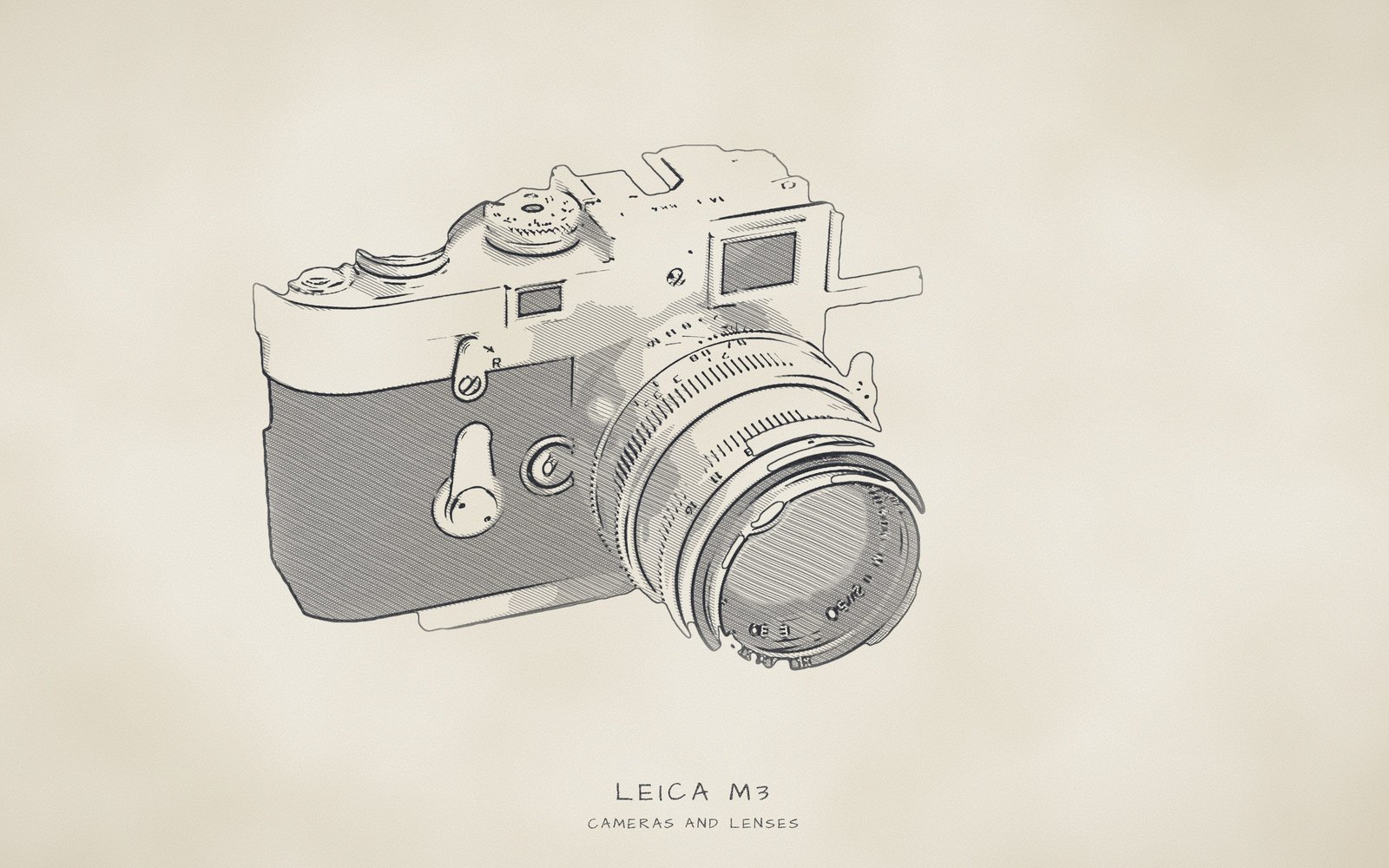
Record cameras, lenses and photographic gear by mount, format and condition, with service and value details alongside.
36 labelled fields, 18 drop-down lists, 441 preset values.
Every body, lens and accessory on record, offline on your own devices.
Whether you collect classic film cameras or keep a list of the kit you work with, NM Collector CP treats each piece as an item of its own. "Type" has 29 entries, from "Folding", "Press" and "Subminiature" cameras to a "Lens", a "Meter" or an "Enlarger", so the whole kit fits in one collection. The Identification tab then records the "Mount", with 30 entries such as "M42" and "Canon FD", the "Format" and the "Maximum Aperture", and the Description tab adds each piece's "Condition", working order and value.
Nothing in the template is fixed. You can rename a label, delete the "Brand" entries you will never need, or add a mount or fault the lists lack; a value added with the + button comes back as a choice on the next item. Serial numbers, insured values and the shelf where each piece sits stay on your own computer or phone, and the app itself never connects to the internet.
Browse the full lists
Choose a list in the first drop-down, then open the second one to scroll through every value in that list, or start typing to jump to a value. These are for browsing only; nothing you pick here is saved.
At a glance
- "Brand" has 45 entries, such as "Argus", "Linhof" and "Zorki", and "Type" has 29, including "TLR", "Stereo" and "Projector".
- "Mount" has 30 entries, such as "Leica Screw (M39)" and "Sony E", and "Format" has 22, such as "620" roll film and "APS-C".
- "Finish" has 9 entries, such as "Black Chrome", and "Country of Manufacture" has 217, including "Soviet Union (USSR; Soviet)" for a "FED" or a "Kiev".
- "Condition" has 7 used-equipment grades, and "Working?" has 12 entries, from "Fully Working" to faults such as "Fungus" and "Meter Dead".
- The Description tab adds "Shutter Count / Hours", "Accessories Included" (16 entries, such as "Dark Slide") and "Storage Location" (7, such as "Dry Cabinet").
- The Receipt tab holds the price paid, and "Appraised Value", "Current Value" and "Insured Value" each have a date; you type every figure.
- Pictures of serial numbers and markings, 12 Maintenance jobs such as "Rangefinder Alignment", and 7 "Event" entries such as "Workshop".
- Desktop custom reports, CSV export and 3 sample items: a rangefinder body, a 50 mm lens and an instant camera.
- The app works with no connection and no account on Windows, Mac, Linux, Android and iOS, and each device keeps its own copy.
Works offline on Windows, Mac, Linux, Android and iOS · Your records stay on your devices · Every feature free for 30 days · Activations from $24.95 a year.
What this template is for
A Leica rangefinder in the dry cabinet, a Nikon 50 mm lens in the camera bag, a Polaroid instant camera on the shelf and a tripod, a flash and a light meter in the closet: photographic gear comes in many shapes, and this template keeps one record of all of it. The "Type" list covers cameras, lenses and accessories alike, so a single collection can even hold a whole darkroom. For each item you record what it is, what shape it is in, where it is kept, what you paid and what it is worth, all stored on your own computer or phone.
The Identification tab carries the details that tell one piece of gear from another even when the "Serial Number" is missing or unreadable: "Brand", "Model", "Type", "Focal Length", "Maximum Aperture", "Mount", "Format", "Finish", "Version / Variant", "Year" and "Country of Manufacture". Two 50 mm lenses from the same maker can then be told apart by their "Maximum Aperture", "Mount" and "Version / Variant". The Description tab holds everything about the individual piece as it is today: its "Condition", its "Working?" status, the "Accessories Included", the "Storage Location", and its "Appraised Value", "Current Value" and "Insured Value".
The lists are tuned to photographic gear: 45 maker entries (including a catch-all), 29 equipment types, 30 mount entries, 22 film and sensor formats, 217 country and historical state entries, and a "Working?" list that names typical faults such as "Fungus", "Haze" and "Shutter Sticky". "Model", "Focal Length", "Serial Number" and "Year" start empty, because those values belong to your own gear. A mount or fault that your gear needs and the lists lack is added the first time you type it, and it is offered again on every later item.
What you can do with it
- Prepare a list for your insurer: each item's "Brand", "Model", "Serial Number", "Identifying Marks and Features", "Condition" and "Insured Value" with its "Date Insured", gathered in a report of the items you have marked to include.
- Check what is in the "Pelican Case", the "Camera Bag" or the "Dry Cabinet" by filtering a custom report on "Storage Location", before a trip, a move or a change in coverage.
- Keep a service history with each item by logging every "CLA (clean lube adjust)", "Sensor Clean" or "Light Seals" job on the Maintenance tab and recording the "Next Due Date", so the last service and the planned next one stay with the gear.
- Find items that share a mount by recording "Mount" on every body and lens, then filtering a report on "Nikon F" or "Leica M" when planning a kit. A shared mount is only a starting point, so check "Version / Variant" and adapters.
- Compare what a dealer or appraiser says with what you paid: record "Appraised By", "Appraised Value" and "Date Appraised" beside the purchase price on the Receipt tab, and keep "Condition", "Working?", "Accessories Included" and "Version / Variant" ready for a buyer's questions.
- Flag repair candidates and gear worth testing by filtering on "Working?" entries such as "Untested", "Meter Dead" or "Light Seals Gone", and log the repair against the item once it is done.
- Build a diary for a piece on the Events tab by logging a "Photo Walk", a "Camera Show" or an "Auction" against it, with the date, location and cost, so the history of a body or lens grows as it is used.
Best for: Camera and lens collectors, working photographers with a bag full of gear, and anyone insuring or selling photographic equipment who wants make, mount, serial number and condition kept with values in one place.
Why collectors choose NM Collector CP for Cameras and Lenses
One Mount List for Bodies and Lenses
"Mount" runs from old screw mounts such as "Leica Screw (M39)" and "M42" to "Nikon Z", plus "Fixed Lens" for a built-in lens and "Copal 0", "Copal 1" and "Copal 3", the shutter sizes large-format lenses are fitted in. Bodies and lenses take the same values, and because "Focal Length", "Maximum Aperture" and "Mount" are part of each item's name, two lenses that differ in any of them read differently in the item list.
Separate Fields for Condition and Working Order
Used-camera dealers grade mainly on appearance, and a clean body can still have a sticky shutter, so the grade and the working order each have their own field. "Condition" takes your grade, such as "Mint-" or "Excellent+", and "Working?" the verdict or main fault, such as "Haze", "Separation" or "Slow Speeds Off". The rest, from cleaning marks on the glass to a stiff focus ring, goes in "Condition Comments".
A Dated Service History for Each Body and Lens
Lubricants age even in a camera that sits unused, so the date of the last CLA matters to you and to a buyer. The Maintenance tab offers "Operation" jobs such as "CLA (clean lube adjust)", "Shutter Repair" and "Lens Clean", each with its "Completion Date", "Completed By" and "Next Due Date", and intervals can be counted in "actuations" or "rolls" as well as "months" or "years".
Serial Numbers and Insured Values Stay With You
A gear list says what you own, what each piece is insured for and whether it sits in a "Safe" or a "Camera Bag". NM Collector CP stores that list on your own computer or phone and asks for no account, and the app itself never connects to the internet. Moving it to another device means a transfer file you make with Share Data and hand over yourself.
Your Kit List at Camera Shows, Auctions and Flea Markets
At a dealer's table, what decides a purchase is often in your records: the variant of the body you own, the "Working?" state of the lens you hope to replace, what you paid last time. A phone or tablet carries a full copy, pictures included, and needs no signal, so a new piece can be logged on the spot, with the seller in "Business" or "Name" on the Receipt tab and a "Camera Show" event.
Clear Answers for Insurers, Appraisers and Heirs
An insurer or appraiser may ask what a piece is and what shape it is in; an heir needs to know which cameras work, where they are kept and who valued them. "Serial Number", "Identifying Marks and Features", "Condition", "Working?", "Storage Location" and "Appraised By" hold those answers. Mark the pieces to list with "Include In Reports?" and filter a desktop custom report on it, or export the collection to CSV with pictures in a folder beside it.
Cameras Beside Your Other Collections
All 30 templates come with a new installation, so the camera shelf can sit beside other collections. A snapshot camera kept only as household contents fits Home Inventory, and photography books belong in Books. Photographs themselves go in Paper Items, and the Related tab can link one to the camera that made it. Meters, flashes, projectors and darkroom gear stay here, since "Type" covers them.
How the fields work
Every text field in a template is a drop-down field. Pick a value from the list or type your own; the + button adds what you typed to the list, the x button clears the field and the e button opens the list editor. Number fields accept any number, date fields hold dates and notes fields hold longer text. The details below cover every field on the Identification and Description tabs, and any drop-down on the other tabs that is specific to this template. Every list can be browsed in the drop-downs under Browse the full lists; lists of 10 values or fewer are also written out in full below.
Identification tab
The Identification tab holds what makes each piece of gear distinct: "Brand", "Model", "Type", "Focal Length", "Maximum Aperture", "Mount", "Serial Number", "Format", "Finish", "Version / Variant", "Year", "Country of Manufacture" and the free-text "Identifying Marks and Features". The item's name is built from "Custom Tag", "Brand", "Model", "Type", "Focal Length", "Maximum Aperture" and "Mount" in that order, so their order decides how items read in lists and page titles. A field with no label adds nothing.
Custom Tag
Drop-down · no preset values
A free-form label of your own choosing that leads the item's name. Use an inventory number, a case code or a nickname, so two similar pieces of gear stay easy to tell apart in lists.
This drop-down starts empty. Type a value into the field and use the + button to add it to the list; it will be there the next time you need it.
Brand
Drop-down · 45 preset values
The maker whose name is on the camera or lens, such as "Leica" for a rangefinder or "Nikon" for a lens. Third-party lens makers like "Sigma" and "Tamron" have their own entries. It leads the item's name unless a "Custom Tag" comes first.
An alphabetical list of 45 entries, from "Agfa" to "Zorki", mixing classic camera houses such as "Leica" with lens makers and newer names such as "DJI". An "Other" entry covers any maker that is not listed.
All 45 preset values: choose “Brand (Identification tab, 45 values)” in the Browse the full lists drop-downs, further down this page.
Model
Drop-down · no preset values
The model name or number as marked on the body or lens barrel, such as M3 for a Leica or Nikkor-S Auto 50mm f/1.4 for a lens. For lenses, keep the marked name, but you can drop the focal length and aperture from it, since "Focal Length" and "Maximum Aperture" already appear in the item's name.
This drop-down starts empty. Type a value into the field and use the + button to add it to the list; it will be there the next time you need it.
Type
Drop-down · 29 preset values
The kind of equipment, which separates bodies from lenses and accessories. Use a body style such as "Rangefinder", "SLR" or "Instant", or other gear such as "Lens", "Flash" or "Tripod", so a mixed kit can be sorted by role.
29 entries in alphabetical order that mix camera styles with related gear. Body styles include "Box Camera", "DSLR", "Mirrorless", "Rangefinder", "SLR" and "TLR", while the rest covers a "Lens", a "Flash", a "Meter", a "Tripod", projectors and darkroom equipment such as an "Enlarger".
All 29 preset values: choose “Type (Identification tab, 29 values)” in the Browse the full lists drop-downs, further down this page.
Focal Length
Drop-down · no preset values
The focal length marked on a lens or built into a camera. Pick one style and keep to it, such as 50 mm for a lens or 116 mm for an instant camera, so filters match consistently. For a zoom, type the range, for example 24 to 70 mm. Leave it empty for a body that takes interchangeable lenses.
This drop-down starts empty. Type a value into the field and use the + button to add it to the list; it will be there the next time you need it.
Maximum Aperture
Drop-down · 12 preset values
The widest opening the lens offers, a main way to tell apart lenses of the same focal length, for example "f/1.4" against "f/2". Cameras with a built-in lens record it too: the sample Polaroid SX-70 Land Camera shows "f/8".
12 values ordered from the widest opening to the narrowest, from "f/0.95" through fast standards such as "f/1.4" and "f/1.8" to "f/8". Every entry is written in the same f/ style, so lenses read consistently.
All 12 preset values: choose “Maximum Aperture (Identification tab, 12 values)” in the Browse the full lists drop-downs, further down this page.
Mount
Drop-down · 30 preset values
The lens mount, the fitting where lens meets body. Give bodies and lenses the same value, such as "Nikon F" or "Leica M", so items that share a mount can be found together; cameras with a built-in lens take "Fixed Lens".
30 entries in alphabetical order, mostly named after a maker's system, such as "Nikon Z". Older screw mounts like "M42", lens shutter sizes like "Copal 1" and a "Fixed Lens" entry for built-in lenses complete the list.
All 30 preset values: choose “Mount (Identification tab, 30 values)” in the Browse the full lists drop-downs, further down this page.
Serial Number
Drop-down · no preset values
The number stamped on the body or lens, entered exactly as marked. Insurers, repairers and buyers ask for it, and it separates two otherwise identical examples, such as 915432 on the sample Leica M3. Leave it empty if the piece carries none.
This drop-down starts empty. Type a value into the field and use the + button to add it to the list; it will be there the next time you need it.
Format
Drop-down · 22 preset values
The film or sensor size the equipment is made for, such as "35 mm" film, "120 / 220" roll film, "4x5" sheet film or "Full Frame" digital. For a lens, enter the format it was designed to cover, which tells you what it can be paired with.
22 values, with those that begin with a number listed first and the lettered ones after them, spanning roll and sheet film, cine film, instant film and digital sensors. Examples include "35 mm", "4x5", "Instant (Integral)" and "APS-C".
All 22 preset values: choose “Format (Identification tab, 22 values)” in the Browse the full lists drop-downs, further down this page.
Finish
Drop-down · 9 preset values
The color and surface treatment of the body or barrel, such as "Chrome" on the sample Leica M3 or "Black Paint" on the sample Nikkor lens. Collectors often use finish to distinguish one production run of a model from another.
9 entries covering plated metals, paints and body coverings, listed alphabetically. Examples are "Chrome", "Black Paint", "Titanium" and "Vulcanite" (a hard rubber covering), and you can add any special finish you own that is missing.
All 9 preset values: Black Chrome • Black Paint • Chrome • Gold • Leatherette • Olive • Silver • Titanium • Vulcanite
Version / Variant
Drop-down · no preset values
The production variant or sub-model, which separates early from late examples of the same camera or lens, such as Double stroke (an early film advance type) on the sample Leica M3 or Non-AI (an older Nikon lens design) on the sample Nikkor lens. Copy the wording from collector guides or the maker's own literature.
This drop-down starts empty. Type a value into the field and use the + button to add it to the list; it will be there the next time you need it.
Year
Drop-down · no preset values
The year this item was made, or the year the model was introduced if that is all you can establish, noting which in "Identifying Marks and Features". Type it as a plain year, such as 1956 for the sample Leica M3 or 1972 for the Polaroid SX-70. Use "Date Manufactured" when a full date is known.
This drop-down starts empty. Type a value into the field and use the + button to add it to the list; it will be there the next time you need it.
Country of Manufacture
Drop-down · 217 preset values
Where the item was made, which often identifies the variant and can affect how sought after it is. Older cameras may carry markings from a country that has since changed, so choose the entry that matches the marking rather than today's country name. The sample Nikkor lens is "Japan" and the sample Polaroid is "United States".
217 entries in alphabetical order: countries, territories and historical states, plus an "Unknown" entry. Examples are "Japan", "Germany", "Czechoslovakia" and "Yugoslavia".
All 217 preset values: choose “Country of Manufacture (Identification tab, 217 values)” in the Browse the full lists drop-downs, further down this page.
Include In Reports?
Drop-down · 2 preset values
A yes or no marker that says whether this item should be part of your reports. Set it to "yes" for pieces you want listed for an insurer, a sale or an estate, and to "no" for gear you want left out, such as an item on loan.
Only 2 values, "no" and "yes". All 3 sample items are set to "yes".
All 2 preset values: no • yes
Identifying Marks and Features
Notes
Free text for anything that tells this exact piece apart from others of the same model: dents, engraving, repairs, replaced parts, worn paint or a previous owner's initials. The sample Leica M3 records a small dent on the top plate.
Description tab
The Description tab records the state and worth of the individual piece: "Shutter Count / Hours", "Condition", "Working?", "Accessories Included", "Storage Location", and the "Appraised Value", "Current Value" and "Insured Value" with their dates. "Appraised By" records who gave a valuation, "Condition Comments" and "Notes" are free-text fields, and "Date Manufactured" is recorded on this tab too.
Shutter Count / Hours
Drop-down · no preset values
How much the item has been used: the number of exposures the shutter has made for a digital body, or operating hours for a drone or projector, typed together with its unit. Handy to have on record when a piece is serviced, sold or insured.
This drop-down starts empty. Type a value into the field and use the + button to add it to the list; it will be there the next time you need it.
Condition
Drop-down · 7 preset values
An overall grade for the item's cosmetic and general state, such as "Mint", "Excellent" or "Parts / Repair". Pick your own standard and keep to it, and put the detail in "Condition Comments". The sample Leica M3 is "Excellent" and the sample Polaroid is "User".
7 values in alphabetical order, in a used-equipment grading style with plus and minus grades for finer steps, plus a "Bargain" entry. Examples: "Mint", "Excellent+", "User" and "Parts / Repair".
All 7 preset values: Bargain • Excellent • Excellent+ • Mint • Mint- • Parts / Repair • User
Working?
Drop-down · 12 preset values
Whether the item functions and, if not, what fails. Pick an overall verdict such as "Fully Working" or "Untested", or the main fault, such as "Fungus" or "Meter Dead". List any further faults in "Condition Comments" so nothing is lost.
12 values in alphabetical order, combining overall status with typical faults of older equipment: shutter and speed problems, optical faults and worn finish. Examples: "Fully Working", "Untested", "Light Seals Gone" and "Haze".
All 12 preset values: choose “Working? (Description tab, 12 values)” in the Browse the full lists drop-downs, further down this page.
Accessories Included
Drop-down · 16 preset values
What came with the item: the extras that complete it, such as the "Case" with the sample Leica M3, "Lens Caps" with the Nikkor lens or the "Strap" with the Polaroid. Record what you actually hold, since a missing box or cap matters to buyers.
16 values in alphabetical order covering the usual extras: things that protect the item, power it or attach to it. Examples: "Battery", "Box", "Hood" and "Memory Card".
All 16 preset values: choose “Accessories Included (Description tab, 16 values)” in the Browse the full lists drop-downs, further down this page.
Storage Location
Drop-down · 7 preset values
Where the item is kept, so you can walk straight to it or list everything stored in one place. The sample Leica M3 sits in a "Dry Cabinet", which suits gear that can develop fungus, and the sample Polaroid on a "Shelf".
7 places where gear is typically kept, from protective storage to open display: "Dry Cabinet", "Pelican Case", "Safe" and "Camera Bag". You can add your own rooms, shelves or boxes.
All 7 preset values: Camera Bag • Case • Display • Dry Cabinet • Pelican Case • Safe • Shelf
Appraised By
Drop-down · no preset values
The person or firm that valued the item, so a figure in "Appraised Value" can be traced to its source. Enter a dealer, an auction house or an independent appraiser, whoever gave the valuation.
This drop-down starts empty. Type a value into the field and use the + button to add it to the list; it will be there the next time you need it.
Condition Comments
Notes
Free text that backs up the "Condition" grade: cosmetic wear, glass quality, how the controls feel, repairs made and anything a buyer or appraiser would want described. It explains a grade in words.
Notes
Notes
General notes that fit nowhere else: history, provenance, how you found the piece, testing plans or reminders. The sample Polaroid uses it to record that the camera needs a test pack of film.
Date Manufactured
Date
The date the item was made, when a full date is known, for example from a dated document or a maker's record. The sample Leica M3 has one filled in. When only a year is known, use "Year" on the Identification tab instead.
Date Appraised
Date
The day an appraiser gave the figure in "Appraised Value", so a valuation can be judged by its age. Update it whenever the item is appraised again.
Date Current Value
Date
The day you last set your own "Current Value", which gives that estimate a timestamp. Change it whenever you review what the item is worth.
Date Insured
Date
The day the "Insured Value" was agreed or last changed, useful for checking when coverage was last reviewed. Enter the date shown on your policy or schedule.
Appraised Value
Number
The value an appraiser assigned, as a plain number in whatever currency you use. You type it by hand; the software does not look up prices. Pair it with "Appraised By" and "Date Appraised".
Current Value
Number
Your own estimate of what the item is worth now, as a plain number. The sample Leica M3 shows 1400 and the sample Nikkor lens shows 120. Typed by hand, it is only as current as your last review.
Insured Value
Number
The amount the item is insured for, as a plain number. The sample Leica M3 carries 1600 against a "Current Value" of 1400, and comparing the two shows where coverage and worth differ.
Drop-downs on the other tabs
These fields belong to tabs that every collection has, but this template gives them values of its own.
Maintenance tab
Operation
Drop-down · 12 preset values
The service or repair carried out, chosen from a list of camera-specific jobs. Record the job plainly, for example "CLA (clean lube adjust)" as on the sample Leica M3, alongside its "Completion Date" and "Completion Cost" (325 for that CLA), so the item's service record reads clearly.
12 jobs in alphabetical order, aimed at camera and lens servicing: mechanical work, optical cleaning and electronics. Examples: "CLA (clean lube adjust)", "Light Seals", "Sensor Clean" and "Firmware Update".
All 12 preset values: choose “Operation (Maintenance tab, 12 values)” in the Browse the full lists drop-downs, further down this page.
Completed Units
Drop-down · 4 preset values
The unit that goes with the interval on the completed job, such as "years" for the CLA on the sample Leica M3. Choose "actuations" or "rolls" for gear that wears with handling, or "months" and "years" for a calendar cycle.
4 short units in alphabetical order: "actuations" for shutter cycles, "months" and "years" for calendar intervals, and "rolls" for film use.
All 4 preset values: actuations • months • rolls • years
Next Due Units
Drop-down · 4 preset values
The unit in which the next service is counted. Pick "actuations" or "rolls" when wear rather than time decides when the next job falls due, and "months" or "years" when the calendar does.
The same 4 units as the completed list, "actuations", "months", "rolls" and "years", so the next job can be counted the same way as the last.
All 4 preset values: actuations • months • rolls • years
Completed Increment
Drop-down · 3 preset values
The length of the interval attached to the completed job, written as a number and unit together, such as "10 years" for the CLA on the sample Leica M3. Keep it consistent with the unit chosen in "Completed Units".
3 ready-made intervals: "12 months" for annual attention and "5 years" and "10 years" for longer cycles. Other intervals can be typed in and added.
All 3 preset values: 10 years • 12 months • 5 years
Next Due Increment
Drop-down · 3 preset values
The interval until the following service, as a number and unit together, such as "10 years" for the sample Leica M3. It works together with "Next Due Date", which holds the actual calendar date of that service.
The same 3 intervals as the completed list, "12 months", "5 years" and "10 years", so the next job can be planned on the same footing as the last.
All 3 preset values: 10 years • 12 months • 5 years
Events tab
Event
Drop-down · 7 preset values
The occasion that links the item to something that happened to it or with it, such as a "Photo Walk" on which the sample Polaroid went out, or an "Appraisal", "Auction" or "Camera Show". Together the entries make a diary for the piece.
7 values in alphabetical order that mix photographic outings and market events. Examples: "Appraisal", "Auction", "Photo Walk" and "Workshop".
All 7 preset values: Appraisal • Auction • Camera Show • Exhibition • Photo Walk • Trip • Workshop
Tabs every collection shares
Besides Identification and Description, each item has these tabs. They work the same way in every collection.
- Pictures: Attach photographs to an item, with a note, the date each was taken, a sequence number and a flag saying whether the picture belongs in reports. Pictures are copied into the application’s own folder and stay on your device.
- Receipt: Who you got the item from and when: the business or person, address, date and amount, plus notes.
- Disposition: The same layout for the other end of an item’s life: to whom it was sold, traded or given, where, when and for how much.
- Related: Link an item to other items in your collections, for example a rifle and its scope or a watch and its box.
- Maintenance: Record maintenance operations with what was done, who did it, where, what it cost, when it was completed and when the next one is due. Repeat an operation each time you perform it.
- Events: A dated log of things that happen to an item: shows, appraisals, loans, repairs and outings, with a description, results, helpers, location and cost.
- Data Sheet: A large free-form area for anything that does not fit elsewhere, such as detailed measurements or component notes.
- Links: Links to web pages, documents and pictures related to an item, each with an optional description.
The three sample items
Every new installation includes three sample items in this collection so you can see how the fields are meant to be filled in.
- Leica M3 rangefinder body from 1956 (listed as “Leica M3 Rangefinder Leica M”): The most fully documented of the 3: "Brand", "Model", "Type", "Mount", "Serial Number", "Format", "Finish", "Version / Variant", "Year" and "Country of Manufacture" are all filled, with a note on a small dent. It also carries current and insured values, a purchase receipt and a CLA service record with a 10 year interval.
- Nikkor-S Auto 50mm f/1.4 lens (listed as “Nikon Nikkor-S Auto 50mm f/1.4 Lens 50 mm f/1.4 Nikon F”): Shows how a lens is recorded: "Type" is "Lens", "Focal Length" is 50 mm, "Maximum Aperture" is "f/1.4" and "Mount" is "Nikon F", plus the Non-AI variant and the year 1966. It is graded "Excellent+", comes with "Lens Caps", is valued at 120 and has a receipt for 95 that records a person's name rather than a business.
- Polaroid SX-70 Land Camera instant camera (listed as “Polaroid SX-70 Land Camera Instant 116 mm f/8 Fixed Lens”): Shows a fixed-lens camera: "Mount" is "Fixed Lens", "Focal Length" is 116 mm, "Maximum Aperture" is "f/8" and "Format" is "Instant (Integral)". It has no serial number recorded, "Condition" is "User", "Working?" is "Untested", and a "Notes" entry says it needs a test pack of film. An event records a club photo walk.
Tips
- Put a short inventory code or kit name in "Custom Tag", such as a case number, because it leads every item name. Leave it empty if you would rather have names start with "Brand".
- Record the "Serial Number", "Identifying Marks and Features" and a few pictures as soon as a piece arrives. These are the details an insurer, a repairer or a buyer asks for first, and they are hard to gather later.
- Fill "Mount" the same way for bodies and lenses, using the list value, so a report on one mount lists every body and lens that share it. Add any mount that is missing from the list.
- Extend the "Working?" list and the "Operation" list with the faults and jobs you meet, and update "Working?" once a repair has been logged, so the tabs tell the same story.
Frequently asked questions about Cameras and Lenses
Will the software tell me which lenses fit my camera?
No, it does not judge compatibility, but it helps you check. Since "Mount" is part of each item's name, typing "Nikon F" in the filter field on the main page lists every body and lens you gave that mount. The same mount name is not proof of a fit: Non-AI and later Nikkor lenses all use "Nikon F", yet some later bodies can be damaged by the older lenses, so note the generation in "Version / Variant". The Related tab can link a body to the lenses you use on it.
Where do I record fungus, haze or a sticky shutter?
In "Working?" on the Description tab. Its list includes "Fungus", "Haze", "Shutter Sticky" and "Light Seals Gone", beside verdicts such as "Not Working". Choose the main fault there and describe the rest in "Condition Comments", and keep the overall grade, such as "Excellent" or "Bargain", in "Condition". You judge the gear; the software records what you find.
Can I log CLAs, light seal jobs and other repairs for each camera?
Yes, on the Maintenance tab. Its "Operation" list includes "Light Seals", "Meter Calibration", "Fungus Removal" and "Sensor Clean", and each entry records when the work was done, who did it, what it cost and when the next service is due. A new entry for each job builds a dated history that a repairer or buyer can read.
Does the software value my cameras or date them from their serial numbers?
No. It holds no model database, does not decode serial numbers and does not look up prices. Type the number as marked in "Serial Number"; a serial can often be dated from the published lists for that maker, and the result goes in "Year", or in "Date Manufactured" for a full date. Values are yours too: you type "Current Value", "Appraised Value" and "Insured Value" and the date of each.
What should my camera gear list include for an insurer?
An insurer may ask for the maker, model and serial number of each body and lens, with photographs, receipts and a value. Fill "Brand", "Model" and "Serial Number", add pictures of each piece and its markings, and keep "Insured Value" and "Date Insured" current. Print a desktop custom report of the fields you choose, or export to CSV. A home policy may limit coverage for cameras or exclude gear used for paid work, so ask your insurer; the software only stores what you record.
Can I record whether a lens was made for full frame, APS-C or a film format?
Yes. "Format" on the Identification tab covers film and sensor sizes, such as "35 mm", "120 / 220", "4x5", "Full Frame" and "Micro Four Thirds". A lens made for "35 mm" film also covers a "Full Frame" sensor, which is the same size as the film frame, so choose one of the two for such lenses and keep to it. Note two similar names: "APS" is an old film cartridge, while "APS-C" is a digital sensor size that borrowed the name.
Where is my camera and lens data stored, and who can see it?
Everything you enter, pictures included, stays on your own computer or phone. The app itself never connects to the internet and needs no account, so no server holds your serial numbers or insured values. Data leaves a device only when you send it yourself, as a printed or saved report, a CSV file or a transfer file. Sent by AirDrop, Quick Share, a cable or a USB drive, it stays with you; sent by email or a cloud service, it goes by way of that provider.
Can I look through my gear list at a camera show or flea market with no signal?
Yes. The copy on a phone or tablet is complete in itself and never needs a connection, so at the table you can see whether you already own a lens and which of your bodies take "Pentax K". Make a Share Data file from Collection Data Transfer on the desktop Export page, then open it with Zip File on the phone's Import page. An import replaces everything on the receiving device, so first export anything on the phone you want to keep.
How do I add the Cameras and Lenses template to an installation I already use?
If you installed 2.3 fresh, the collection is already there. On an earlier installation, fetch the template from the Downloads page and bring it in through Import > Collection Template, on the desktop or, with the 2.3 app, on a phone or tablet. Cameras and Lenses is new in 2.3, so the import normally just creates the collection. Only if you had set up a collection under the same name does the app compare labels; it lists each one it would change and lets you cancel.
What do the three sample items in the Cameras and Lenses collection show?
The Leica M3 body is the fullest record: a "Chrome" finish, the double-stroke variant, "Excellent" condition, a dent noted, current and insured values, a receipt and a CLA logged with a "10 years" interval. The Nikkor-S Auto lens shows the lens fields, with "Nikon F", "f/1.4" and Non-AI, and a receipt naming a private seller. The Polaroid SX-70 has "Fixed Lens", "Instant (Integral)", no serial number recorded yet, "Untested" in "Working?" and a club photo walk on the Events tab.
Getting this template
New installations of NM Collector CP start with all 30 templates. If you already use NM Collector CP, use the Download Template button at the top of this page, unzip the file into a templates folder on your computer, and add it with File > Import > Collection Template. The app matches the collection by name, creates it if you do not have it, and asks before it changes what any field is called.
NM Collector CP is free to try with all features for 30 days, with no credit card. After that you can keep using the free version, which needs no activation, or buy an activation for the full-feature version, for 1, 2 or 5 years or for life.
Try it with your own collection
Every feature is free for 30 days, with no credit card, on Windows, Mac, Linux, Android and iOS. Download the free trial.