
Collection software for firearms, coins, stamps, knives, Japanese swords, geological specimens & more - offline - no cloud risks - Windows, Mac, Linux, iOS, and Android.
Try full features Free for 30 Days - No Credit Card. After 30 days you can upgrade or continue to use free version.
User manual › Features Available Through the Menu
Edit Menu
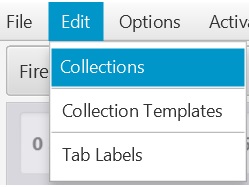
Figure 22 File > Edit > …
Edit Collections
Opens the Edit Collections Page (see below)
Deleting a collection deletes every item in it, together with its template and drop-down lists. Export the collection first if you might want it back.
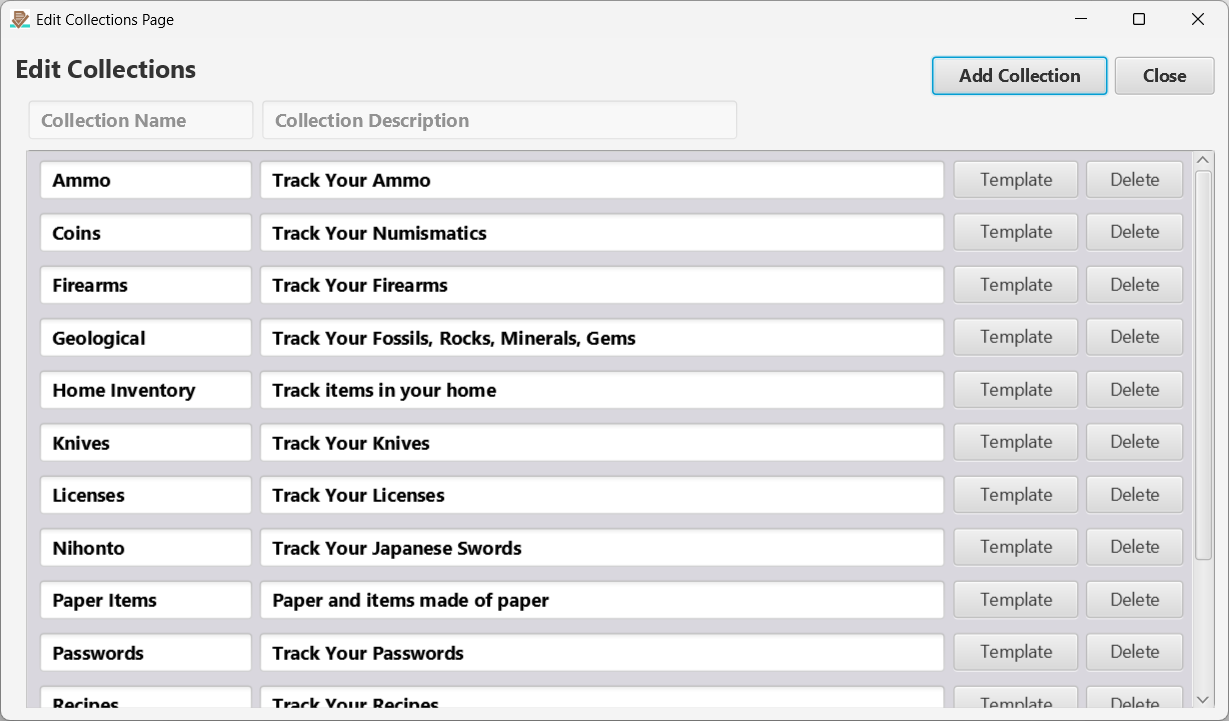
Figure 23 Edit Collections Page. Click the Template button to edit the collection template (See below)
Edit Collection Templates
Opens the Edit Template page (see below).
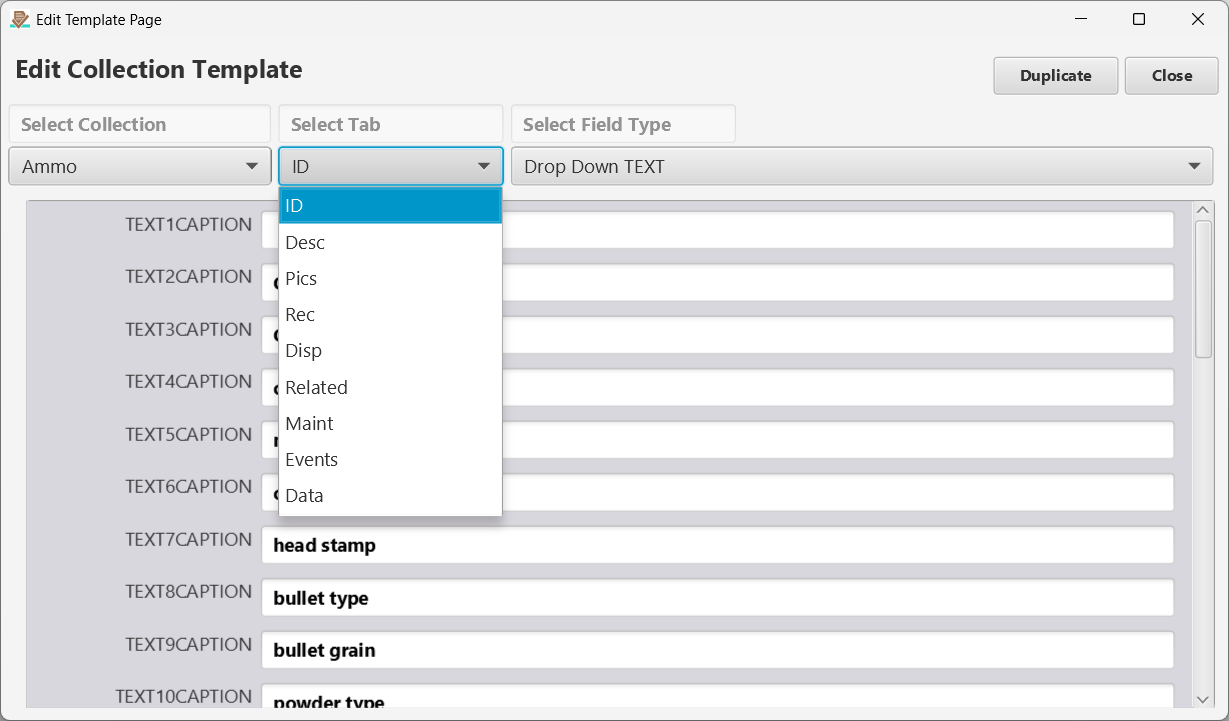
Figure 24 Edit Collection Template Page. Here you can edit any caption for any field on any tab. Remember the field types discussion above? The far right drop down allows you to select the field type that you want to edit the captions for.
Edit Tab Labels
You do not like the current tab labels? You can change them to whatever you want here. Keep them short so they fit in the tabs!
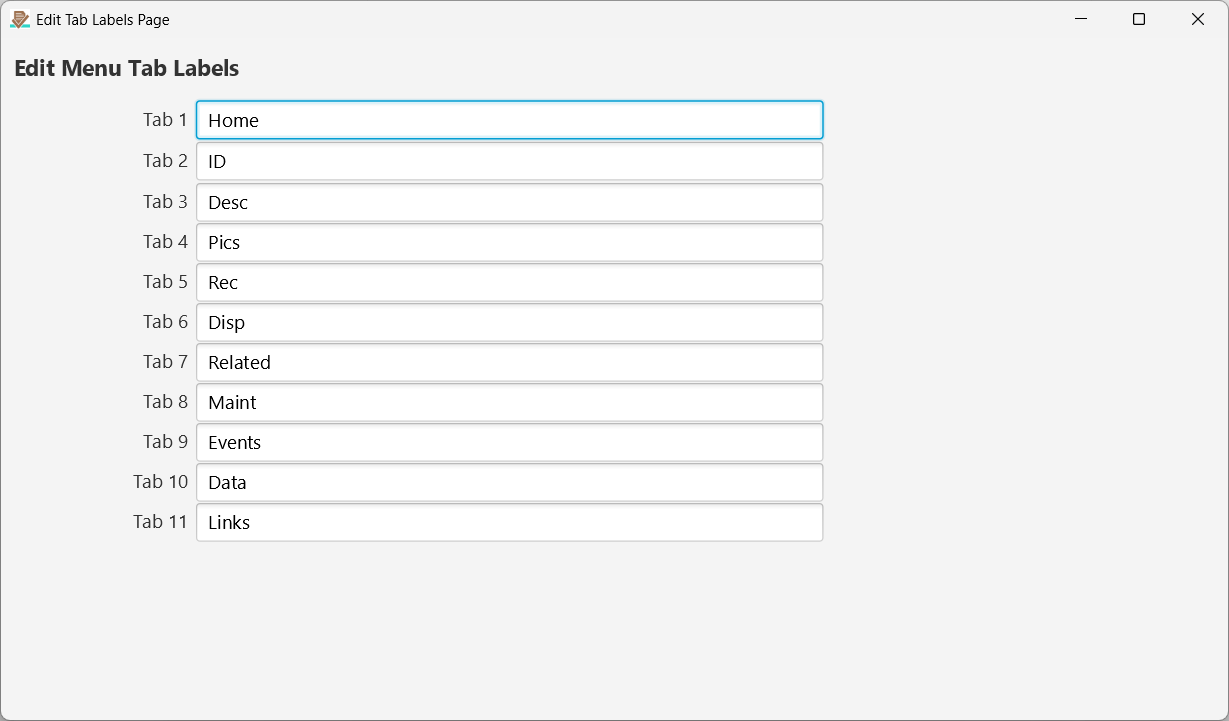
Figure 25 Edit Tab Labels.
Options Enable/Disable Backups
Automatic backups are enabled by default but they can be disabled through this menu option. After they have been disabled you can go back here to enable them.
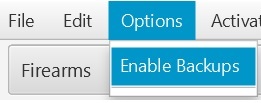
Figure 26 Options > Enable/Disable Backups.
Activation Menu
Here you can [View] the status of your activation, open the eCommerce site to [Purchase] an activation, and [Apply] a purchased activation after you have downloaded it from the activation email you will receive after purchase. If a new activation is applied, the activation file will be loaded and the expiration date will be updated to match the current subscription.
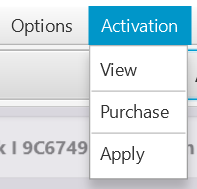
Figure 27 Activation.
Help > About Menu
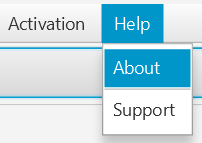
Figure 28 Help Menu options.
About Page
This is a very useful page when you are trying to figure out where certain files exist on your system. One of the most important ones is the Exports directory. This is where you go to find exported data. The page also shows a privacy statement: the app connects to the internet only when you drop a picture from a web page onto the Pics tab, and links, Purchase and Support open in your web browser.
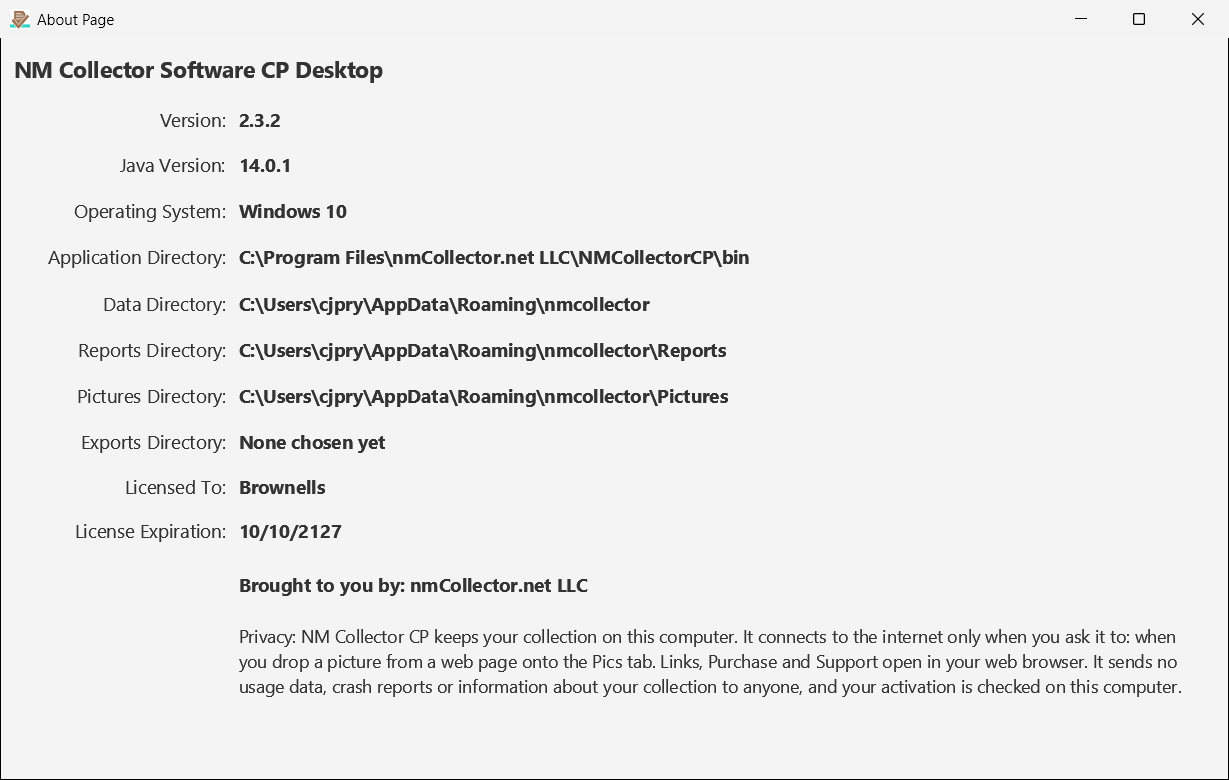
Figure 29 About Page.
Support
Opens the NM Collector CP support site, www.nmcollector.net/support.
← Clear Database Menu | Contents | Companion Apps →
Part of the NM Collector CP 2.3 user manual. Download the full manual (PDF).