
Collection software for firearms, coins, stamps, knives, Japanese swords, geological specimens & more - offline - no cloud risks - Windows, Mac, Linux, iOS, and Android.
Try full features Free for 30 Days - No Credit Card. After 30 days you can upgrade or continue to use free version.
Unzip it into a templates folder, then choose File > Import > Collection Template.
Geological collection template
Rock and Mineral Collection Software
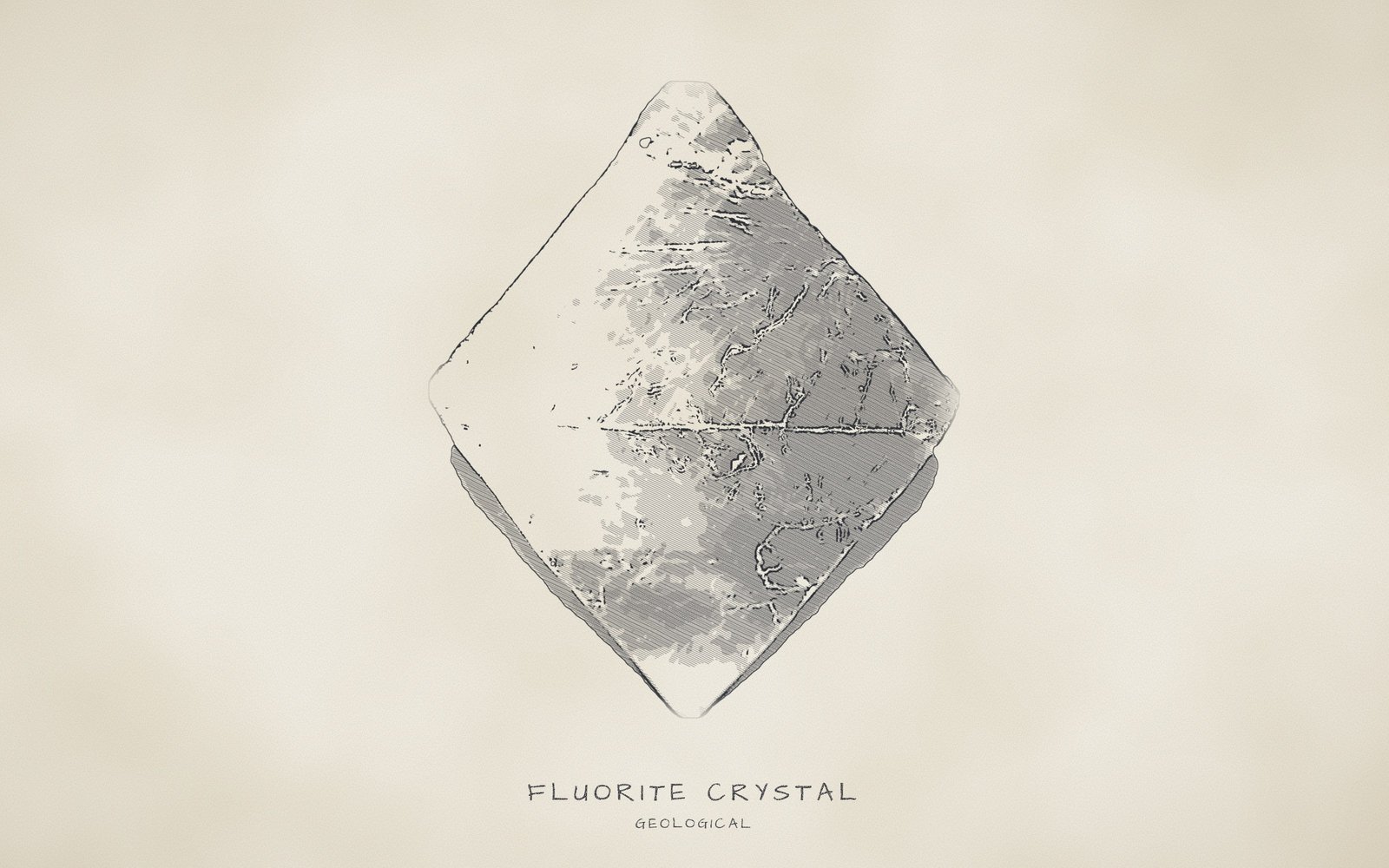
Drawing after a photo by James St. John, CC BY 2.0, via Wikimedia Commons.
A catalog for rocks, minerals, gems, fossils and meteorites, organized by the properties that identify each specimen.
36 labelled fields, 22 drop-down lists, 293 preset values.
Offline, on your own devices, with the geological terms collectors use.
NM Collector CP catalogs rocks, minerals, gemstones, fossils and meteorites in the language of the hobby. Each specimen gets a record that says what it is, where and when it was found, how old it is thought to be and how it tests, with room for pictures, a purchase receipt, care work and the field trips behind it. The Geological template labels the fields in geological terms and supplies standard terms for most of them, from Mohs hardness (the scratch-resistance scale) to geologic ages.
It suits amateur rockhounds, club members, teachers who keep a teaching collection, and families who have inherited a cabinet of specimens. Every label can be renamed and every list edited, so the template can be reshaped for a narrow focus such as fluorescent minerals or one collecting district, and you can copy it or build a new template from scratch. Your records stay on your own computer or phone, and the app works with no internet connection.
Browse the full lists
Choose a list in the first drop-down, then open the second one to scroll through every value in that list, or start typing to jump to a value. These are for browsing only; nothing you pick here is saved.
At a glance
- Identity in 4 fields: "Type", "Category", "Common Name" and "Technical Name", which can hold a chemical formula or a genus and species.
- Each physical property has its own field: "Streak", "Luster", "Cleavage", "Fracture", "Transparency", "Specific Gravity" and "Fluorescence", most with standard terms to pick from.
- "Hardness" lists the 10 Mohs reference minerals, from "1 Talc" to "10 Diamond", plus 6 half steps for in-between results.
- "Crystal Form" covers growth habits such as "Botryoidal" and crystal systems such as "Isometric (Cubic)" in a single list.
- "Estimated Age" offers 18 geologic time names from "Precambrian" to "Holocene", and "Aging Method" records how the age was established.
- "Location Found" starts with 14 New Mexico collecting sites you can replace with your own, and "Date Found" records when a piece was collected.
- "Size" runs from "Thumbnail (under 1 inch)" to "Museum Size", and "Weight" is typed with its unit, such as 185 g.
- 3 sample specimens (a fluorite, a trilobite and a thunder egg) show how a finished record looks.
- Each record can carry pictures, a receipt, care work and events, and reports can be printed or exported to CSV.
Works offline on Windows, Mac, Linux, Android and iOS · Your records stay on your devices · Every feature free for 30 days · Activations from $24.95 a year.
What this template is for
This template is built for people who collect, study or simply look after rocks, minerals, gemstones, fossils, meteorites and similar natural specimens: rockhounds (hobbyists who hunt and gather rocks and minerals), club members, teachers, students and the owners of an inherited cabinet. It records what each specimen is, where and when it was found, how old it is thought to be, what it looks like, how it tests and what it is worth to you. The "Type" list includes "Mineral", "Gemstone", "Fossil" and "Meteorite", so a single collection can hold everything in the cabinet.
The two tabs divide the work. Identification holds the facts that tell one specimen from every other: what kind of material it is, its everyday and scientific names, where it was found and how old it is thought to be, plus a free-form tag for your own catalog number. Description holds the physical evidence and the paperwork: the bench tests a collector runs (color, streak, hardness, cleavage, luster, fluorescence), size and weight, condition, dates and values. Together they keep two pieces of the same mineral distinct when their origin, age or appearance differ.
Every text field is a drop-down list, and most arrive filled in, so you pick a value instead of typing it. "Common Name" offers 72 choices, "Category" offers 37, and "Estimated Age" offers 19, made up of 18 geologic time names spanning "Precambrian" to "Holocene" plus "Unknown". "Hardness" comes with the ten Mohs reference minerals, and "Location Found" starts with 14 New Mexico locations. Because you choose from the list rather than retype each name, the same mineral is much less likely to be split into two groups in a report. Any list can be edited, and a value you type once can be added for next time.
What you can do with it
- Print an item-by-item list for your insurer that shows what each specimen is, its size and weight, and the insured value and date you recorded for it.
- Use a custom report to pull out every specimen that shares a property, such as all pieces marked "Longwave UV", everything in one "Category", or every item from a single site like "Hansonburg NM".
- Keep a collecting log: record where and when each piece was found, and log field trips, shows and swaps as events with a date and cost, so the story behind the cabinet is not lost.
- Prepare for an appraisal or a sale by gathering identification, size, weight, condition comments and any earlier appraised value and date in one place, then printing a report for the appraiser or buyer.
- Track care for fragile pieces: log cleaning, stabilizing or re-boxing on the Maintenance tab and record a next due date, so you can see which crumbling fossil or dusty display is due for attention.
- Share a clear record with family or heirs by printing reports or exporting the items to CSV, so they can see what each specimen is, where it came from and what you thought it was worth.
- Show how sure you are of each age by pairing "Estimated Age" with "Aging Method", from an index fossil to a radiometric date, so a firm date is never confused with a guess.
Best for: Rockhounds, mineral and fossil collectors, club members and anyone who has inherited a cabinet of specimens and wants a clear record of what each piece is, where it was found and how it tests.
Why collectors choose NM Collector CP for Geological
Scientific and Collecting Data Together
One record holds the science and the story. Identification and Description carry the type, category, names, hardness, streak, cleavage and crystal form, while the same specimen also stores where and when it was found, what you paid on the Receipt tab, its pictures and its care history. Nothing has to be matched up later between a field notebook, a spreadsheet and a folder of photographs.
Locality Records That Stay Private
Where a specimen came from is often its most valuable fact, and an active collecting site may need to stay quiet. What you enter in "Location Found" and "Notes" is stored on your own computer or phone, and the app never connects to the internet, so site names, landowner details and access notes are not uploaded. Anything that leaves your devices is a file or report you chose to share.
Field Work and Lab Documentation
The Android and iOS apps work without a signal, because the app never connects to the internet. Log "Date Found", "Location Found" and a note at the site, then refine the "Common Name" and add "Hardness", "Streak" and other test results when you are home. To carry a collection between phone and computer, use the single transfer file, remembering that an import replaces everything on the receiving device.
Many Specimen Types in One Collection
Rocks, minerals, gemstones, fossils and meteorites can share one collection. "Type" has 12 values, including "Petrified Wood", "Tektite" and "Sand / Soil Sample", and "Category" refines them with 37 groupings such as "Fossil: Ammonite" and "Meteorite: Stony". The "Size" list runs from "Thumbnail (under 1 inch)" to "Museum Size", so thumbnail specimens and large display pieces sit side by side.
Pictures for Every Specimen
Each picture is added on the Pictures tab as its own record with a "Date Taken", a "Sequence" number and "Notes", so you can keep an overall shot, a close-up of the crystal faces and a UV view together in order. Use "Notes" to say what each picture shows, such as the magnification or the lamp used, and mark the pictures you want with "Include in Reports?".
Systematic and Reference Collections
A tidy record supports whichever way you arrange the cabinet. Use "Category" or "Type" for a systematic arrangement by mineral group or kind, "Location Found" for a district collection, and "Custom Tag" for the drawer or tray code. Custom reports let you choose fields and filters, then save the layout, and "Include In Reports?" marks which specimens belong on a teaching list or a list for your insurer.
One App for Every Collection You Keep
A new installation starts with 30 collection types, so the rock cabinet can sit beside coins, stamps, knives or a home inventory in the same app. Each collection has its own template of labels and lists. If none fits a collecting focus, copy an existing template or build a new one from scratch, and rename any label or edit any list at any time.
Try It on the Sample Specimens
A new installation includes 3 sample specimens in the Geological collection. Open the fluorite, the trilobite and the thunder egg to see how each is recorded, then enter a few of your own pieces to check whether the labels, lists and reports fit the way you collect. The app needs no account.
How the fields work
Every text field in a template is a drop-down field. Pick a value from the list or type your own; the + button adds what you typed to the list, the x button clears the field and the e button opens the list editor. Number fields accept any number, date fields hold dates and notes fields hold longer text. The details below cover every field on the Identification and Description tabs, and any drop-down on the other tabs that is specific to this template. Every list can be browsed in the drop-downs under Browse the full lists; lists of 10 values or fewer are also written out in full below.
Identification tab
The Identification tab tells one specimen from every other. The item name is built from seven fields in this order: "Custom Tag", "Type", "Category", "Common Name", "Technical Name", "Location Found" and "Estimated Age". The order matters because items read in that sequence in lists and page titles, so your tag leads every name and the age comes last. An empty field adds nothing. The tab also holds "Include In Reports?", a yes or no marker for reports.
Custom Tag
Drop-down · no preset values
A label you choose yourself, and the first piece of every item's name. Use a catalog number, a drawer or tray code, or a nickname, so each specimen can be matched to the physical label in your cabinet.
This drop-down starts empty. Type a value into the field and use the + button to add it to the list; it will be there the next time you need it.
Type
Drop-down · 12 preset values
The broadest grouping: what kind of thing the specimen is, so the collection can be sorted into its major divisions. The three sample items show the range, with "Mineral" for a fluorite crystal, "Fossil" for a trilobite and "Igneous Rock" for a thunder egg, a nodule that formed in volcanic rhyolite.
Twelve values that place a specimen in its major kind: three rock families ("Igneous Rock", "Metamorphic Rock" and "Sedimentary Rock"), natural materials such as "Mineral", "Fossil" and "Tektite" (natural glass formed by a meteorite impact), and "Man-made (slag or glass)" for slag and glass made by people rather than by nature.
All 12 preset values: choose “Type (Identification tab, 12 values)” in the Browse the full lists drop-downs, further down this page.
Category
Drop-down · 37 preset values
A finer grouping within "Type". For minerals it is the mineral group, such as "Halide" for fluorite. For fossils it names the kind of creature or plant, such as "Fossil: Trilobite". For rocks it names how the rock formed or is built, such as "Rock: Extrusive" (cooled from lava at the surface) or "Rock: Foliated" (with a layered, banded texture).
37 values in four families: 13 mineral groups (four of them silicate subtypes) such as "Sulfide", 15 fossil kinds such as "Fossil: Ammonite", 6 rock groupings, by origin or texture, such as "Rock: Chemical", and 3 meteorite classes such as "Meteorite: Iron".
All 37 preset values: choose “Category (Identification tab, 37 values)” in the Browse the full lists drop-downs, further down this page.
Common Name
Drop-down · 72 preset values
The everyday name of the specimen, such as "Fluorite", "Trilobite" or "Thunder Egg" in the sample items. Use the name your club or reference book uses and keep it consistent, so the same material is easy to find and group.
72 names in alphabetical order. Minerals make up most of the list, followed by rocks such as "Granite", with a few fossils and formations. Examples include "Amethyst", "Native Gold" and "Thunder Egg".
All 72 preset values: choose “Common Name (Identification tab, 72 values)” in the Browse the full lists drop-downs, further down this page.
Technical Name
Drop-down · no preset values
The scientific name or formula. For a mineral give the species name or chemical formula, as in CaF2 for the sample fluorite. For a fossil give the genus and species, such as Elrathia kingii for the sample trilobite. For a rock, a descriptive term works, like the sample chalcedony-filled rhyolite nodule.
This drop-down starts empty. Type a value into the field and use the + button to add it to the list; it will be there the next time you need it.
Location Found
Drop-down · 18 preset values
Where the specimen came from, often its most valuable fact. Enter the collecting site, such as "Hansonburg NM" or "Rockhound State Park (Deming NM)". When you did not find it yourself, record how it reached you, as in "Purchased", "Trade" or "Gift", and put the real collecting locality in "Notes" whenever the seller told you, as the sample trilobite does.
18 values in alphabetical order: 14 New Mexico locations, such as "Bisti Badlands NM" and "Kelly Mine (Magdalena NM)", and four general entries for pieces with no field locality, such as "Purchased" and "Unknown".
All 18 preset values: choose “Location Found (Identification tab, 18 values)” in the Browse the full lists drop-downs, further down this page.
Estimated Age
Drop-down · 19 preset values
The geologic age the material formed or lived in, chosen from the standard time names. The sample trilobite is "Cambrian". Use "Unknown" when the age has not been established, and record how you arrived at it in "Aging Method".
19 values in alphabetical order: 18 geologic time names spanning the broad "Precambrian" to "Holocene", including periods such as "Jurassic" and epochs such as "Eocene", plus an "Unknown" entry for material that has not been dated.
All 19 preset values: choose “Estimated Age (Identification tab, 19 values)” in the Browse the full lists drop-downs, further down this page.
Include In Reports?
Drop-down · no preset values
A yes or no marker you set for each item for report purposes. All three sample items are set to yes. Use it to mark which specimens belong in the reports you print, such as an insurance list or a display list.
This drop-down starts empty. Type a value into the field and use the + button to add it to the list; it will be there the next time you need it.
Description tab
The Description tab holds how a specimen looks and tests: color, streak, fracture, hardness, luster, cleavage, crystal form, transparency, specific gravity, fluorescence, size and weight. It also holds condition comments, general notes, the date found, and the appraised, current and insured values with their dates, all entered by hand.
Color
Drop-down · 16 preset values
The color of the specimen's surface in ordinary light, a quick visual filter. Many minerals vary in color, so read it together with "Streak". The samples record "Purple" for the fluorite, "Black" for the trilobite and "Banded" for the sliced thunder egg.
16 values in alphabetical order: 12 basic color names, including "Blue" and "Colorless", and four descriptive choices for stones with a pattern or sheen, such as "Banded" and "Iridescent".
All 16 preset values: choose “Color (Description tab, 16 values)” in the Browse the full lists drop-downs, further down this page.
Fracture
Drop-down · 7 preset values
How the specimen breaks where it does not split along flat cleavage planes. On a fresh break, smooth curved shell-like surfaces are "Conchoidal", as in the sample thunder egg, and rough irregular ones are "Uneven". A useful clue for telling similar stones apart.
Seven standard fracture terms in alphabetical order, including "Conchoidal" (smooth and curved), "Hackly" (jagged, as in native metals) and "Splintery" (like broken wood).
All 7 preset values: Conchoidal • Earthy • Even • Hackly • Splintery • Subconchoidal • Uneven
Streak
Drop-down · 12 preset values
The color of the fine powder a mineral leaves when drawn across an unglazed porcelain plate. It is steadier than surface color: the sample purple fluorite leaves a "White" streak. Leave it blank when you did not test the piece.
12 color values in alphabetical order, from plain choices such as "Black" and "White" to shades typical of powdered minerals, such as "Cherry Red" and "Greenish-black".
All 12 preset values: choose “Streak (Description tab, 12 values)” in the Browse the full lists drop-downs, further down this page.
Specific Gravity
Drop-down · no preset values
How many times denser the specimen is than water, typed as a figure such as 3.18 for the sample fluorite. It helps separate look-alike minerals, so record the figure from your own test or a reference book.
This drop-down starts empty. Type a value into the field and use the + button to add it to the list; it will be there the next time you need it.
Transparency
Drop-down · 3 preset values
How much light passes through the specimen: whether you can see through it, whether it lets light through but blurs the view, or whether it blocks light. The sample fluorite is "Translucent" and the thunder egg is "Opaque".
Three values in alphabetical order, forming a simple scale from blocking light to passing it fully: "Opaque", "Translucent" and "Transparent".
All 3 preset values: Opaque • Translucent • Transparent
Crystal Form
Drop-down · 17 preset values
The shape of the crystals or the way the mineral grows. Describe the growth habit, such as "Prismatic" or "Botryoidal" (rounded, grape-like masses), or the crystal system, such as "Isometric (Cubic)" for the sample fluorite. Use "Massive" when no crystals show, as with the thunder egg.
17 values in alphabetical order, mixing ten growth habits and the seven crystal systems. Habits such as "Acicular" (needle-like) and "Druzy" (a coating of tiny crystals) sit beside systems such as "Isometric (Cubic)" and "Monoclinic".
All 17 preset values: choose “Crystal Form (Description tab, 17 values)” in the Browse the full lists drop-downs, further down this page.
Luster
Drop-down · 10 preset values
How light reflects from the surface, in the terms mineral references use. Choose "Vitreous" for glassy surfaces like the sample fluorite, "Waxy" for the thunder egg, or "Metallic" for shiny metal-like minerals such as galena. It helps separate minerals of the same color.
Ten luster terms in alphabetical order, from "Adamantine" (brilliant, like diamond) to "Waxy", with "Vitreous" for glassy surfaces and a combined "Dull / Earthy" entry for surfaces that do not shine.
All 10 preset values: Adamantine • Dull / Earthy • Greasy • Metallic • Pearly • Resinous • Silky • Submetallic • Vitreous • Waxy
Size
Drop-down · 6 preset values
The size class of the specimen on a scale mineral dealers commonly use, with a rough range in inches built into most choices. Measure the longest side and pick the nearest class. The sample fluorite is "Small Cabinet (2-4 inches)" and the thunder egg is "Cabinet (4-8 inches)".
Six classes running from thumbnail to museum scale, shown alphabetically, and all but one give the size range in inches. Examples: "Thumbnail (under 1 inch)", "Miniature (1-2 inches)", "Large Cabinet (over 8 inches)" and "Museum Size".
All 6 preset values: Cabinet (4-8 inches) • Large Cabinet (over 8 inches) • Miniature (1-2 inches) • Museum Size • Small Cabinet (2-4 inches) • Thumbnail (under 1 inch)
Hardness
Drop-down · 16 preset values
Resistance to scratching on the Mohs scale, which ranks minerals from 1 (talc, the softest) to 10 (diamond, the hardest) by which one scratches another. Record "4 Fluorite" for the sample fluorite or "7 Quartz" for the thunder egg, and use a half step when a test falls between two.
The ten Mohs steps, each paired with its reference mineral, such as "1 Talc", "4 Fluorite", "7 Quartz" and "10 Diamond", plus six half steps ("2.5", "3.5", "4.5", "5.5", "6.5" and "7.5") for in-between results.
All 16 preset values: choose “Hardness (Description tab, 16 values)” in the Browse the full lists drop-downs, further down this page.
Weight
Drop-down · no preset values
The specimen's weight, typed with its unit, as in 185 g for the sample fluorite or 1.2 kg for the thunder egg. Use the unit you prefer, such as grams or kilograms for specimens and carats for cut stones, and keep it the same across similar pieces so they can be compared and appraisers or buyers can read it easily.
This drop-down starts empty. Type a value into the field and use the + button to add it to the list; it will be there the next time you need it.
Cleavage
Drop-down · 11 preset values
How a mineral splits along flat, smooth planes, as opposed to "Fracture", which describes irregular breaks. Record the number of directions, for example "Octahedral (4 directions)" for the sample fluorite, or "None" for material such as the thunder egg that does not split along planes.
11 values in alphabetical order: six name the geometry of the cleavage planes, such as "Cubic (3 at 90 degrees)" and "Prismatic (2 directions)", four rate how well they form, such as "Perfect", and one, "None", covers material with no cleavage.
All 11 preset values: choose “Cleavage (Description tab, 11 values)” in the Browse the full lists drop-downs, further down this page.
Aging Method
Drop-down · 8 preset values
How you arrived at the "Estimated Age", which matters because a dated specimen and a guessed one are not equal. Choose "Stratigraphic" when the rock layer gives the age, "Index Fossil" when a fossil known from a narrow span of time dates the rock (the sample trilobite uses it), or "Reference Book" when a published source gives it.
Eight values in alphabetical order covering the main ways of dating a specimen: laboratory methods such as "Radiometric (U-Pb)" and "Radiocarbon (C-14)", field methods such as "Stratigraphic" (dating by the rock layer it came from), and informal sources such as "Dealer Estimate".
All 8 preset values: Dealer Estimate • Index Fossil • Radiocarbon (C-14) • Radiometric (K-Ar) • Radiometric (U-Pb) • Reference Book • Stratigraphic • Unknown
Fluorescence
Drop-down · 6 preset values
Whether the specimen glows under ultraviolet (UV) light, and under which kind of lamp. The sample fluorite is "Longwave UV" and its note says it glows blue. Choose "Not Tested" until you have checked, so gaps in the collection stay visible.
Six values in alphabetical order that record the lamp type and the result: "Longwave UV" and "Shortwave UV" for a glow under one lamp, "Both" for a glow under both lamps, and "Phosphorescent" for pieces that keep glowing after the light is removed, plus entries for no reaction ("None") and untested pieces ("Not Tested").
All 6 preset values: Both • Longwave UV • None • Not Tested • Phosphorescent • Shortwave UV
Condition Comments
Notes
Free text on the physical state of the specimen: chips, cracks, glued breaks, a damaged crystal termination (the pointed tip), weathering, surface treatments or missing pieces. Write it down when the piece arrives, because buyers and appraisers usually ask about condition.
Notes
Notes
General free text for everything else worth keeping: the story of the find, a description of the matrix (the host rock a crystal grows on), how it was collected or prepared. The samples use one short sentence each, such as cubes on quartz matrix or the shale formation and county of a trilobite.
Date Found
Date
The date you collected or found the specimen, useful for field trip records and provenance (the history of where a piece came from). Fill it for material you dug or picked up yourself. In the samples the fluorite and the thunder egg carry a found date, while the purchased trilobite does not.
Date Appraised
Date
The date an appraiser or knowledgeable dealer assessed the specimen and gave the "Appraised Value". Record it because values change over time, and a figure from an appraisal is only meaningful alongside the date it was made.
Date Current Value
Date
The date you last checked or updated your "Current Value" figure. You do the checking, against dealer prices, show prices or reference sources, because the software does not look prices up. The date tells you at a glance how fresh the figure is.
Date Insured
Date
The date the "Insured Value" was set or last reviewed, for example when a policy was written or renewed. It shows at a glance whether the insured figures on your best pieces are out of date.
Appraised Value
Number
The value an appraiser or expert put on the specimen, typed as a plain number in your own currency. Leave it empty until someone has actually appraised the piece, and pair it with the "Date Appraised" so the figure can be judged later.
Current Value
Number
Your own estimate of what the specimen is worth today, typed as a plain number in your own currency. The samples show 60.0 for the fluorite and 35.0 for the trilobite. Update it when you review prices, and note the review in "Date Current Value".
Insured Value
Number
The amount the specimen is insured for, typed as a plain number in your own currency. It can differ from the "Current Value" and the "Appraised Value", and it is the figure an insurer will ask about when you go through your list.
Drop-downs on the other tabs
These fields belong to tabs that every collection has, but this template gives them values of its own.
Maintenance tab
Operation
Drop-down · 7 preset values
The kind of care work done on a specimen. Log "Clean" for a washing or brushing, "Stabilize" for consolidating a crumbling piece, or "Photograph", as with the sample thunder egg that was re-photographed for the catalog. Dates and a cost can be added to each entry.
Seven care tasks in alphabetical order, from "Clean" and "Repair" to specimen-specific jobs such as "Stabilize" and "Trim Matrix" (cutting away excess host rock).
All 7 preset values: Clean • Label • Photograph • Re-box • Repair • Stabilize • Trim Matrix
Completed Units
Drop-down · 2 preset values
The unit of time, "months" or "years", that goes with the "Completed Increment" when a care task is logged. Choose the unit that matches the interval you enter, so a task recorded as "12 months" uses "months".
Two values, "months" and "years", which are the two time units the template offers for logging care intervals.
All 2 preset values: months • years
Next Due Units
Drop-down · 2 preset values
Sets the unit, "months" or "years", used when you plan the next round of a care task. Pair it with the "Next Due Increment": "months" suit an annual cleaning, "years" suit a slow cycle such as re-photographing the collection.
Two values, "months" and "years", the same pair of time units offered on the completed side of a care task.
All 2 preset values: months • years
Completed Increment
Drop-down · 2 preset values
An amount of time paired with "Completed Units" to describe a care task you have finished. Ready-made choices are "12 months" and "5 years", and you can type another amount if your routine differs.
Two ready-made amounts: "12 months" for yearly jobs and "5 years" for long-cycle ones. Add your own amounts to the list as needed.
All 2 preset values: 12 months • 5 years
Next Due Increment
Drop-down · 2 preset values
The interval until a care task should be repeated, chosen from ready-made amounts. Use "12 months" for a yearly check on a fragile fossil, and "5 years" for slower jobs such as fresh catalog photographs.
Two ready-made amounts, the same pair offered for completed tasks: "12 months" and "5 years". Add the intervals your own routine needs.
All 2 preset values: 12 months • 5 years
Events tab
Event
Drop-down · 8 preset values
The kind of occasion being logged against a specimen, such as a "Field Trip" where it was collected or an "Identification Session" where others examined it. The sample fluorite carries a field trip entry with a description of the club outing, its results and its cost.
Eight occasions in alphabetical order covering a collector's year: outings and gatherings such as "Field Trip" and "Club Meeting", shows including "Tucson Show", and acquisition events such as "Swap".
All 8 preset values: Club Meeting • Field Trip • Gem and Mineral Show • Identification Session • Museum Visit • Purchase • Swap • Tucson Show
Tabs every collection shares
Besides Identification and Description, each item has these tabs. They work the same way in every collection.
- Pictures: Attach photographs to an item, with a note, the date each was taken, a sequence number and a flag saying whether the picture belongs in reports. Pictures are copied into the application’s own folder and stay on your device.
- Receipt: Who you got the item from and when: the business or person, address, date and amount, plus notes.
- Disposition: The same layout for the other end of an item’s life: to whom it was sold, traded or given, where, when and for how much.
- Related: Link an item to other items in your collections, for example a rifle and its scope or a watch and its box.
- Maintenance: Record maintenance operations with what was done, who did it, where, what it cost, when it was completed and when the next one is due. Repeat an operation each time you perform it.
- Events: A dated log of things that happen to an item: shows, appraisals, loans, repairs and outings, with a description, results, helpers, location and cost.
- Data Sheet: A large free-form area for anything that does not fit elsewhere, such as detailed measurements or component notes.
- Links: Links to web pages, documents and pictures related to an item, each with an optional description.
The three sample items
Every new installation includes three sample items in this collection so you can see how the fields are meant to be filled in.
- Purple fluorite from Hansonburg NM (listed as “Mineral Halide Fluorite CaF2 Hansonburg NM Unknown”): A fully described mineral. Identification gives the formula CaF2 as the "Technical Name" and "Hansonburg NM" as the location, while Description fills nearly every test field, including streak, specific gravity, hardness, cleavage and "Fluorescence", plus weight, a short note, the date found and a current value. Receipt and Events entries record the field trip.
- Cambrian trilobite bought at a rock shop (listed as “Fossil Fossil: Trilobite Trilobite Elrathia kingii Purchased Cambrian”): A purchased fossil. "Location Found" records how it was acquired, while the note carries the real origin, the Wheeler Shale of Millard County, Utah. Only a few Description fields are used: color, size, "Aging Method" as "Index Fossil" and a current value. It shows a sample need not fill every field, and the Receipt tab keeps the shop and amount.
- Banded thunder egg from Rockhound State Park (listed as “Igneous Rock Rock: Extrusive Thunder Egg Chalcedony-filled rhyolite nodule Rockhound State Park (Deming NM) Unknown”): A rock specimen with a descriptive "Technical Name", Chalcedony-filled rhyolite nodule, filed under "Igneous Rock". Description records fracture, transparency, crystal form, luster, size, a hardness of "7 Quartz", weight in kilograms and cleavage, with a date found but no value. A Maintenance entry logs the re-photograph for the catalog.
Tips
- Write the "Custom Tag" number on a label or tray note that stays with the specimen, so the record and the rock stay matched.
- Record where and when a piece was found as soon as it comes home, because locality is the hardest fact to reconstruct later. Add each new collecting site to the "Location Found" list so it can be picked next time.
- Set "Fluorescence" to "Not Tested" for pieces you have not checked yet, then update it as you test. A custom report can later show exactly which pieces are still waiting for a UV lamp.
- When you buy a piece, write down the locality the seller gives you in "Notes" straight away, and add a photograph on the Pictures tab before the piece goes into the drawer.
Frequently asked questions about Geological
What geological information can NM Collector CP track for each rock, mineral or fossil?
The Geological template records identity with "Type" (for example "Mineral", "Fossil" or "Meteorite"), "Category", "Common Name" and "Technical Name", and origin with "Location Found", "Estimated Age" and "Aging Method". Test results have their own fields: "Hardness", "Specific Gravity", "Color", "Streak", "Luster", "Cleavage", "Fracture", "Crystal Form", "Transparency" and "Fluorescence". "Size", "Weight", "Condition Comments", "Notes", "Date Found" and the values you enter yourself complete the record.
Can I keep rocks, minerals, fossils and meteorites in the same collection?
Yes. "Type" has 12 values, including "Mineral", "Igneous Rock", "Metamorphic Rock", "Sedimentary Rock", "Fossil", "Meteorite" and "Gemstone", and "Category" adds 37 finer groups such as "Fossil: Trilobite" and "Meteorite: Iron". A formation name, such as the shale a fossil came from, fits in "Notes". If you would rather keep each kind apart, copy the template to make a second collection and edit its lists.
How do I document the locality where a specimen was found?
"Location Found" is a drop-down that starts with 14 New Mexico sites, such as "Hansonburg NM" and "Kelly Mine (Magdalena NM)". Type your own mine, district or region and add it to the list. Four general entries, "Purchased", "Trade", "Gift" and "Unknown", cover pieces with no field locality. "Date Found" records when you collected it, and "Notes" holds access details, landowner names or the exact spot.
Can I record Mohs hardness and the other physical properties of a mineral?
Yes, and each property has its own field. "Hardness" lists the 10 reference minerals of the Mohs scale of scratch resistance, from "1 Talc" to "10 Diamond", plus 6 half steps such as "2.5" and "6.5". "Specific Gravity" takes a figure you type, such as 3.18, and "Streak", "Luster", "Cleavage", "Fracture" and "Fluorescence" each offer standard terms to pick from.
Is my specimen data private, and where is it stored?
Your records are kept on your own computer or phone. NM Collector CP itself never connects to the internet and needs no account, so your localities, values and inventory are not uploaded by the app. If you choose to send a transfer file or a report by email or through a cloud service, that copy travels through the provider you picked and is only as private as that provider makes it.
Can I use NM Collector CP in the field while collecting, without cell service?
Yes. The Android and iOS apps store the collection on the phone and never connect to the internet, so a trip without a signal makes no difference. Enter "Location Found", "Date Found" and a note at the site, then refine the "Common Name" and add test results at home. To move the collection between phone and computer, use the Collection Data Transfer option on the Export and Import pages. An import replaces everything on the receiving device, so export from it first.
How do I record a specimen when I am not sure what it is?
Pick the closest "Common Name", leave "Technical Name" empty, and describe the doubt in "Notes", for example the alternatives you are considering. You can type a name that is not in the list and add it. Because the item name is built from the Identification fields, correcting "Common Name" later changes how the item reads in lists. Record "Unknown" in "Estimated Age" or "Aging Method" until a test settles it.
Can NM Collector CP handle micromounts, thumbnail specimens and large display pieces?
Yes. "Size" has 6 classes: "Thumbnail (under 1 inch)", "Miniature (1-2 inches)", "Small Cabinet (2-4 inches)", "Cabinet (4-8 inches)", "Large Cabinet (over 8 inches)" and "Museum Size". A micromount, a specimen small enough to study under a microscope, fits the first class, or you can type your own size class and add it to the list. Put the mounting type in "Notes" and add pictures on the Pictures tab.
How do I add the Geological template to an installation I already use?
New installations of NM Collector CP 2.3 already include it. If you have used the software before, download the template from the Downloads page and choose Collection Template on the Import page. The Description tab gains "Fluorescence" and "Date Found", and no existing label changes. If a field you labelled yourself would be renamed, the app lists it and asks first. Your items are never altered, though your "Type" list may show old and new wording of the 3 rock families until you delete the old entries.
What do the 3 sample specimens in the Geological collection show?
A new installation includes 3 specimens to copy from. A purple fluorite from "Hansonburg NM" shows a fully tested mineral, with a receipt and an event logged as "Field Trip". A trilobite bought at a rock shop shows how little you need to fill in when its origin is in "Notes". A banded thunder egg shows a rock with a descriptive "Technical Name" and a Maintenance entry that logs the "Photograph" task.
Getting this template
New installations of NM Collector CP 2.3.1 start with all 29 templates. If you already use NM Collector CP, use the Download Template button at the top of this page, unzip the file into a templates folder on your computer, and add it with File > Import > Collection Template. The app matches the collection by name, creates it if you do not have it, and asks before it changes what any field is called.
NM Collector CP is free to try with all features for 30 days, with no credit card. After that you can keep using the free version, which needs no activation, or buy an activation for the full-feature version, for 1, 2 or 5 years or for life.
If you already have a Geological collection
If you already keep a geological collection, importing the refreshed template adds to it. The Description tab gains "Fluorescence" and "Date Found", the "Type" list gains "Igneous Rock", "Metamorphic Rock" and "Sedimentary Rock", and the "Category" list gains mineral groups and fossil types. No existing label changes. Your items keep the "Type" value they hold, so both the old and new spellings appear in the list until you remove the old ones.
Try it with your own collection
Every feature is free for 30 days, with no credit card, on Windows, Mac, Linux, Android and iOS. Download the free trial.